
User Guide
Every SlydeForge feature explained in detail, with screenshots — from your first launch to the workflow editor.
SlydeForge is a desktop application to create, edit and present slide decks, with two complementary ways of working: describe what you want to the AI (generation and edits by prompt) or edit directly with the mouse (move, resize, properties panel). Both methods act on the same document, at any time: you never have to pick one or the other.
0. What's new?
The latest SlydeForge releases bring many new features. This table shows, for each one, where to find it in the application and which section of this guide explains it.
Ambiances and presentation styles
| What's new | Where to find it | Details |
|---|---|---|
| 20 ambiances: complete styles (magazine, tech, bento, luxury, aurora…) applied to your brand colour, no tokens, with sliders, colours, advanced fonts and gradient background | Brand kit > Create a brand kit with AI… and brand kit editor > Change ambiance… | Ambiances |
| Change the ambiance of an existing brand kit, with a template-by-template before / after (and large); your hand-made templates are adapted, kept or dropped | Brand kit editor > Change ambiance… | On an existing brand kit |
| /ambiance: change the presentation style from the assistant, in one sentence, no tokens | Type / in the input box | The “/” commands |
| Deck rhythm and new compositions (key points, processes, two columns, conclusion): slides that come back no longer look alike | Automatic with an ambiance; Layout > Another layout button | Deck rhythm |
| Background gradients: native PowerPoint, kept on import and export | Gradient / solid background in the ambiance settings | On PowerPoint export |
| Brand kit editor: panels resizable with the mouse, buttons shrink to icons when space runs short | Brand kit > Edit the current brand kit… | Section 10 |
Animations and staging
| New feature | Where to find it | Details |
|---|---|---|
| Animations really play in the slideshow (fade, rise up, fly in, zoom, pop, bounce…), with text that always stays sharp | Automatic, F5 key | Section 14 |
| Staging window: one motion style for the whole deck, an intensity, an animated background, an animated preview | Slideshow > Staging… (Ctrl+Shift+M) | Presentation staging |
| Morph transition: elements shared by two slides glide and transform | Right-click a thumbnail > Animations & transitions > Duplicate for Morph | Morph |
| Animated backgrounds: 12 backgrounds (Mesh gradient, Aurora, Waves, Constellation, Light beam, Ripples…), some with a variant to choose | Right-click a thumbnail > Animations & transitions > Animated background | Animated backgrounds |
| Kinetic typography: text revealed line by line, word by word or letter by letter | Properties > Animation > Split panel | Animating an element |
| Living data: rolling counter, highlight, chart that draws itself, pulse | Properties > Animation > Emphasis panel | Emphasis effects |
| 7 new entrance effects: Mask Reveal, Rise Up, Pop, Bounce, Slide In, Drop In, Typewriter | Properties > Animation > Effect panel | Available effects |
| Effect gallery: each effect shown on your object, search (even by PowerPoint name), categories, filters, "ideal for / avoid"; F1 opens the right guide topic | Effect list of the properties, Object Animation…, Slide animations | Animating an element |
| Play: replay the animated current slide without starting the slideshow | ▶ Play button above the canvas | Section 2 |
| Check staging: animations too long, overlaps, empty slides | Slideshow > Check staging… | Staging |
| Presenter view: "Next click: …" line | Presenter console | Section 14 |
Menus and editing
| New feature | Where to find it | Details |
|---|---|---|
| Reorganised thumbnail right-click menu: 8 entries instead of 17, grouped by purpose | Right-click a thumbnail | Section 2 |
| Settings menu arranged in 4 sections (Artificial intelligence, Content and media, Application, Updates): AI… now only contains AI settings; new Royalty-free photos…, Voice and dictation… and Language and appearance… (with dark mode) windows | Settings menu | Section 19 |
| ✦ AI bar above the canvas, grouped as Content │ Visual │ Motion: Challenge, Formatting, Effects, Photo, Illustration, Animate — and the Which button should I use? card (click ✦ AI) | Above the slide | Section 5 |
| Group / Ungroup objects | Right-click, Edit, Ctrl+G / Ctrl+Shift+G | Section 7 |
| Edit several objects at once from the properties panel | Multiple selection | Section 6 |
| Tables: style gallery, banded rows, total row, density, automatic readability | Edit the table… | Tables |
| Search all slides and notes | Ctrl+F | Section 2 |
| Search the assistant (your past requests, even collapsed) | Assistant magnifier, or Ctrl+F from the assistant | Section 2 |
| Markings: Confidential, Draft… as a ribbon, stamp or watermark, on one or every slide | Insert > Marking | Markings |
| SVG images accepted everywhere, and the color of an SVG icon of your choice (brand kit or custom), also through the assistant | Properties > Image > Drawing color panel | SVG images |
| Photo editing: crop on the slide, mirrors, auto fix, AI enhancement on your PC (enlarge a small image, reduce noise), 37 filters, adjustments, brand tint, transparent or replaced colour, edge fade, harmonising all photos | Double-click a photo (crop), Edit image button above the slide | Editing a photo |
| Subject cutout of a photo, and text behind the subject (computed on your PC) | Right-click an image > Cut out the subject, or Edit image > Image effects | Cutting out a photo |
| Image blur and Focus pull entrance; portrait effect on a cut-out photo (blurred background, sharp subject) | Edit image > Image effects > Blur, and Object animation > Focus pull | Blurring an image |
| Fill (blurred background): a vertical photo in a 16:9 slide, whole and sharp, over a blurred copy of itself | Properties > Image > Fit > Fill (blurred background) | Vertical photo |
| Keyword: one or two words of a title in the brand kit's accent font ("two-voice" typography), kept in PowerPoint; the text format painter applies a style to another text box, even on another slide | Double-click a text > Keyword button in the mini toolbar; font in the brand kit editor | Highlighting a word |
| Effects: modern finishing touches on the displayed slide (keyword, title behind the subject of a photo, portrait effect, blur, blurred fill) without changing the text or the layout; Animate also suggests an animated background on covers, section slides and conclusions | Effects button of the ✦ AI bar, /suggest_effects, right-click a thumbnail | Effects |
| One-click layouts: Normal, Assistant, Editing, Outline, Focus — enlarge the right area without resizing each panel; a collapsed panel becomes a strip bearing its name | Buttons at the bottom right, View menu, Ctrl+1 to Ctrl+5 | Layouts |
| The 3 latest versions in the menu, with a thumbnail, restored in one click (the current state is kept as "Before restore") | Versions menu | Section 13 |
Artificial intelligence
| New feature | Where to find it | Details |
|---|---|---|
| New generation engine: the AI writes the content, SlydeForge computes the layout in your brand kit (faster, no overflow) | File > New from a brief… | Section 3 |
| Slide language chosen in the brief (5 languages), then respected by edits and notes | Brief dialog | Section 3 |
| Finishing touches at generation: transitions, animations and speaker notes | Brief dialog checkboxes | Section 3 |
| 2-step Formatting: structure, then art direction (colour coding by value, banner, depth…), to refine or combine | Formatting button | Formatting |
| Challenge that asks questions before rewriting the slide | Challenge button | Challenge |
| Challenge the brief before generating: what the AI understood, a proposed outline, at most 4 questions, an improved brief | 🔍 Challenge the brief button in the New presentation window | Challenge the brief |
| Extract a project's brief: a brief that gives back the current presentation, to reread, challenge or replay from scratch; 4-step precision slider (Ideas, Outline, Content, Identical) and .zip package with all the files | File > Extract the project brief… | Extract the brief |
| Attached .zip archive: every compatible file it contains is used as a source | New presentation, 📎 Attach… | Attaching a .zip archive |
| Outlook (.msg) and Gmail (.eml) emails dragged and dropped, with their attachments, and meeting transcripts (Teams, Zoom, Meet) as sources; indexed source folders and suggestions while typing the brief (subscribers) | Drag and drop; Settings > Sources… | Emails, transcripts and folders |
| Attach a web page by framing the useful information (with a note per area), also for a page that blocks automatic reading (LinkedIn…) | 📎 Attach… > Web page, /page, link under the input box, brief button | Attach a web page |
| Get the video, images or files of a page quoted in a request | Assistant: "put the video from this page on slide 5: https://…" | Elements of a page |
| Online videos played in the slide (YouTube, Vimeo…), never downloaded | Assistant: "add a slide with this video: https://…" | Online videos and sounds |
| Royalty-free photos and AI-generated images already placed in the slide | Photo and Illustration buttons | Photo and Illustration |
| Token cost shown in every AI window, even for a cancelled action | AI windows and assistant | Cost |
| AI usage report: by period, project, action type and AI, with plain-language explanations | Settings > AI usage…, /consommation | Report |
| Local model diagnosis (Ollama, LM Studio) | Settings > AI… > Test connection | Section 19 |
| Request queue: send your requests one after another while the AI is working, without waiting for it to finish or for your review | Assistant's Add to queue button | Request queue |
| Combined review, D1, D2… badges and dotted added slides on the thumbnails, read-only Preview, conflicts flagged | Review and Preview in the queue | Request queue |
| Live dictation: the text appears while you speak, without Internet, in 5 languages, with spoken punctuation; guided microphone setup for a close, clear voice in recordings | 🎤 Dictate button; Settings > Voice and dictation… > Microphone | Section 4 |
| Change a specific area of a busy slide; when in doubt, the assistant numbers the possible areas on the slide or lets you draw it | Assistant | Specific area |
| Suggested scope while you type ("Slide 3 only?", Tab to apply it, no tokens) and Keep slide N only in the preview to fix a forgotten scope without calling the AI again | Assistant, above Send; before/after preview | Section 4 |
| One card per request in the assistant: status updated in place, steps on one line, follow-ups indented, old cards collapsed, collapse / expand all in one click | Assistant panel | One card per request |
| The log no longer jumps to the bottom while you reread: a "↓ N new messages" badge shows what's coming | Assistant panel | One card per request |
| Essential plan: personal AI connectors, Staging and an uncapped free trial | Subscription menu | What a subscription unlocks |
1. First launch
On first launch (or as long as no project is open), SlydeForge always asks how to start. There is never a session "in the void": everything starts from a saved project, which guarantees that the chosen brand kit is applied and that the history of exchanges with the AI is kept.
Four choices are offered:
- New project from a brief (AI): describe the topic, the audience and the desired number of slides in a few sentences, and optionally attach source files (Excel, Word, PDF, PPTX…). The AI plans then generates a complete presentation. See section 3.
- New blank project: starts from a sample presentation ready to adapt, useful to explore the application or to start from an already polished design.
- New from an existing PowerPoint file: imports a .pptx file and converts it into a new, fully editable SlydeForge project (a progress bar shows during the import). The conversion never blocks: an unsupported element is skipped with a warning. Object groups from the file are kept. Handy to take over an existing presentation and then update it from an Excel file attached to a prompt.
- Open an existing project: resumes a saved project, with its full conversation history and versions.
For a new project, SlydeForge also asks for the format (16:9, 4:3, 16:10, or a social media format: 9:16, 1:1, 4:5).
Without an AI configured, only manual editing with the mouse works. The setup wizard (see section 19, also available from Help > Initial AI setup…) shows up again at every startup until an AI is configured. It presents, as clickable cards:
- a free trial with no credit card (Google Gemini, Groq or OpenRouter), to discover the AI features before choosing a lasting setup. Without a subscription, it is capped at 300,000 tokens per month (enough to test on a few presentations);
- the SlydeForge subscription when offered (at the top of the list if it is already active);
- a full connector (OpenAI-compatible API, GitHub Models or GitHub Copilot Enterprise) for users who already have their own AI access. For subscribers, from the Essential plan ("🔒 Subscription required" badge on the card).
The first time you open a project, a six-bubble guided tour introduces the editor: the assistant, the slides, the canvas, the properties, the layouts (with a legend of the five buttons), then the slideshow and export. So that every step has something to show, the tour first opens every panel (Normal layout). Next (or Enter) moves on, Skip the tour (or Esc) closes it; it never comes back by itself, but can be restarted from Help > Guided tour.
2. The main window
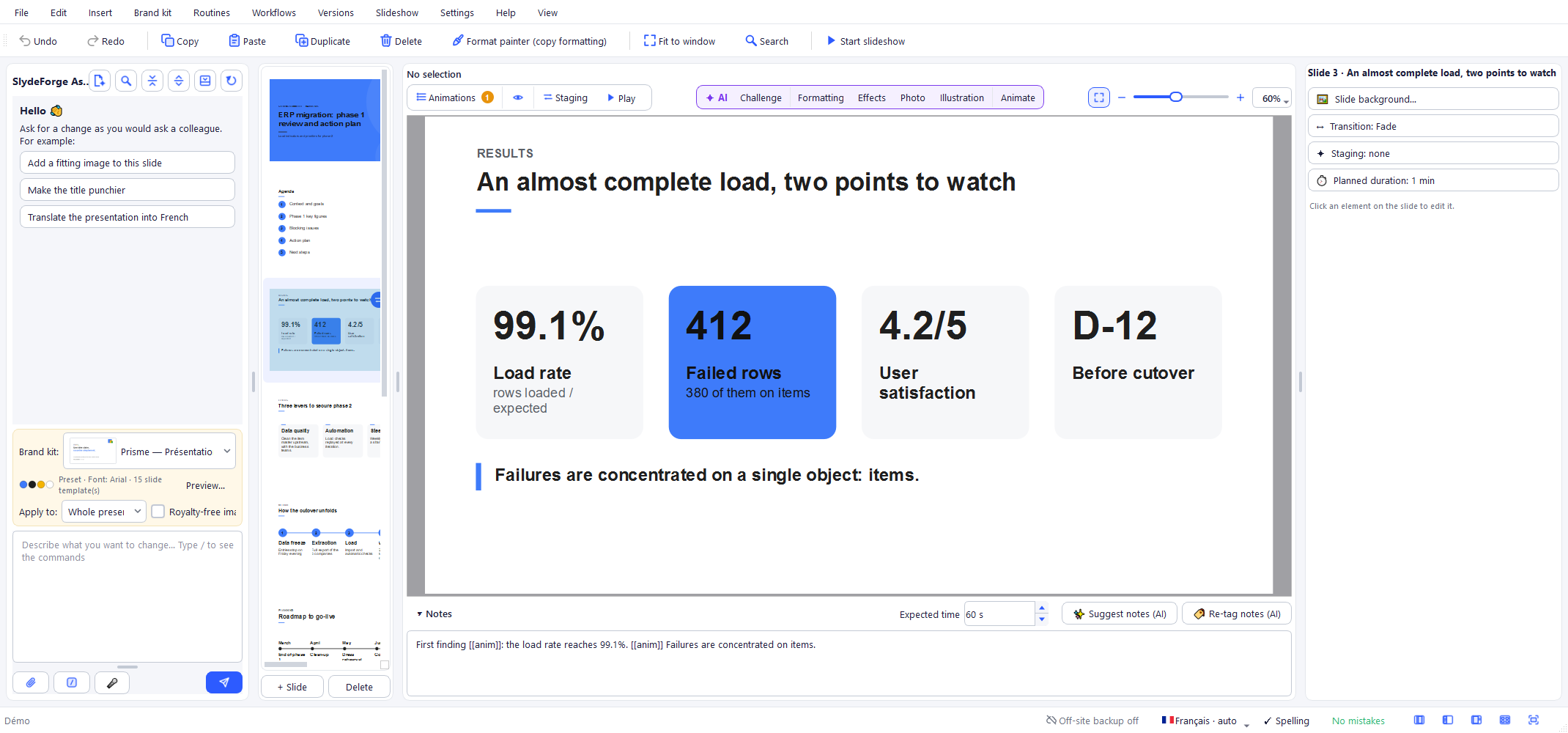
The window is split into four areas, resizable by dragging the vertical splitters, or rearranged in one click with the layouts (buttons at the bottom right):
- SlydeForge assistant (left): the conversation with the AI. Describe a change, attach files, choose the scope ("Whole presentation" or "This slide") and the brand kit.
- Slide strip: thumbnails of every slide, reorderable by drag and drop; + Slide / Delete buttons at the bottom.
- Canvas (centre): the displayed slide, directly editable with the mouse.
- Properties panel (right): the settings of the selected element(s): text, shape, image, table, chart, animation, position and size, layer order.
Above and below the canvas
A row of buttons sits above the slide. It clearly separates what is manual from what calls the AI:

- Animations (neutral frame, left): opens the list of the slide's animations. An orange badge shows how many animations are set on it. The eye next to it shows or hides a ▶ badge on each animated object on the slide (hover it to see on which click it appears). Staging opens the staging window, and ▶ Play replays the current slide as in the slideshow (incoming transition, then animations) in a small window, without leaving the editor; a slide that doesn't move is flagged, with the steps to animate it. See section 11.
- Safe zones: only appears for a social media format; shows the margins to avoid (app interface bars).
- ✦ AI (purple frame, centre): all the actions that call the AI on the current slide, and only those: grouped in three families separated by a thin line: Challenge (content) │ Formatting, Effects, Photo, Illustration (only visible if an image generation service is configured) (visual) │ Animate (motion). Clicking ✦ AI opens the Which button should I use? card. When the window is narrow, the least used buttons first move into More ▾ (Formatting, Effects and Animate stay visible the longest), then all of them into Actions ▾. See section 5.
- − / + / Fit (right): canvas zoom.
Below the canvas, the Notes area (expanded by default) holds the text to say for the slide, the Expected time and the ✨ Suggest notes (AI) and 🏷️ Re-tag notes (AI) buttons. See section 12.
When a slide has an animated background, an "✦ Animated background: …" badge appears at the top right of the canvas; clicking it opens the Staging window.
The menus at a glance
| Menu | What you will find there |
|---|---|
| File | New (sample, brief, PowerPoint), Open / manage projects, PPTX and video exports, Convert / Duplicate to…, .zip project export/import, project brief extraction |
| Edit | Undo/Redo, Copy/Paste/Duplicate/Delete, Group / Ungroup, Format painter, Search slides and notes… |
| Insert | Text box, Shape, Marking, Image, Video, Audio, Background image, Data (Table, Chart, Timeline, Agenda), Slide from a type template, Interactive |
| Brand kit | Edit, create from files (AI), reapply, save a type template, marketplace |
| Routines / Workflows | Reusable prompts and automations |
| Versions | Timeline, restore, save points |
| Slideshow | Start slideshow (F5), Staging… (Ctrl+Shift+M), Check staging…, AI transitions and notes for the whole deck, animation tag review |
| Settings | AI, Language, Voice, updates, marketplaces, privacy |
| Subscription | Only visible if a SlydeForge subscription is offered |
| Help | Guide (F1), Guided tour, AI setup, feedback, Give feedback…, About |
| View | Zoom, Fit to window (Ctrl+0), Layouts (Ctrl+1 to Ctrl+5), Dark mode |
A toolbar below the menus repeats the most frequent actions: Undo/Redo, Copy/Paste/Duplicate/Delete, Format painter, Fit, Search and Start slideshow.
Dark mode is toggled with a switch in the View menu, without restarting; the choice is remembered. The View menu zoom is purely visual: it changes neither the export, the video nor the slideshow.
Layouts: enlarge the right area in one click
The five buttons at the bottom right of the window, in the status bar (like PowerPoint's view buttons), and the View menu rearrange all areas at once, without resizing them one by one with the mouse — handy on a small screen. The current layout's button is highlighted. Hover over a button: a tooltip gives its name, its shortcut and what it is for. The guided tour also introduces them on first opening.
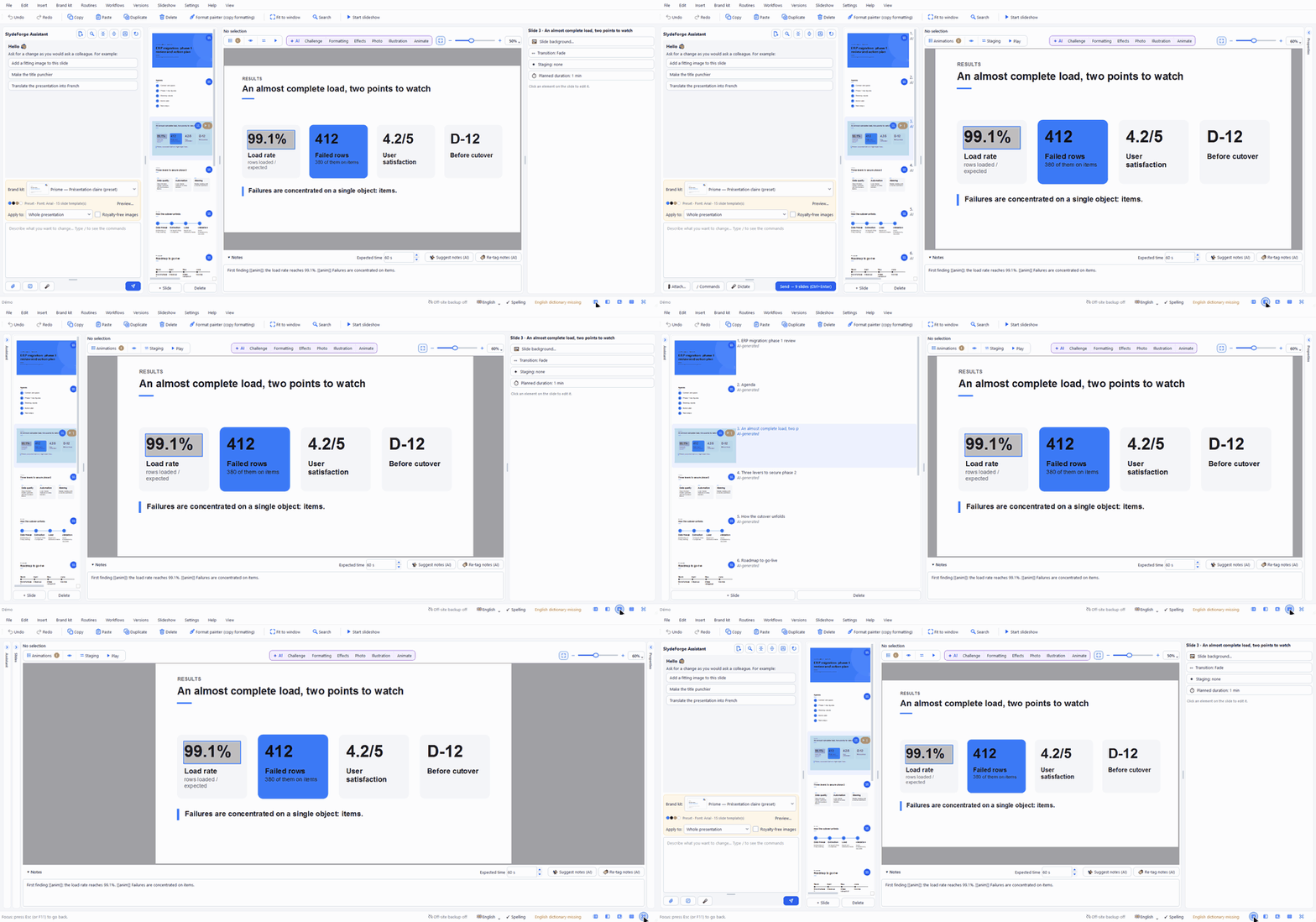
| Layout | Shortcut | What is emphasized |
|---|---|---|
| Normal | Ctrl+1 | Every panel open: assistant, slides, current slide and properties |
| Assistant | Ctrl+2 | The chat with the AI; the slide stays visible, properties are collapsed |
| Editing | Ctrl+3 | The slide and the properties panel; the assistant is collapsed |
| Outline | Ctrl+4 | Large thumbnails, to review and reorder slides |
| Focus | Ctrl+5 or F11 | The slide alone; Esc (or F11) brings back exactly the previous layout |
If you widen or narrow an area with the mouse, the layout remembers: next time, Editing comes back with the widths you chose (proportions follow the window size). However, clicking a layout always reopens its panels, even if you collapsed one by hand in the meantime: Normal brings everything back on screen.
In Focus, Esc only takes you back when you are not typing: while entering text on the slide or in a field, Esc keeps its usual role. Quitting the application in Focus does not make it "sticky": next time, you get the previous layout back.
Between two areas, the handle (a small grey bar that grows and turns blue on hover) can be dragged to resize; double-clicking it collapses the neighboring panel (never the slide). A collapsed panel becomes a narrow strip bearing its name ("Assistant", "Slides", "Properties"): clicking anywhere on it reopens it.
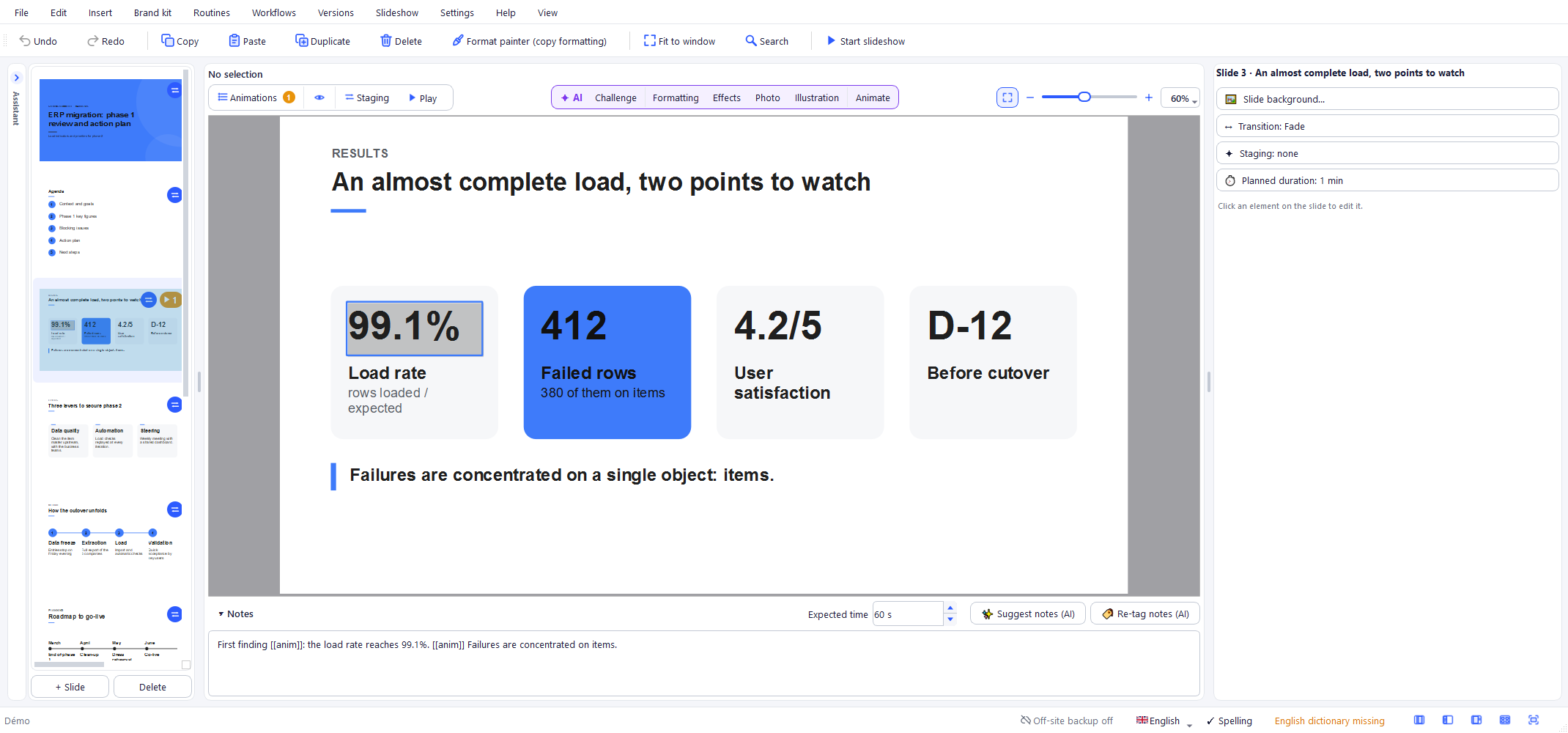
On a narrow screen (less than about 1600 pixels wide), the properties panel starts collapsed on first launch to leave room for the slide; a tooltip points to its strip the first time you select an element.
Searching the whole presentation (Ctrl+F)
Edit > Search slides and notes…, the toolbar Search button or Ctrl+F open a search bar above the canvas. The search covers every slide: text boxes and shapes, table cells, chart categories and series, timeline milestones, agenda entries, image alt text and speaker notes.
- A counter ("2 / 7") shows the current match. Enter / Shift+Enter (or F3 / Shift+F3, or the arrows) move to the next / previous one; Esc closes the bar. With no result, the field turns red.
- Options: match case, whole word, ignore accents (on by default: "resume" finds "résumé").
- The matching slide is displayed, the word is highlighted (yellow, orange for the current match) and the element is outlined; in the notes, expanded if needed, same highlighting. The relevant thumbnails carry a magnifier badge with the number of matches.
- List shows every match (slide, location, context): one click to go there. Results update when you edit the deck.
- In the assistant ↗ runs the same search in the assistant (see below).
Searching the assistant
To find a past request (for example the one where you mentioned "youtube"): the magnifier in the assistant header, Edit > Search the assistant… or Ctrl+F while the cursor is in the assistant (log or input field) open a search bar at the top of the assistant. Anywhere else in the window, Ctrl+F searches the slides: where the cursor is decides.
- The search covers your requests and the assistant's replies, including collapsed requests: those containing the text expand during the search, then collapse again when you close it (except the one you were reading).
- My requests limits the search to the text you typed, leaving out the replies and warnings that mention the same word.
- Counter, Enter / Shift+Enter, F3 / Shift+F3, Esc and the options (case, whole word, accents) work as for the slides. The search starts from the part of the log on screen, going back towards older requests.
- In the slides ↗ runs the same search in the slides and notes.
The File menu
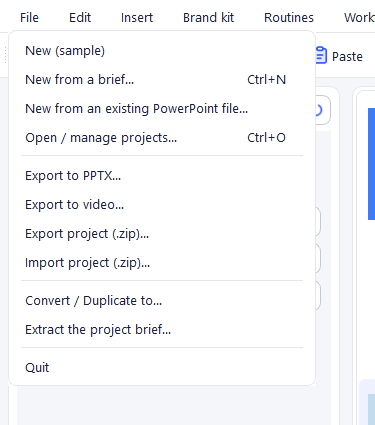
- New (sample) / New from a brief… / New from an existing PowerPoint file…: same choices as at first launch, available at any time.
- Open / manage projects…: see section 18.
- Export to PPTX…: see section 15.
- Export to video…: see section 16.
- Export project (.zip)… / Import project (.zip)…: backup or sharing of ONE complete project (deck, versions, associated brand kit) in a single file, to hand it over or move it to another machine.
- Convert / Duplicate to…: see section 17.
- Extract the project brief…: rebuilds a brief that would give back the open presentation, to regenerate it from scratch. See Extracting a project's brief.
- Quit.
The slide strip: right-click
Right-clicking a thumbnail opens a short menu, grouped by purpose. Structural actions stay one click away; the rest is grouped into two submenus. On a multiple selection (Ctrl+click or Shift+click on thumbnails), a greyed-out header ("3 slides selected") reminds you what the actions will apply to.
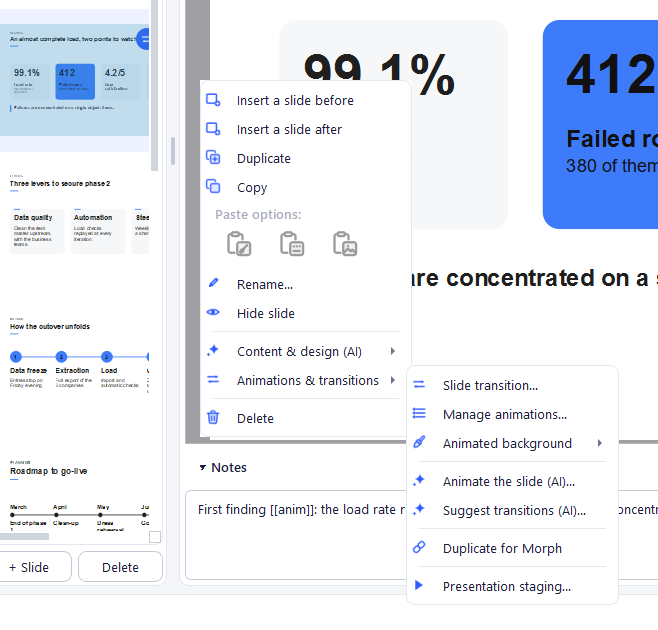
| Entry | Purpose |
|---|---|
| Insert a slide before / after | Add a slide at a precise position |
| Duplicate / Rename… | Copy the slide / change its title in the strip |
| Hide / Show slide | A hidden slide stays in the project but appears neither in the slideshow nor in the video (marked with 🚫) |
| Content & design (AI) ▸ | Review slide… (Challenge), Suggest layouts…, Suggest speaker notes… |
| Animations & transitions ▸ | Manual settings: Slide transition…, Manage animations…, Animated background ▸; then AI suggestions: Animate the slide (AI)…, Suggest transitions (AI)…; finally Duplicate for Morph and Presentation staging… |
| Delete | The slide under the cursor, or the whole selection |
Where did the old entries go? Nothing was removed: the AI content tools are in Content & design (AI), everything that moves is in Animations & transitions. "Staging…" is now called Presentation staging… because it sets the whole deck, not only the clicked slide.
Thumbnails carry small badges: animations set, entrance transition, Morph link with the previous slide, animated background, search matches.
The canvas: right-click
Right-clicking the slide offers:
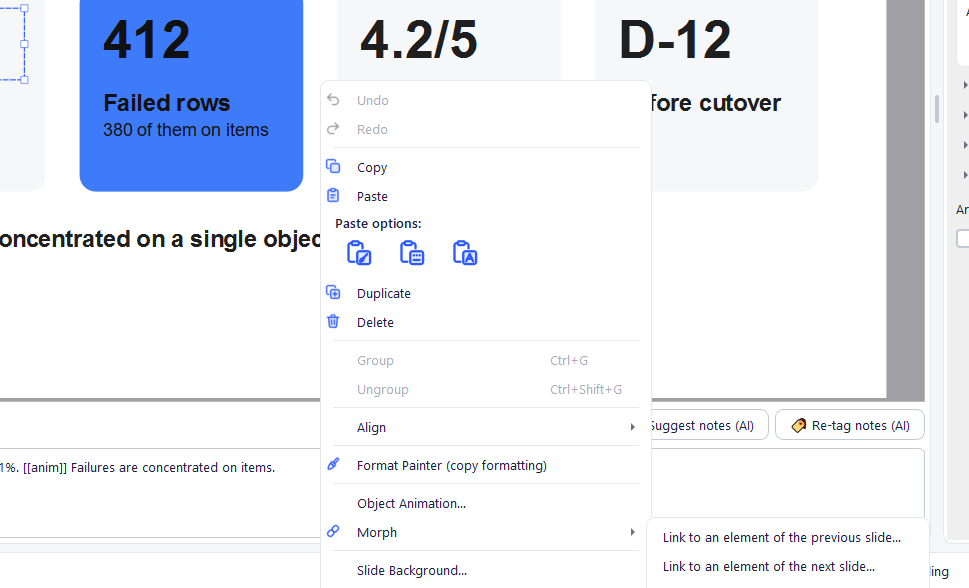
- Undo / Redo;
- Copy / Paste / Duplicate / Delete;
- Group (Ctrl+G) / Ungroup (Ctrl+Shift+G), greyed out when they don't apply;
- Format painter (copy formatting);
- Object Animation… (when an element is selected);
- Morph ▸ (when a single element is selected): Link to an element of the previous slide… / next slide…, Don't pair (fade), Automatic pairing;
- Slide Background… (background colour and/or image, even with nothing selected);
- Fit to window.
3. Creating a presentation from a brief
File > New from a brief… opens the "New deck — brief and analysis files" dialog. From top to bottom:
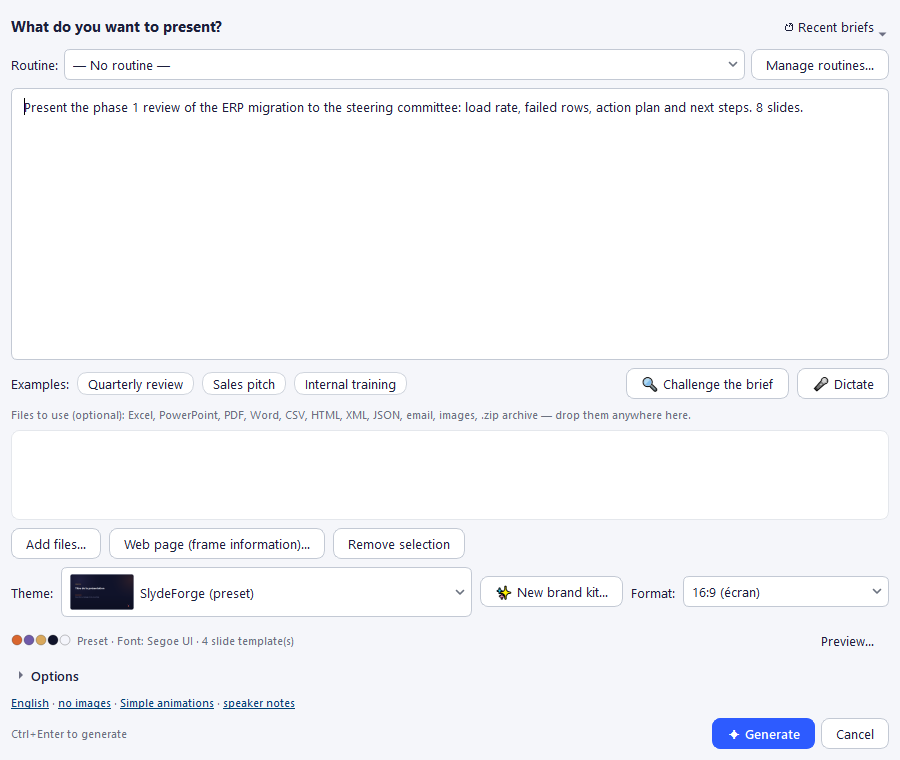
| Field | What it is for |
|---|---|
| Routine (optional) | Pre-fills the brief with a saved prompt (see section 22). Manage routines… opens their list. |
| Slide language | The language the slides will be written in (5 languages, with flags). Defaults to the interface language; until you pick one, it follows the language of the typed or dictated brief. |
| Brief | Describe the expected presentation: goal, audience, angle, number of slides. Voice dictation button next to it. |
| Analysis files | Excel, PPTX, PDF, Word, CSV, HTML, XML, JSON, emails (.msg, .eml), meeting transcripts (.vtt, .srt), images, .zip archives: their content is used as a source. Web page (frame information)… attaches a page whose useful areas you choose (see Attach a web page). |
| Brand kit | The brand kit applied. |
| Use royalty-free images | Searches photos (Pexels/Unsplash) for the slides that suit them. Requires a key (Settings > Royalty-free photos…). |
| Generate AI images, at most N | Never ticked by default (capped at 10). The plan picks the slides that benefit most from an illustration, cover first, with a shared visual style. Expect 20 to 60 s more; each image is billed by your image service. |
| Staging | How the slides will animate: No animation, Simple animations (computed from the layout) — free, no AI call: one entrance per card, key figure, step or milestone, and a sober transition rhythm — or a motion "…" style (🔒 subscribers, see section 11). A sentence explains the choice; Compare styles… opens an animated preview in the chosen brand kit's colours. Can be changed at any time afterwards. |
| Write speaker notes | The text to say for each slide, synced with the animations. About +50 % tokens on an 8-slide deck, without noticeably lengthening generation. |
The options are grouped in three blocks (Images, Staging, Presenter notes) and remembered from one time to the next.
The slide language is saved in the project: AI edits and speaker notes then respect it, even if you type a request in another language. The assistant shows it at launch ("🌐 Slide language: English"). If you change the language after choosing a routine, its text is replaced by its version in the new language (if one exists and you haven't edited it).
What happens during generation
SlydeForge uses a generation engine in which the AI only writes the content (short texts, figures, data); the layout is computed from your brand kit: grid, consistent text sizes, readable contrast, identical headers from one slide to the next, no text overflow. The engine has 16 layouts (cover, section break, agenda, bullets, two columns, key figures, cards, process, timeline, comparison, table, chart, visual + text, strong message, quote, conclusion), adapted to landscape, square and portrait. It reuses your brand kit's slide types first, including those imported from a PowerPoint, and rearranges them if the deck format differs from the template's.
Progress is visible live:
1. the plan titles appear one by one in the status line ("Outline: slide 3 — …"); 2. the strip shows the deck skeleton (every slide with its title); 3. each slide appears as soon as its content is ready ("Writing: 4/9 slides ready").
The ⏹ Stop button interrupts at any time.
At the end of generation, a Summary in the assistant recaps the automatic checks and points out what deserves your attention: figures missing from your brief and files (to double-check), attached images not placed, web pages not read, slides redone or simplified.
Images and links in the brief
- Attached images are used: each one is placed on a slide. Portraits go on a "team" slide, as round photos. The summary reports any image that could not find a place.
- Web links cited in the brief (5 at most) are actually opened and read as sources; the summary lists the pages read and those that could not be (dynamic or protected page).
- A page that blocks automatic reading (LinkedIn, a site reserved for signed-in accounts): it is read as soon as you click Generate, while you are still in the brief. If it refuses, SlydeForge offers Open the page here, Paste the text instead or Continue without (or Cancel to go back to the brief). When an address is typed in the brief, a "🌐 Frame information on … for this brief" link also lets you choose what matters yourself (see Attach a web page).
Emails, transcripts and source folders
So that your presentations use your real data, without copying anything:
- Emails: drag an email from Outlook (classic) or a .msg / .eml file (Gmail: "Download message") into New presentation or the assistant. Sender, recipients, subject, date and text are read, as well as the attachments in a supported format (they appear as "mail.msg › budget.xlsx"; signature images are skipped). Several emails dragged at once from Outlook are saved by Outlook itself; if that fails, drop them one by one. The "new Outlook" does not allow drag and drop: save the email, then drop the file.
- Meeting transcripts: Teams .vtt or .docx file, Zoom .vtt (cloud recording), Meet Google Doc downloaded as .docx or .txt, .srt or .txt from other tools. SlydeForge recognises the speakers, removes timestamps and hesitations and, if the meeting is still too long, keeps the passages useful to the brief (decisions, actions, figures, dates) rather than cutting the end. Everything happens on your PC, with no extra tokens.
- Source folders (subscribers, from the Essential plan): in Settings > Sources…, Add a folder… (reports, minutes, Excel exports…). Its content is indexed on this PC, in the background, then every 30 minutes. While you write a brief, up to 3 useful files are suggested in the file list, greyed out and ticked: untick one not to use it. A search that takes longer than expected shows "🔎 Searching your sources…" with Skip; it stops on its own after 5 seconds. Google documents (Docs, Sheets, Slides) in a synced Drive folder have no text on the PC: download them as .docx or .xlsx.
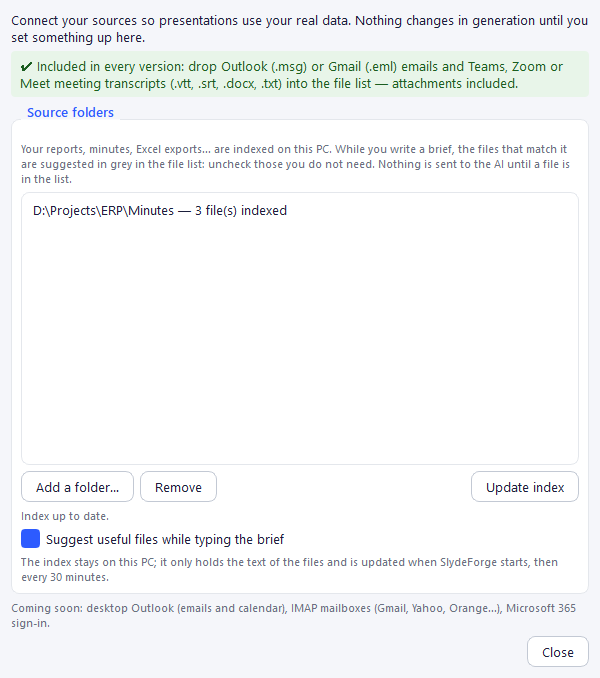
Emails and transcripts are free; without a subscription, the Sources… window shows what indexed folders bring.
Challenge the brief before generating
The optional 🔍 Challenge the brief button in the New presentation window has the AI check your request before the whole generation starts:
1. "Here is what I understood": goal, audience, key message, length, tone, and a proposed outline you can edit and impose on the generation or not. A misunderstanding shows up immediately. 2. At most 4 questions about substance and look (expected decision, indicators to show, density, visuals…), with one-click answers. Let the AI decide is the default; a free answer is possible, as well as a field to correct its understanding. 3. Improved brief, shown next to yours and editable: Keep or Keep and generate. The validated outline is written into it and the generation follows it, slide by slide.
The AI takes attached files into account (it does not ask what they already contain), as well as the brand kit and the format, and invents no figure or fact. Your original brief stays in ↺ Recent briefs and Ctrl+Z restores it. A very short brief shows a discreet suggestion to challenge it.
Extracting a project's brief
After back-and-forth with the assistant and manual edits, File > Extract the project brief… (or the Brief… button of File > Open / manage projects…, for a project that is not open) rebuilds a standalone brief that should give back the same presentation, or the closest possible. Use it to reread the project "as an input", challenge it, or start over from scratch.
- What the AI reads: the original brief, attached files and pages, accepted changes, your requests in the chat, the differences between the initial generation and the current deck (slides edited, added or removed, including by hand) and the current deck slide by slide: exact text of each element, layout (left/right, share of the width), chart and table data, images, speaker notes, format and charter.
- The current deck is the reference: edits are built into the brief as requirements from the start ("sober tone, no photo"), not replayed as steps; cancelled requests disappear. Nothing is invented.
- The result: an editable brief — a header written by the AI (goal, audience, key message, number of slides, format, tone, notes, data to highlight, elements specific to the original charter) then the outline, depending on the Brief precision slider at the top of the window (you can also click a step's name; the text changes at once, with no new AI call, and Ctrl+Z brings back the previous one):
- Ideas: fresh thinking — only the main ideas and key data; the AI rethinks the outline, the number of slides and the wording.
- Outline: same flow — one line per slide (title and key idea); the AI writes freely.
- Content (default): the same presentation, for example with a completely different charter. The detailed plan is written from the deck itself: for each slide, its title, layout, key idea, all its texts and figures as they are, chart and table data, and the image to place by its file name. An element present on almost every slide (banner, mention) is listed only once.
- Identical: also the position of each element on the original slide ("left, 40% of the width, top") and the speaker notes.
At the Content and Identical steps, the engine follows the plan when generating: same slides, same order, same titles, same layout when the charter offers it, texts and figures kept word for word. A sentence under the slider sums up what the chosen step gives.
The detailed plan also carries what the text alone doesn't show: interactive components (with their settings), markings, the transition, animated background and staging of each slide, and the badges, tints and colored backgrounds of cards. It is the simplest way to adapt a presentation to another brand kit (for another client, for example): extract the brief at the Content step, then pick the other brand kit in New presentation with this brief. After a SlydeForge update, extract the brief again to benefit from these additions.
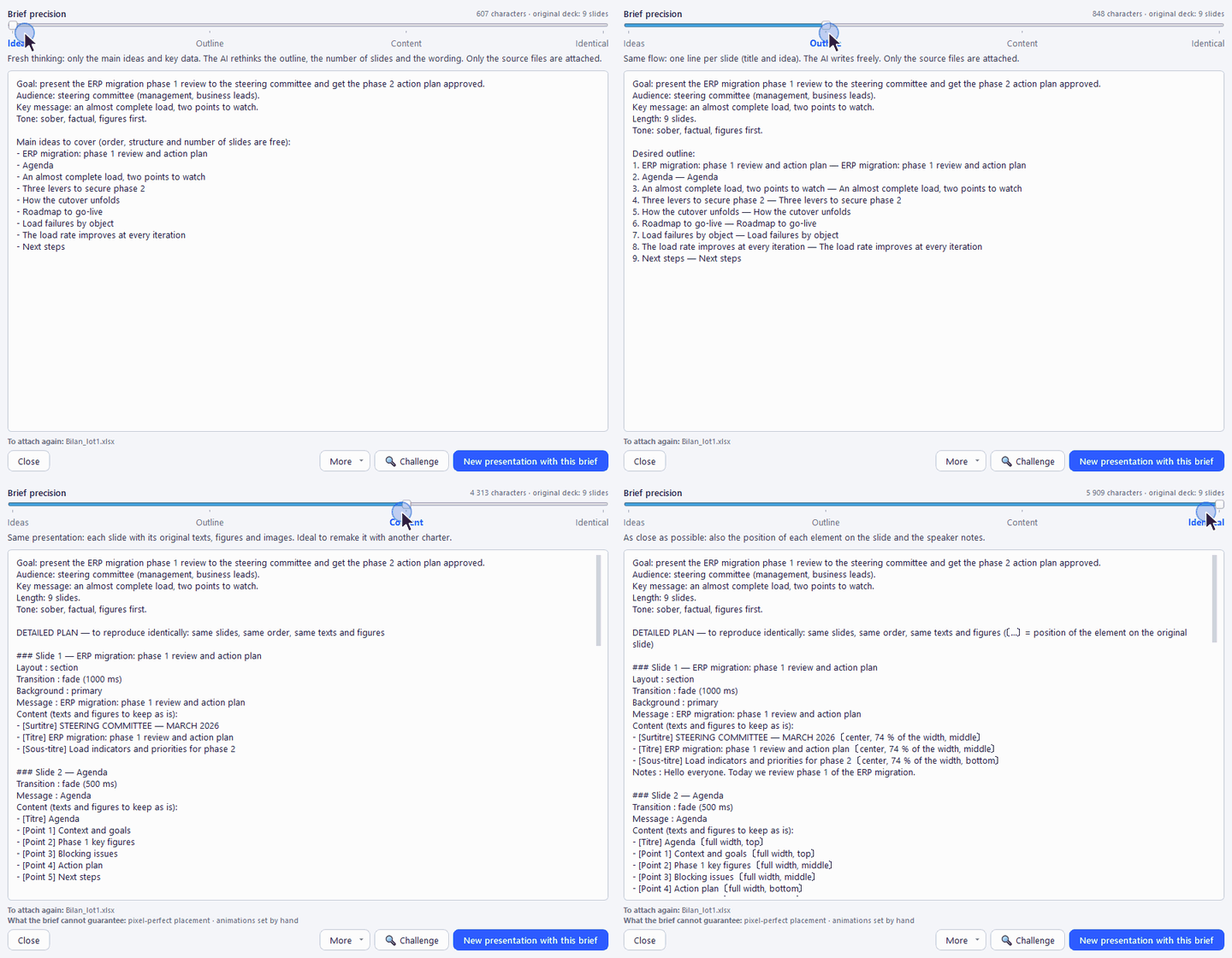
- Under the text: the files to attach again and, at the detailed steps, what the brief cannot guarantee (pixel-perfect hand placement, hand-set animations…).
- New presentation with this brief opens the generation window with the brief already filled in, the source files attached (and, at the Content and Identical steps, the deck's images and videos), and the same charter and format. 🔍 Challenge only reworks the header: the detailed plan is kept. The More menu groups Copy the text, Save the text (.md)…, 📦 Export with the files (.zip)… and ↻ Run the extraction again.
The .zip package contains the brief (brief.md), the original source files (or, if they were moved, their extracted text), the deck's images and videos under the names quoted in the brief (slide03-1.png…) and a small settings file. Drop it into New presentation (or Add files…): the brief is loaded, the files are attached, and the charter and format are selected (if the charter exists on this computer). Handy to replay the project later or hand it to a colleague.
#### Attaching a .zip archive
Any .zip archive can be attached, in New presentation as in the assistant: every compatible file it contains (Excel, PDF, Word, PowerPoint, CSV, text, emails, transcripts, images, videos, sounds — including in subfolders and in a nested archive) is used as if it had been attached on its own. Others (programs, unknown formats, password-protected or too-large files) are skipped; the "📦" line under the file list gives their count, with the details in a tooltip.
Before the extraction starts, a warning reminds you that it uses AI and may therefore incur a cost, with an estimate of the volume sent (tokens); Run the extraction or Cancel ("Do not show this warning again" box). A "Before brief extraction" checkpoint is then created, then a single AI call is counted (under "Challenge the brief" in the usage report). Only slide text is compared to list the differences, but the brief describes the layout and images of the current deck.
4. Editing by prompt (the AI assistant)
Type a request in natural language in the input area at the bottom of the assistant panel (e.g. "add a conclusion slide", "make the title red and centre it", "harmonise the colours of all slides"), then click Send.
Three settings, just above the input area, apply to each new prompt:
- Brand kit: the brand kit used for this request.
- Apply to (the scope): "Whole presentation" lets the AI change several slides if the request justifies it; "This slide (4)" targets only the slide displayed when you send (its number follows the canvas, and briefly flashes when you change slides). The button says what the request can touch: Send → slide 4 or Send → 12 slides. The assistant shows which slide was targeted (number and title) for each "This slide" prompt.
- Royalty-free images (checkbox): the AI may search for a photo related to the topic and insert it only if it really adds something, with the photographer credit.
Scope that doesn't match the request. While you type, SlydeForge spots the obvious cases: "make this title blue" while the scope is "Whole presentation", or "harmonise all titles" on "This slide". It reads the clues in the sentence ("on the slide", "this title", "here" on one side; "all", "every", "everywhere", adding or reordering slides on the other), ignoring text in quotes. A small orange card then appears between the input and the Send button ("Slide 3 only?", with the words it spotted underneath), and the Send button gets an orange outline. Tab (or the Apply button) takes the suggested scope, Esc (or ✕) silences the suggestion for this draft, Ctrl+Enter sends as is. Nothing blocks you, and this check uses no tokens (it runs on your computer, without the AI). When in doubt (a slide number is mentioned, words of both kinds), nothing is suggested.
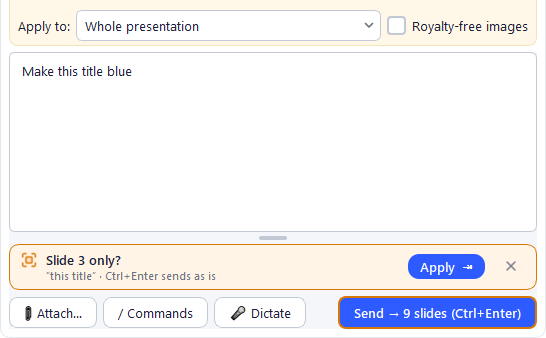
Fix a forgotten scope without paying again. A request sent on the whole presentation changed several slides when you only meant the one on display? In the preview, Keep slide N only applies just the proposed version of that slide: the others stay unchanged, with no new AI call. (The reverse, a request sent on one slide when you wanted the whole presentation, has to be run again.)
During processing, a bar shows the current step, the elapsed time and a ⏹ Stop button. You can keep typing, attach a file or dictate: Send becomes Add to queue (see the request queue).
Dictate instead of typing (🎤 Dictate button, also in presentation creation, the brand kit studio and image generation): like on a phone keyboard, the text appears in grey at the cursor while you speak, then each sentence is confirmed. You can correct the field without stopping the dictation. Say "comma", "period", "question mark", "new line" or "new paragraph" to add punctuation (in the dictation language: « virgule », « point », « à la ligne »… in French); capitals are automatic. On first use, the Prepare the microphone window has you set up the microphone (15 seconds) and offers live dictation: you tick your languages (French, English, Spanish, German, Italian; about 40 MB each, installed once), then it works without Internet. Without it, the text arrives sentence by sentence and Internet is required. If several languages are installed, a small EN ▾ button next to "Dictate" switches the dictation language; punctuation is then spoken in that language ("comma", "period", "new line" in English…). Default language, adding and removing languages: Settings > Voice and dictation… > Microphone.
Before applying the result, SlydeForge always shows a before/after preview: you accept or reject the change, it is never applied silently. Click an image in the preview to compare in detail: before and after enlarged, synchronised mouse-wheel zoom and panning, and a single view that toggles before ⇄ after with the Space key.
Changing a specific area of a slide
On a busy slide (dashboard, several tables or blocks), a request such as "turn the 4th area into 4 cards" or "update this table with the attached image" only changes the targeted area: the rest of the slide stays as it is. "The slide" without a number means the slide on display, even with the "Whole deck" scope.
When the assistant is not sure which area you mean, it asks you instead of guessing:
- the possible areas are framed and numbered in orange on the slide, with the same numbers as the suggested answers (it says which one it thinks is right);
- click an answer, or just type its number;
- I'll draw it on the slide: click an element or drag a rectangle on the slide, then press Enter to confirm (Esc cancels the drawing, the question stays open);
- New area (I'll draw where it goes): the area you have in mind doesn't exist yet? Drag a rectangle in an empty part of the slide, then press Enter: the assistant creates the requested content there without touching the rest;
- The whole slide applies the request to the entire slide, Cancel changes nothing.
An area named unambiguously ("the sales table") is changed without a question.
One card per request
In the assistant panel, each request has its own card: your text (with its number D1, D2…, which keeps counting throughout the project, in the same colour as its badge on the thumbnails), a status updated in place (Queued, In progress…, Question for you, To review, Applied ✔, Refused, No change, Failed, Stopped), the processing steps on a single line, then everything the AI read, understood and flagged for this request. When you chain several requests, their feedback no longer gets mixed up: a request added to the queue gets its card right away (dotted border), and its review, even done later, updates its own card.
- Follow-ups: your answer to a question from the assistant, an update suggested afterwards (agenda, notes) or a tool launched by the request (photo, AI image) are shown indented under the request's card.
- Actions launched outside the input box (notes, Layout, Challenger, Photo…) also get a card, marked ✦.
- Collapsed cards: the oldest ones collapse to one line (duration, tokens, number of warnings). Click ▸ or Show details to open one again, ▾ to collapse it. The two buttons next to the SlydeForge Assistant title collapse or expand all cards at once. A card still waiting for something (in progress, question, to review) never collapses.
- The same warning is shown only once per card.
- Reread in peace: the log stays pinned to the bottom while you are there; if you scroll up to reread, it stops moving. A "↓ N new messages" badge shows what arrives (and blinks for Question for you, Error or Done ✓); one click takes you back to the latest messages. Sending a new request also brings you back to the bottom.
Chaining requests: the queue
Improving a presentation often takes several requests in a row. You don't have to wait for the AI, nor for your review.
Send while the AI is working. The button becomes Add to queue: your request waits its turn and starts as soon as the AI is free, in the order sent (never two at once). Requests are numbered D1, D2, D3… in that order.
- Slide numbers stay the ones you saw when writing: "slide 3" really means that slide, even if an earlier request has added or deleted slides in the meantime. If it was deleted, the request says so instead of changing another slide. The displayed slide, the selected element, the scope and the attached files are also those of the moment you sent it.
- The queue view, above the input box, lists the waiting requests: ✕ removes one, Clear queue removes them all.
- Pauses: a question from the assistant pauses the queue (with a signal in the taskbar); answer it, or click Skip the question. After ⏹ Stop, the queue waits for Resume. Changing project clears the queue.
- "/" commands that open a tool (Formatting, Challenge, Photo…) are not queued: run them again once processing is over.
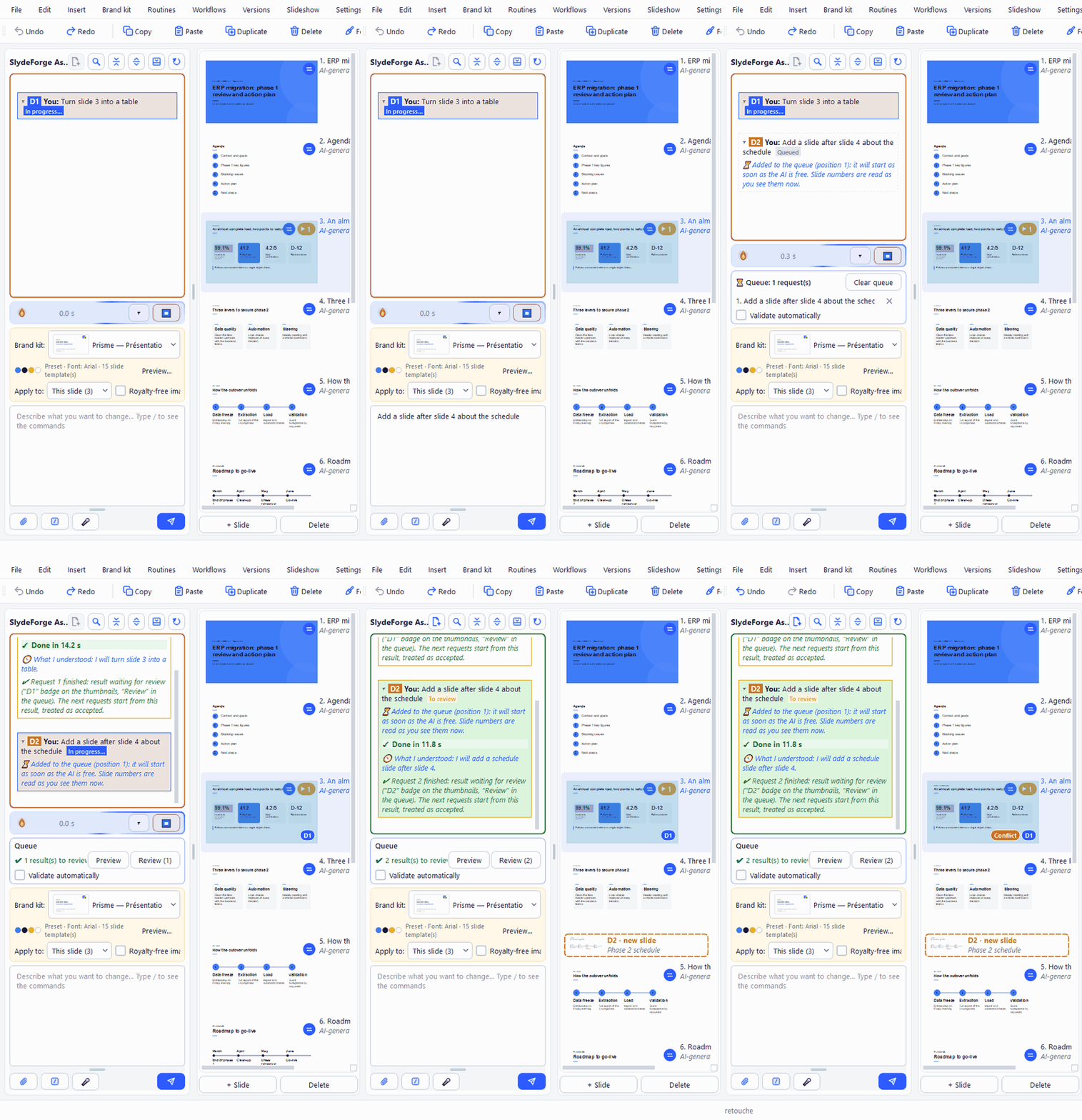
Don't wait for the review. When other requests follow, a finished result no longer opens a blocking window: it waits for your review, and the next request starts from this result, treated as accepted. Your presentation is only changed when you validate. The chat says so: "Request 1 finished: result waiting for review", and the request's card switches to To review.
See what is waiting, without applying anything:
- Badges on the thumbnails: D1, D2… (one colour per request) at the bottom right of each slide a request changes, a struck-through D2 ✕ on a slide it deletes. Added slides appear dotted, at their future place, with a mini thumbnail. Click a badge to open the review.
- Preview (in the queue): the presentation as it would be with all the pending changes, slide by slide, read-only.
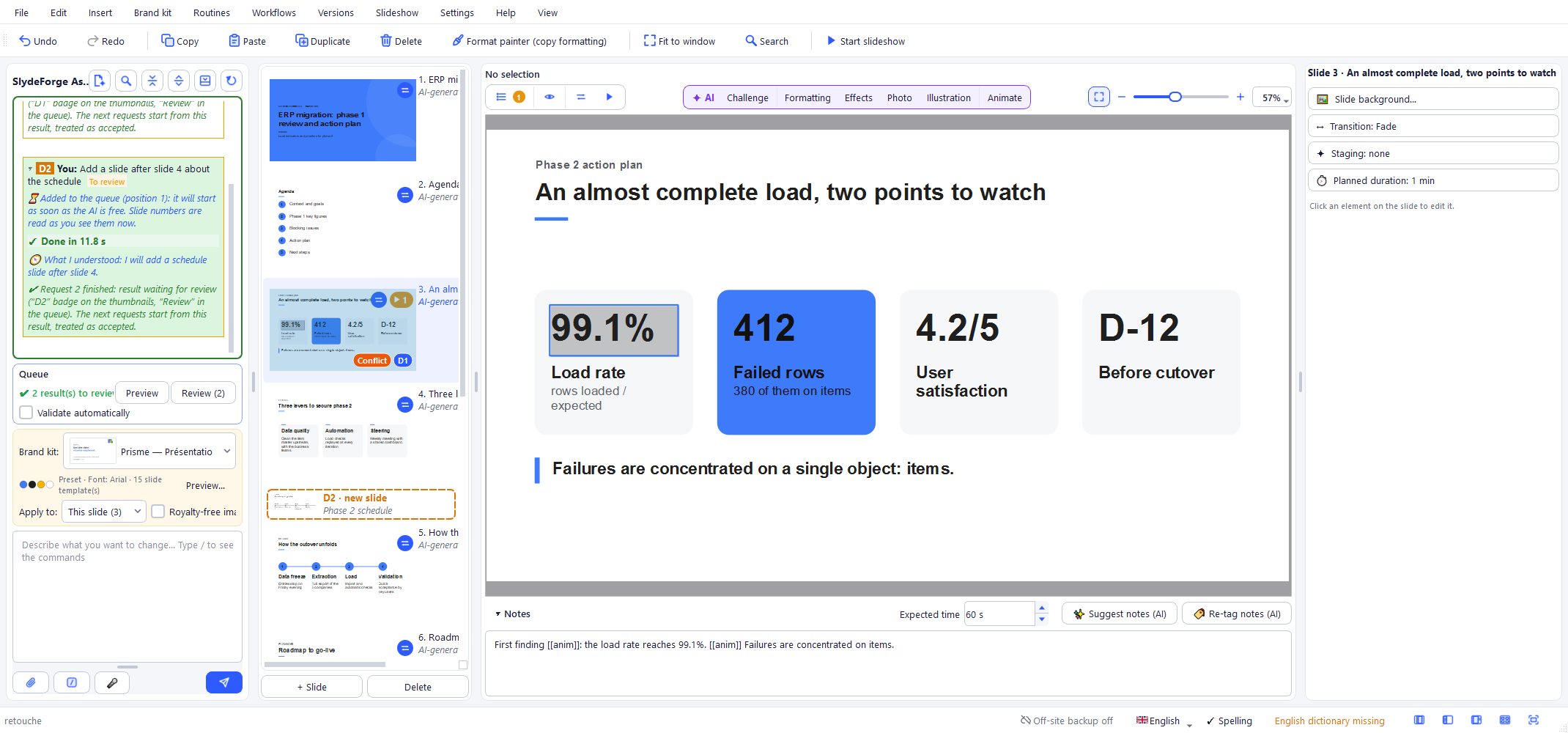
Validate. The review window opens by itself when a request finishes, to the right of the thumbnails. If you close it, it no longer reopens for each result: Review (N) in the queue, or a badge, reopens it.
- Requests are validated in order ("Validate D1", "Refuse D1"): each one was computed assuming the previous ones were accepted. Each validation is an undo step named "Request N: …", applied to the presentation as it is now.
- See before / after on a later request shows its changes without validating anything; Validate / Refuse then disappear (they always apply to the first one) and ← Back to D1 returns to the one you can validate.
- Checkboxes: when a request contains several actions ("rewrite slide 3 and write its notes"), untick an action to leave it out; the others are validated. A single-action request is validated or refused with the buttons.
- Dependencies: an action "built on D1 (same slide)" is flagged. If you remove the D1 action it depends on (or refuse D1), it is struck through and then run again automatically on the right basis. Actions on other slides are never affected.
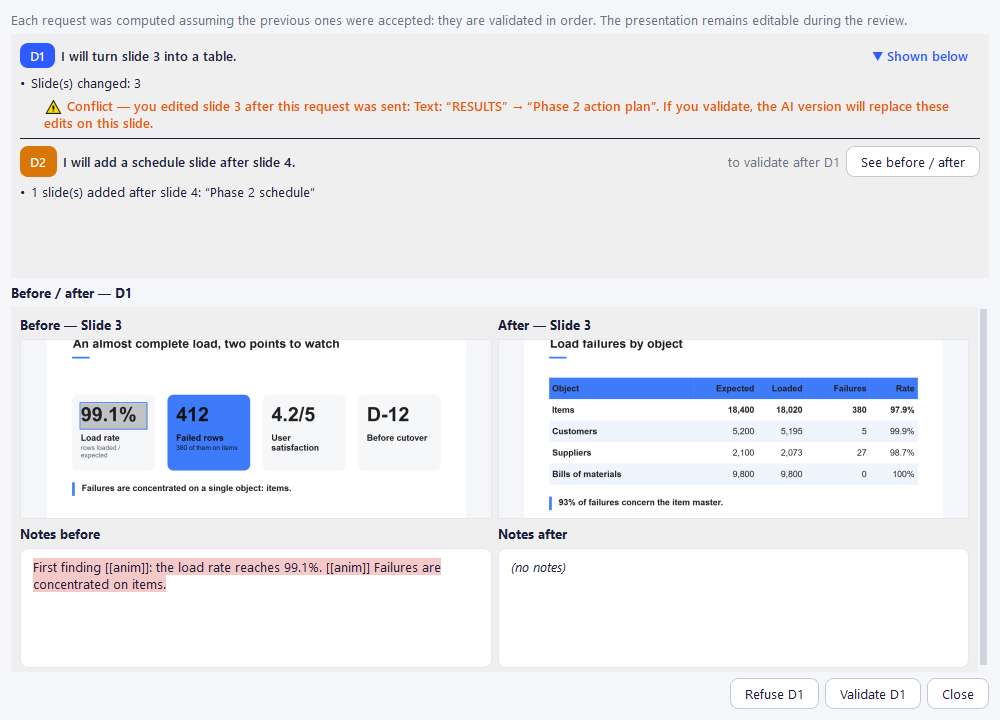
Editing by hand while waiting. The presentation stays fully editable. If you edit a slide that a pending request also changes, an orange Conflict badge appears on the thumbnail, and the review window shows it under the action concerned, with what you edited ("Text: "…" → "…"", element moved, added, deleted…). For now, validating that request replaces your edits on this slide with the AI version: refuse it if you'd rather keep yours.
Validate automatically (queue checkbox): each result is applied as soon as it is ready, without a review window, with one undo step per request (Ctrl+Z undoes one request at a time). By default it only lasts for the current series of requests and unticks itself afterwards; the queue reminds you how long it stays on. To keep it until SlydeForge is closed, or always: Settings > AI… > Assistant.
You can attach files (Excel, Word, PDF, PowerPoint, images, emails, transcripts, .zip archives…) to the prompt, with 📎 Attach… or by drag and drop: their content is used as a source for the current request. An attached file shows a preview; double-click it to open it, or right-click to open it, show it in the file explorer, copy its path or remove it.
Attach a web page
When a page matters for your request, you can frame what is useful yourself (a biography, a price table, a photo) instead of letting SlydeForge read all of it. It is free and costs no extra AI call.
Opening the page:
- 📎 Attach… > Web page (frame information)…, or the
/pagecommand: the address is pre-filled with the last one typed in the input box (or the one in the clipboard); Enter is enough. - As soon as an address is typed in the input box, a "🌐 Frame information on … for this request" link appears below it.
- After a page read automatically ("🌐 Web page read…"), Choose precisely reopens that page: it will be attached to your next message (a text is suggested in the input box, never sent on its own).
- A page that blocks automatic reading (LinkedIn, anti-bot protection, account required): before any AI call, the assistant explains it and offers Open the page here, Paste the text instead or Continue without.
In the "Attach a web page" window, the page is shown as in your browser: browse, sign in if the site asks (the sign-in is kept from one time to the next, in a profile of SlydeForge's own, never copied into backups; Clear sign-ins… removes it). Then:
1. Frame information, and drag the mouse over each useful area. Areas are numbered; the × in the blue label removes one. 2. At the bottom, one line per area: "What is this area for?" (optional — "turn into a chart", "cover photo", "just for the tone"). These notes go with your request. 3. What should I use?: Framed areas first + whole page (recommended: your areas must be used, the rest of the page gives context), Framed areas only or Whole page. With no framed area, the whole page is attached. 4. Attach to my request.
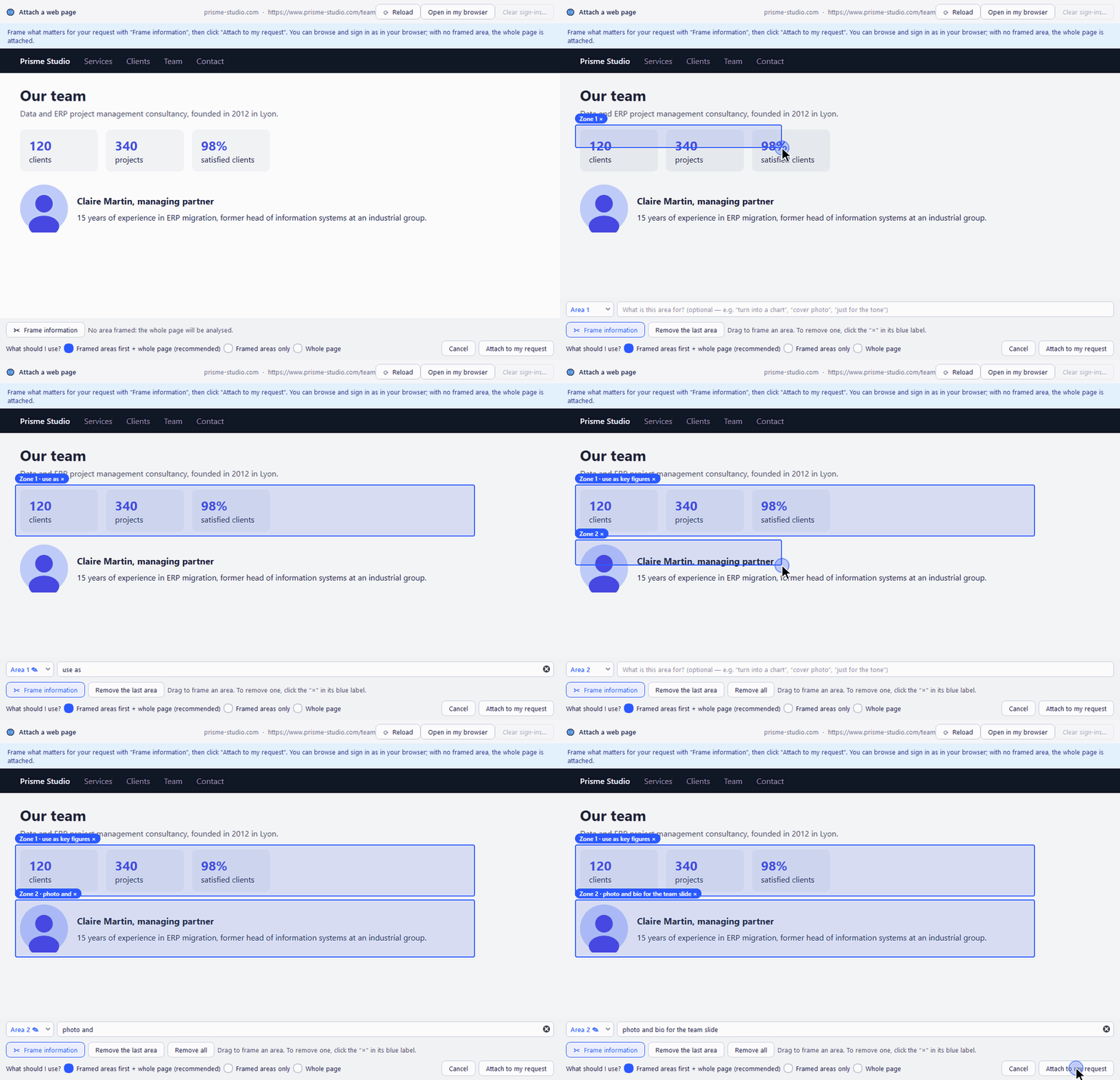
⟳ Reload (F5) reloads a page that displays badly (framed areas are removed). If the site also refuses this built-in browser, Open in my browser then Paste copied text (Ctrl+A, Ctrl+C in your browser).
The page shows up in the attachments: "🌐 site: 2 areas, 1 image, 640 words". Double-click it (or right-click > Review the framed areas…) to reopen it with your areas back in place, and complete them. It goes with the request without being read again; framed images can be placed on the slides. The same gestures exist in New presentation (Web page (frame information)… button).
Get a video, an image or a file from a page
A page quoted in a request is not only read as text: SlydeForge also spots its videos and sounds, its images and the files it offers (PDF, Word, Excel, PowerPoint, CSV). Just ask for them:
- "Get the presentation video from this page and put it on a slide at the end: https://…"
- "Put the team photo from https://… on slide 3", "use this site's logo on every slide"
- "Use the PDF brochure from this page for the pricing slide"
If there are several candidates and the request does not settle it, the assistant asks with a one-click choice ("Video 1: …", "Video 2: …"), and you can also type your answer.
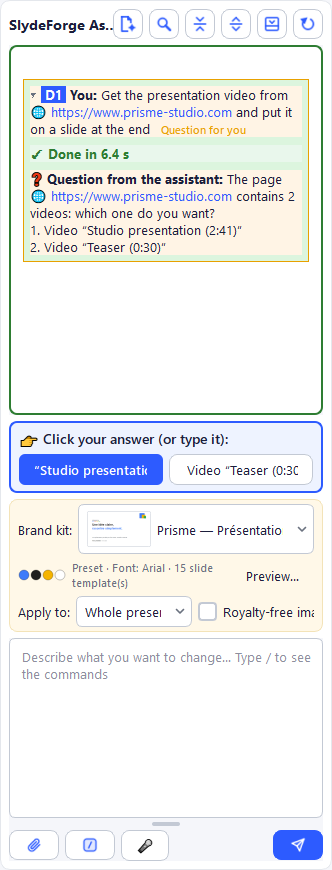
A video hosted by the site is embedded in the slide; a YouTube, Vimeo… video stays online. An image is placed by SlydeForge (instead of the existing photo, in a free area, or on a dedicated slide; a logo, in the same corner of every slide). A file is read as a source. At most 8 images and 5 files per request. Remember to check that you are allowed to reuse what comes from a third-party site.
"/" commands
Type / in the input area to list the commands:
| Command | Effect |
|---|---|
/layout | Reference a slide type from the brand kit |
/no_layout | Don't use custom slide types (the AI improvises) |
/routine | Insert a routine's prompt (/agent also works) |
/workflow | Run a workflow |
/suggest_design | Formatting of the current slide (Formatting button) |
/review_slide | Challenge the current slide (Challenge button) |
/review_deck | Challenge and improve every slide of the deck |
/suggest_animation | Suggest animations for the current slide (Animate button) |
/suggest_effects | Suggest effects for the current slide: keyword, title behind the subject, blur… (Effects button) |
/suggest_image [wish] | Royalty-free photos for the current slide (Photo button) |
/generate_image [wish] | AI-generated images for the current slide (Illustration button) |
/image | Attach an image from the library to the message |
/consommation | Open the AI usage report (/usage also works) |
/ambiance | Change the graphic mood of the whole presentation: impressions, ambiances, adjustments, solid / gradient background (/style works too) |
/page | Attach a web page by framing the useful info |
/aide | Show the quick commands help (/help also works) |
The list is grouped: Complete your request (you then send the message), Slide / presentation actions (run a feature directly) and Tools. To see what each command does, when to use it and how, press F1 while typing a "/" command (in the list, F1 opens the help on the highlighted command) or type /aide; the Try it button inserts the command. Anywhere else in the input box, F1 opens this chapter of the guide.
Rating a response (👍/👎)
After a generation or an edit, a simple 👍/👎 (with an optional comment) rates the result. SlydeForge asks for confirmation before anything is shared with the author: see section 20.
Tracking usage (tokens)
Each AI action shows its real token cost, as counted by the provider: in the Formatting, Challenge and Photo windows (live), and in the assistant. An estimate is only used as a last resort, and is then prefixed with "≈". An interrupted action keeps its cost displayed ("Stopped by the user after 12.3 s · 3,500 tokens already used"), since tokens already processed are billed by the provider. With the SlydeForge API, the amount shown is exactly what is deducted from your quota (gauge in Settings > AI… and in the Subscription menu).
#### The AI usage report
Settings > AI usage… (also: Subscription menu, link under the gauge in Settings > AI…, /consommation command) gathers every AI call made on this PC, whatever the engine: generation, assistant, Formatting, Challenge, photos, AI images, notes, brand kits, routines, workflows, spellchecker, connection tests, online voice… To understand where your usage comes from:
- Filters at the top: period (on opening: the current subscription cycle if you have a subscription with included AI, otherwise the last 30 days; this month, current subscription cycle, last month, 3 months, year, custom dates), project (all, the current one, another one, or "no project"), AI (same list and names as Settings: AI engines, image generation, voice) and Who pays (SlydeForge credit, free trial, your organisation's Copilot, your key, free local AI); the two combine. Export (CSV) writes one line per call, for a spreadsheet.
- Overview: tokens used, the part deducted from your SlydeForge credit (with the server counter), number of actions and average cost; In plain words sentences ("53% of your tokens come from the assistant, mostly translations", most expensive action, free local-AI share…); usage per day or per month; breakdown by action type (click to see those actions), Who pays? (SlydeForge credit, free trial, your organisation's Copilot, your key, free local AI), by AI and model, by project; and the typical cost of each action type for you.
- By project: the details of one project (the open one by default) and the list of its actions.
- Log: every action with what you asked; expand it to see its calls (step, model, tokens sent and produced, duration, interrupted or repeated call).
- Understand: what a token is, why edits cost more than a generation, who pays for what.
For an OpenAI-compatible API (and image generation), SlydeForge cannot know for sure whether the server is paid: it infers it from its address (on this PC or the local network, like Ollama or LM Studio: counted as free; on the Internet, like OpenAI's API: counted as paid). If the guess is wrong (for instance a company gateway on an internal address that relays to a paid API), choose Free or Paid in Settings > AI… > Cost of this server: the report also reclassifies that server's history, shown in the AI column (e.g. "OpenAI-compatible API (192.168.0.92) · gemma4:26b").
- Settings: retention, personal budget and alerts (see below).
The log stays on your PC (it is included in your backups). It starts with the update that introduced it: earlier usage is not in it, and the website counter also counts your other computers. The Current subscription cycle period matches exactly your quota period (anniversary date given by the server), so you can compare with the gauge.
History size. The detail of each call (request typed, steps) is kept for 6 months; beyond that, each day is summarised (totals per day, project, action type and AI) and kept for 2 years. In Settings you choose both durations (the second can be "no limit"); the window shows the expected size and the space used today. Shortening a duration permanently deletes or summarises what exceeds it, after confirmation; Clear all history erases everything (the server counter is untouched).
Alerts (never blocking). Set a personal budget in tokens per month: the assistant warns you at 80% then 100% (paid or deducted tokens: SlydeForge credit, free trial, your own key — not local AI nor your organisation's Copilot). It can also flag an action costing at least 3 times your average for its type (with at least 5 actions and 8,000 paid tokens). After each action, the "Done in… · N tokens" message offers a details link that opens the log on that action.
Images and Copilot. Image generation has a real cost, but not always in tokens: depending on the service, an image is billed per image (DALL·E, Midjourney…, so the cost is not in the token total and is added to the provider's invoice) or in tokens (gpt-image); on your own local server it is free. The report counts images and shows them next to the bars ("Who pays?", action types), telling a local server from a paid service (adjustable per server, see above). For Copilot, the number of requests is the figure to watch: GitHub counts per request, with a multiplier specific to each model. Without a subscription, the report also reminds you where you stand against the monthly free-trial cap.
5. Reworking a slide with AI (Challenge, Formatting, Effects, Photo, Illustration, Animate)
The buttons in the ✦ AI frame, above the canvas, act on the displayed slide. They are also available by right-clicking a thumbnail (Content & design (AI)) and as "/" commands. Pick them by what you want to change (clicking ✦ AI opens this same table, the Which button should I use? card):
| Button | Question | What changes | What doesn't change | Command |
|---|---|---|---|---|
| Challenge | Is my message right? | the text (diagnosis, questions, rewritten version) | — | /review_slide |
| Formatting | How to organise the slide better? | the layout and colours | the text | /suggest_design |
| Effects | Which finishing touches for a modern look? | effects on your elements: keyword, title behind the subject, blur… | the text and the layout | /suggest_effects |
| Photo | Which photo to add? | adds a royalty-free photo | the text | /suggest_image |
| Illustration | Which custom image? | adds an AI-generated image (slower, billed) | the text | /generate_image |
| Animate | How does the slide move? | animations, transition and animated background | the still look of the slide | /suggest_animation |
Challenge and Formatting: the AI only works on the slide's content; SlydeForge recomputes the layout in your brand kit. Effects already applied (keyword, cut-out, blur, blurred fill) are kept in the new version; only a keyword whose word disappeared from the rewritten text is not carried over. Effects and Animate never recompose the slide. The result stays clean (no overflowing text, readable contrast), and the slide keeps its notes, expected time and transition. Nothing is applied before you confirm, and a single Ctrl+Z undoes everything.
The safeguards:
- if figures or dates disappeared or appeared in the new version, the assistant tells you before the preview;
- if a new version loses its photo, icons or cards without you asking for more restraint, the AI is asked again once to keep them, otherwise the assistant warns you;
- what the AI could not do is stated explicitly (under the recommendation or in the assistant), with the option that would make it possible.
Formatting: structure, then art direction
The Formatting button opens a 2-step window that stays open during computations (an indicator shows work in progress). Each proposal is a real preview in your brand kit.
1. Structure: other ways to present the same content (cards, steps, key figures, comparison, a template from your brand kit…). The current version is shown last for comparison. 2. Art direction: an AI art director imagines complete and clearly different approaches. The ★ recommendation is preselected and explained; hover a thumbnail to read its idea.
The art direction levers:
- colour coding by value: green / orange / red for scores, rates or statuses (your brand kit's colours when it has them), as text colour, frame or tinted fill;
- title banner in the brand colour;
- immersive slide in the strong colour, or tinted background;
- depth (drop shadows on cards and blocks);
- status icon badges ✓ / ⚠ / ✗ taken from your brand kit;
- editorial typography, bold highlighting of a key figure, removal of the "Key takeaway", eyebrow or introduction.
SlydeForge composes each direction and discards (or tones down) any proposal that would overflow or harm readability. If the slide follows a template from your brand kit (with a fixed design), it is first faithfully transposed into the closest generic layout so that directions have an effect; "As is" remains the original template.
Not quite right?
- The ✨ Refine bar below the gallery accepts a free request ("keep the colour coding but with the banner").
- Select two proposals (Ctrl+click) to combine them: the direct merge comes first, followed by variants imagined from your selection.
- Ask for a photo in this bar ("add a royalty-free image"): each direction gets a real photo from your image banks, with its credit.
- ◀ Previous step undoes the last refinement, then goes back to the structures.
🔍 Enlarge (or Space) shows the selected proposal enlarged, next to the current version, with mouse-wheel zoom. The Create a new slide checkbox inserts the formatting right after the original slide, which stays intact. The token cost is displayed live. You go from structure to art direction with Next ▶, and nothing changes until Use this layout.
Challenge: diagnosis, questions, then rewrite
The Challenge button (or Review slide…) opens a two-step window:
1. Diagnosis of the substance: does the title state the message? is the content clear and not too dense? is there a better representation? Then up to 3 targeted questions (key message, element to bring out, level of ambition: light touch-ups or overhaul…), with one-click answers or a free answer (Other answer…). 2. Rewrite (Propose an improved version) guided by your answers, shown in the usual before/after preview. An ambitious overhaul clearly changes the title, representation and hierarchy.
The Your remarks or comments (optional) field, always visible, lets you add what you expect from the slide. Answering is optional: Propose without answering starts the rewrite directly (your remarks are still taken into account).
Your visual requests ("more colours, icons, depth") are followed. If the slide follows a template from your brand kit, the AI can switch to an equivalent layout that allows them, keeping a header banner consistent with the deck. A photo request triggers a real search in your image banks. Your answers and the token cost are logged in the assistant.
For the whole deck: the /review_deck command challenges every slide in parallel and proposes an improved version of each.
Effects: finishing touches without changing the layout
The Effects button (or /suggest_effects, or right-click a thumbnail > Content & design (AI) > Effects…) suggests finishing touches for the displayed slide, without rewriting the text or moving anything:
- Keyword: the word carrying the title's message switches to the accent font (see Highlighting a word);
- Text behind the subject: the text covering a photo goes behind the person or object in the foreground (cut-out computed on your PC);
- Portrait effect: the photo's background is blurred, the subject stays sharp;
- Blur of a decorative photo behind text, so the text reads better;
- Fill (blurred background): a photo whose proportions are very different from its frame is shown whole, over a blurred copy of itself.
The AI only picks among the effects possible on this slide (one light call, none if there is nothing to suggest); without an AI engine, a proposal is computed automatically. The Effects — to review window shows each effect with its reason and a Before / After preview: untick what you don't want, then Apply (a single Ctrl+Z undoes everything).
- The cut-out (text behind the subject, portrait effect) requires the Essential plan: it stays visible, greyed out, for a free account. If it is not installed yet, the window offers Install subject cut-out…; if no clear subject is found, the effect is removed.
- "Text behind the subject" is only suggested when a text already overlaps the photo: Effects moves nothing.
- The button is greyed out (hover it to see why) when the slide has neither a short title nor a photo.
- In the assistant, the suggestion ✦ Effects: put the title behind the subject of the photo appears when a title sits on a large photo.
Photo and Illustration
Photo (or /suggest_image, optionally followed by a description: /suggest_image a construction site at sunrise) offers royalty-free photos:
- requires a configured image bank (Settings > Royalty-free photos…, Pexels or Unsplash key); otherwise the assistant tells you, without consuming anything;
- the AI derives several concrete searches from the slide's message and the deck's theme, then the window shows up to 6 photos already placed in your slide;
- if the layout cannot hold a photo, it is transposed while keeping texts, icons and colour coding; the photo goes alongside (landscape) or as a band (portrait, square);
- the photographer credit is set in white on a dark veil, readable on any photo;
- ✨ Refine reruns the search with your description ("brighter", "people at work");
- about 2,000 tokens per search.
Illustration (or /generate_image, e.g. /generate_image watercolour style) generates AI images. The button only appears if an image generation service is configured (Settings > AI… > Image generation).
- A warning first reminds you that it is slower than a photo (often 20 to 60 s) and that each image is billed by your service. There you choose the number of images to compare (2 by default, 4 at most), and can tick "Don't show this warning again".
- The AI imagines clearly different image ideas; SlydeForge checks the layout before starting the generation, then the images appear already placed in your slide.
- ✨ Refine starts a new generation (billed again).
In both windows: 🔍 Enlarge to see it big, Create a new slide to keep the original, and the current version offered last for comparison.
Animate
Animate (or Animations & transitions > Animate the slide (AI)…) suggests an animation sequence. On a slide produced by SlydeForge, it is computed instantly without any AI call (one click per card, key figure, step or milestone; the title stays still). On an imported or hand-made slide, the AI analyses it as an image. Suggestions are shown in a checklist before being applied. On a cover, a section slide or a conclusion, Animate also suggests a matching animated background (Aurora, Light beam, Ripples) — never if the slide already has an animated background, a background image, or with reduced motion; it requires the Essential plan (greyed-out line otherwise). See section 11 to set everything yourself.
6. Editing manually with the mouse
Click an element on the canvas to select it: it becomes movable and resizable (handles on corners and edges), with magnetic alignment guides that snap to the edges and centres of other elements and of the slide.
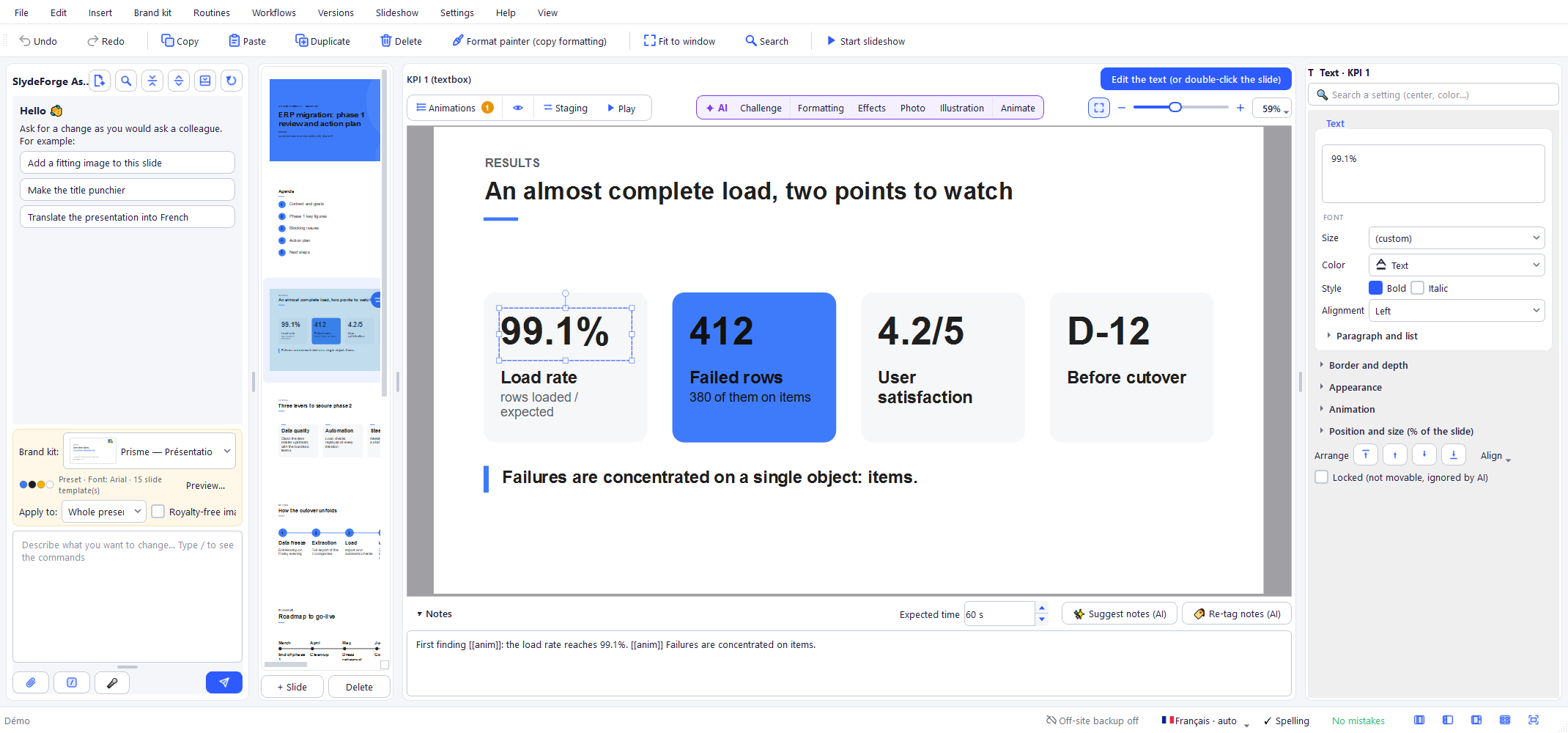
The properties panel adapts to the selected element type:
- Text: size, font, bold/italic, colour, alignment, lists and bullet colour, box background.
- Shape: type (rectangle, rounded rectangle, ellipse, hexagon, line, arrow, chevron), fill.
- Image: fit (Whole image, Fill (crop) or Stretch), crop shape, image replacement.
- Table, Chart, Timeline, Agenda: a button opens the full editor (Edit the table…, Edit the chart…, etc.).
- Animation: effect, split, trigger, duration, emphasis (see section 11).
- For all: Border and depth, Opacity, Position and size (%), Rotation, Locked (not movable, ignored by AI), layer order (Send to back / Send backward / Bring forward / Bring to front).
Double-clicking a text lets you edit it in place. The keyboard arrows move the selected element by a small step (Shift+arrow for a bigger step), including a multiple selection; Esc deselects. Ctrl + mouse wheel zooms the canvas.
While editing, a mini toolbar above the text acts on the selected text: format painter, font, size, bold, italic, underline, Keyword, colour, link, alignment, bullets and numbering. Copying and pasting inside the text keeps the formatting you set by hand (font, size, colour, keyword).
Highlighting a word (keyword)
For the "two-voice" look of modern videos and presentations: one or two words of a title in a more expressive font than the rest.
1. Double-click the title and select the word. 2. Click Keyword in the mini toolbar (the "A" with a sparkle): the word switches to the brand kit's accent font. A second click puts it back in the normal font.
The accent font is set in the brand kit editor (Accent (keywords) row); changing it updates every keyword in the project. A brand kit without one uses Georgia (or Palatino Linotype if your titles already use Georgia), available on Windows, Mac and Office. The keyword only changes the font: keep or add colour and bold with the usual buttons. Choosing another font in the mini toolbar removes the keyword.
The keyword shows everywhere: thumbnails, slideshow, video, PDF and PowerPoint (the word keeps its font and the text stays editable). As with the title and body fonts, the accent font must be installed on the PC that opens the PowerPoint file.
Editing several objects at once
Select several objects (Ctrl+click or selection box) or a group: the properties panel shows every setting handled by at least one object, with the number of objects concerned ("Text (2/3 objects)").
- A shared value is displayed normally; different values show as empty, "(multiple values)" or a partially checked box.
- Changing a setting writes only that setting, and only to the objects that handle it: each object's text, sizes and formatting are preserved.
- Text size, colour, bold, alignment, fill, outline, shadow, opacity, animation, position, rotation, lock, layer order: everything can be set in bulk.
- A series of changes = a single undo entry.
Setting an outline Weight on an object without one gives it an outline (text colour).
7. Undo, copy-paste, grouping and format painter
The Edit menu gathers the basic actions, also available in the toolbar and by right-clicking:
- Undo / Redo (Ctrl+Z / Ctrl+Y): the history covers manual changes as well as AI ones.
- Copy / Paste / Duplicate (Ctrl+D) / Delete.
- Format painter (copy formatting): select an element, activate the painter, then click another element to apply its formatting (size, outline, background colour, font…), including on another slide. Keywords are not copied (the whole text would switch to the accent font).
- Text format painter (in the mini toolbar, while editing a text): place the cursor in the model text, click the painter, then select (or double-click) the text to format. It also works towards another text box, even on another slide: click the box you want, it opens with the painter still active. It copies font, size, colour, bold/italic/underline and the keyword. Esc cancels it.
Grouping and ungrouping
To move or resize several objects together:
- select them, then right-click > Group (or Ctrl+G, or Edit > Group);
- Ungroup (Ctrl+Shift+G) separates them again.
Once grouped:
- clicking a member selects the whole group, with a frame and 8 handles that resize all members together (Shift on a corner: proportions kept);
- a 2nd click on a member selects only that member, to adjust it alone;
- Ctrl+click adds or removes the whole group from the selection;
- a move or resize = a single undo entry.
On PowerPoint export, a group becomes a real PowerPoint group, unless one of its members is animated (PowerPoint does not animate an object inside a group). Grouping also works in the slide template editor.
8. Inserting elements
The Insert menu adds an element to the current slide, grouped by nature:
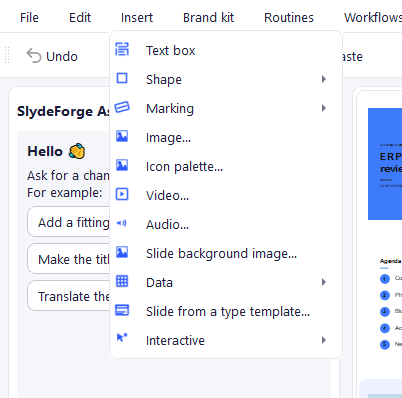
- Text box
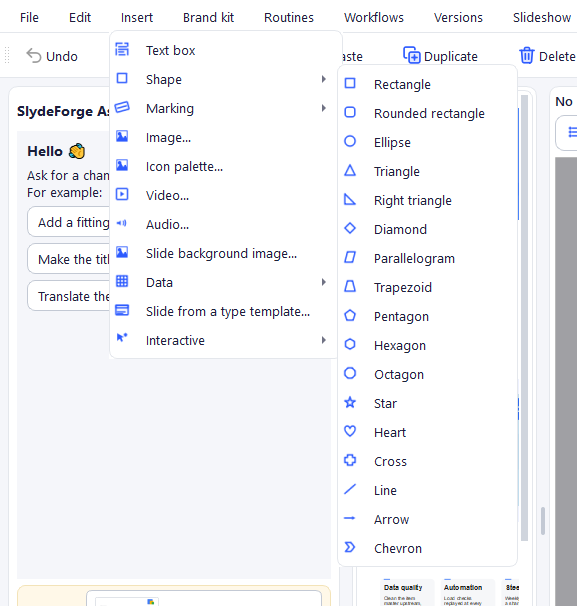
- Shape ▸: rectangle, rounded rectangle, ellipse, hexagon, line, arrow, chevron.
- Marking ▸: diagonal ribbon, stamp, seal, watermark, banner, corner (see below).
- Image…: project or brand kit library, royalty-free search, or AI generation.
- Video… / Audio…: file played directly on the slide.
- Slide background image… (the background colour is set with right-click > Slide Background…).
- Data ▸: Table…, Chart…, Timeline…, Agenda….
- Slide from a type template…: new slide in the layout of a brand kit type (see section 10).
- Interactive ▸: a component that comes alive during the presentation (whiteboard, poll…), see section 23.
The image library
The Library tab of Insert > Image… gathers the brand kit images and icons (always first, with Brand kit and Icon badges) and the project's images, shown as same-size thumbnails with their dimensions and file size.
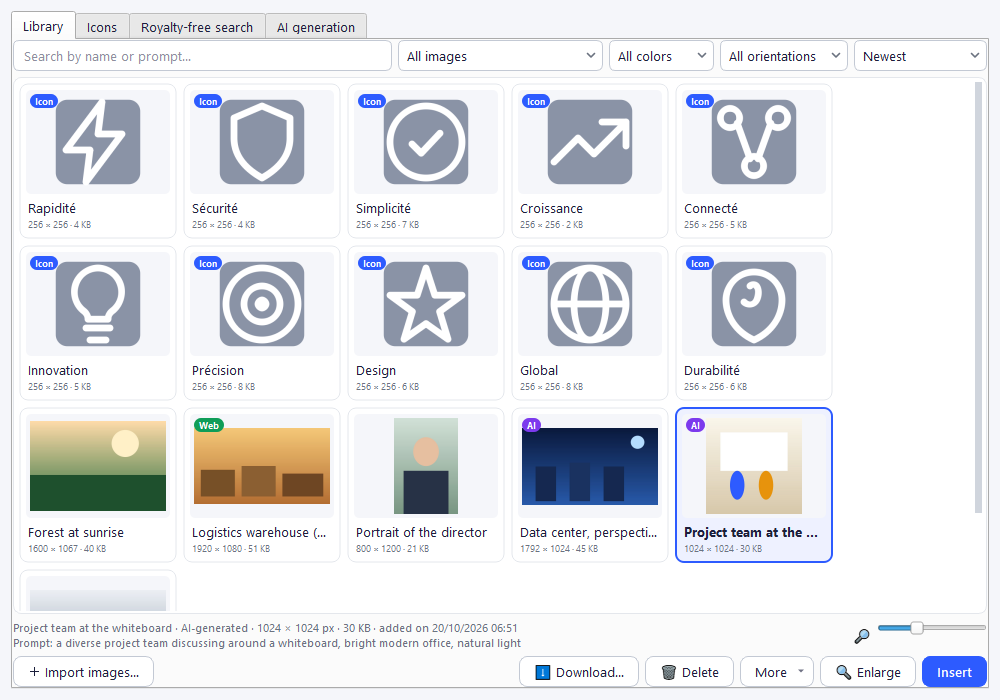
- Finding an image: search by name or prompt, filter by source (brand kit, imported, AI-generated, stock photos), by dominant color and by orientation, and sort by date, name, size or weight. The slider on the right sets the thumbnail size.
- Adding images: Import images… accepts several files at once. You can also drag and drop files or a whole folder onto the grid, or paste an image (Ctrl+V). An image that is already there is not added a second time.
- Managing an image: Download… saves it to your computer (one or several at a time), Delete removes it from the library (Del key), and the More menu lets you rename it (F2), replace it with another file or copy its prompt. Right-clicking a thumbnail offers the same actions. Slides that already use an image do not change when you replace or delete it.
- AI-generated images: they are kept in the library as soon as they are generated, with the AI badge and their prompt, including the ones you did not pick. Each generated image is billed, so you can reuse it later.
Brand kit images are edited in the brand kit editor; in the library they can only be inserted, enlarged or downloaded.
SVG images: changing their color
SVG images (vector drawings, often icons or logos) are inserted like any other image: Insert > Image…, drag and drop from File Explorer, or paste a drawing copied in Inkscape or Figma ("Copy as SVG"). They stay sharp, even full-slide.
An SVG image keeps its original drawing, so you can change its color:
- Select the image, then in Properties > Image, pick Drawing color: a brand kit color (Primary, Accent…) or Custom…. Every color of the drawing takes that color; the white of the details (a pictogram cut out of a circle) is kept. (original colors) brings the drawing back as it was.
- A brand kit color follows the brand kit: if you change the brand kit's accent, icons set to "Accent" change with it.
- Several selected icons are recolored at once (see Editing several objects at once).
- With the assistant: "make the icons on slide 3 accent-colored", "the icon in red". When generating a presentation, the AI can also match the brand kit's SVG icons to the slide it builds.
The setting only appears for an SVG image: a photo can't be recolored. SVG icons and images added to the brand kit (brand kit editor, Brand kit studio) also keep their drawing. In the PowerPoint export, the image is embedded in its chosen color.
Editing a photo (crop, filters, colours)
Everything that changes how a photo looks is done without leaving SlydeForge, and the photo changes live on the slide. The original image is never modified: every edit can be undone (Ctrl+Z, Reset, or double-click a slider to set it back to zero).
Crop (free): double-click the photo (or right-click > Crop, or ✂ Crop in the editing panel). The whole image shows faintly around the frame:
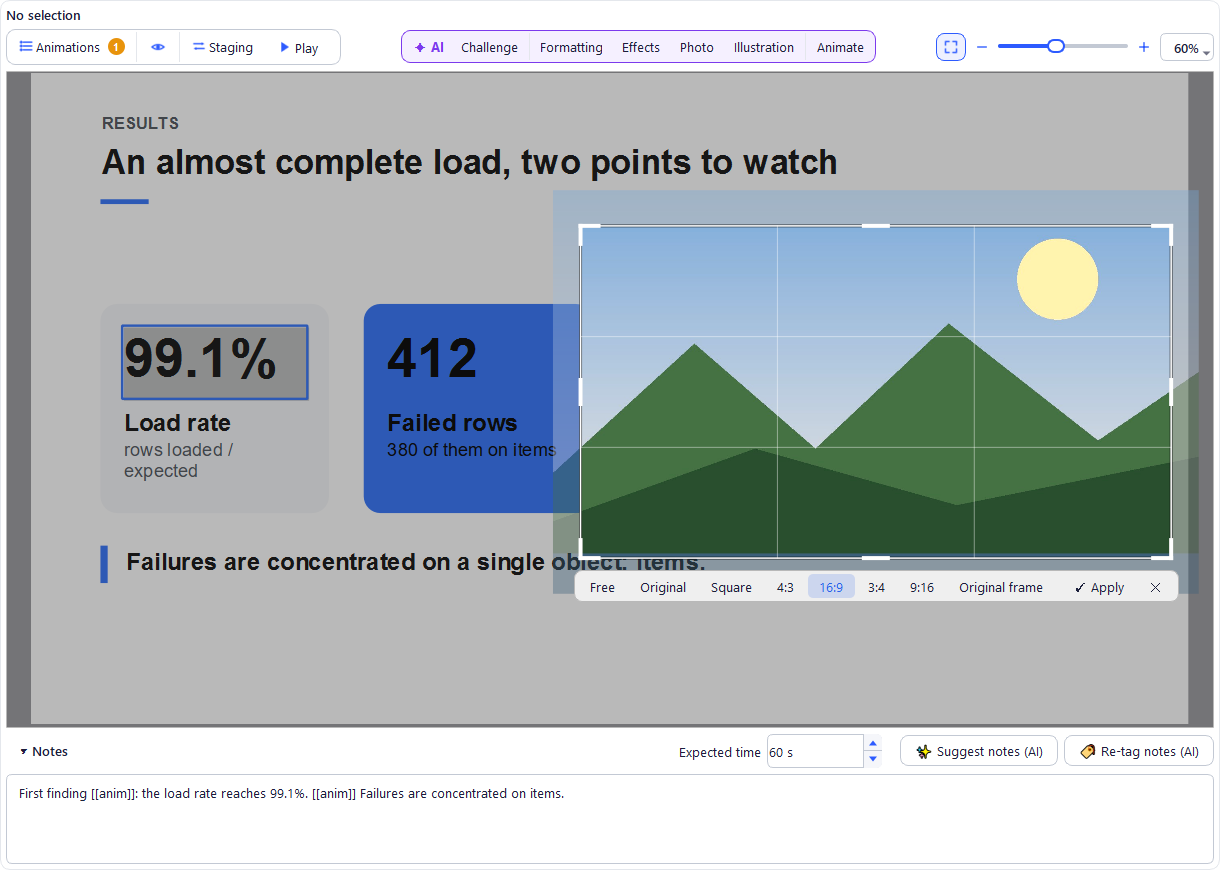
- drag the handles to choose the part to keep, drag the photo to place it in the frame, scroll to zoom (Ctrl + scroll still zooms the slide);
- the bar under the frame offers proportions: Free, Original, Square, 4:3, 16:9, 3:4, 9:16 and Original frame (the proportions of the frame before cropping);
- Enter, ✓, a double-click or a click outside the photo apply; Esc or ✕ cancel. Cropping again brings the whole image back;
- in Fill (blurred background), the frame doesn't move: only the visible part of the photo changes;
- Replace image… (bar above the slide, right-click, Properties) removes the crop but keeps the filter and adjustments.
Edit image: the Edit image button above the slide, right-click > Edit image…, or Properties > Image > Edit image…. The Properties panel makes way for the editing panel; Done (or Esc) goes back to the properties, with a line summing up the edits. F1 (or the panel's ? button) opens this part of the guide directly, while editing as well as while cropping.
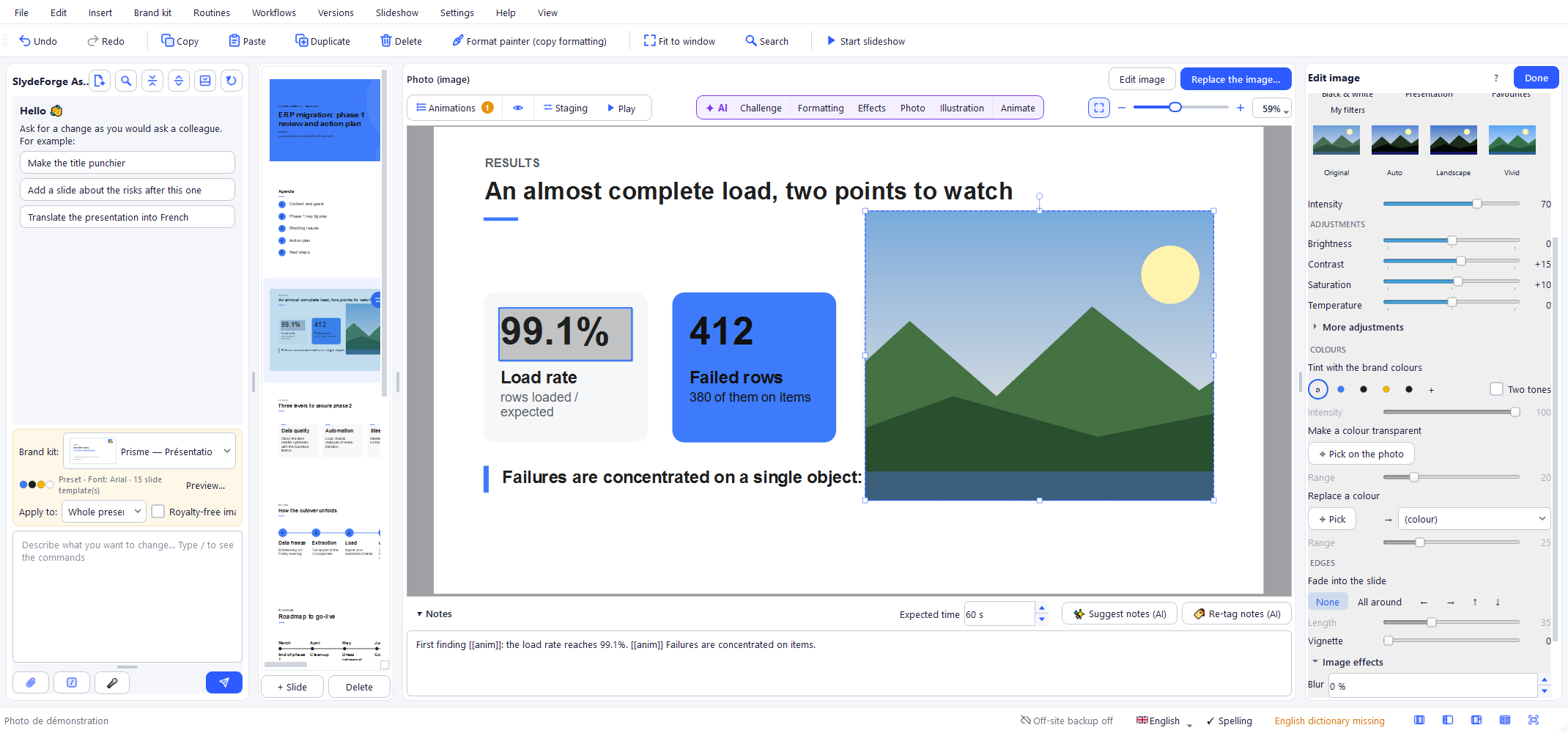
- Mirror horizontally ⇋ and vertically ⇵ (free). Rotation is still set with the photo's round handle.
- Auto fix: one click for a dull or yellowish photo (levels, white balance, colours).
- Enhance with AI (on your PC): for a small image shown large (an image from a web page, an old scanned photo, an enlarged screenshot) or a noisy photo. Enhance photo enlarges it up to ×4 for the space it takes, rebuilding details, and cleans noise and JPEG artefacts; tick Reduce noise for an evening photo, a scan or a heavily compressed image.
- SlydeForge flags an over-stretched photo by itself: "Photo not sharp at this size", in the editing panel and in Properties > Image (Enhance on this PC button). Also on right-click: Enhance photo (AI on this PC). It is offered when the photo has fewer than 0.75 image pixels per displayed pixel, at full-screen projection (1,920 px wide in 16:9) and depending on its fit: a small photo shown small is not flagged.
- It runs on your computer (no image sent over the Internet, no AI tokens): from under a second to a few seconds, with a progress bar and Cancel. The first time, SlydeForge offers to install the computing engine (about 60 MB, the same as for cutout); the model is already included.
- The original image is kept: Back to the original (or Ctrl+Z). Crop, filters and cutout stay valid. An image that is already large (over 2,400 px) or an SVG drawing doesn't need it.
- Limit: on a very small image, the AI invents the missing details. Tiny text can come out with a wrong letter: proofread it.
- Filters: hover over a thumbnail to see the filter on the slide, click to apply it, set its Intensity. The families: Suggested (picked for the photo), Enhance (Auto, Portrait, Landscape, Low light, Backlight, Food / product, Document / whiteboard, Soft sharpen), Natural, Warm / cool, Cinema, Retro, Black & white, Presentation (Darkened or Lightened so a text stays readable over the photo, brand colour or brand duotone), Favourites (right-click a thumbnail) and My filters.
- Adjustments: brightness, contrast, saturation, temperature; More adjustments: shadows, highlights, sharpness.
- Colours:
- Tint with the brand colours: one swatch per brand colour (the tint follows the brand kit if it changes), + for another colour, Two tones for a duotone, Intensity;
- Make a colour transparent: ⌖ Pick on the photo, then click the colour to remove on the slide (a logo's white background, for example); Range sets how far nearby shades disappear;
- Replace a colour: ⌖ Pick, click the colour to change, choose the new colour; while you adjust the Range, the affected area shows in magenta. Shadows and relief are kept.
- Edges: Fade into the slide (all around, or one side) with its Length, so a photo blends into the background; Vignette to gently darken the corners.
- Before / after: hold the button down to see the photo without its colour edits.
- Image effects: blur and cutout (see below) are at the bottom of this panel.
- Harmonise…:
- Apply to the photos on this slide or to all photos in the presentation: same filter, adjustments and tint, without touching their crop (icons and logos don't change). Ctrl+Z undoes it all at once;
- Save as filter…: the edit becomes a filter in the My filters tab, usable in all your projects (right-click to delete it);
- Save as brand filter: the filter is offered first on every photo of the project.
- The Format painter also copies the edit from one photo to another, without the crop.
- With the assistant: "make all the photos black and white", "make this photo brighter", "fade the photo towards the left", "match the photos to the brand kit".
Cropping, mirrors and reset are free. Auto fix, AI enhancement, filters, adjustments, colours, edges and harmonising are reserved for subscribers (Essentiel tier): without a subscription, each filter can be tried by hovering over its thumbnail, and an already edited presentation always displays and exports.
PowerPoint export: a photo that is only cropped or flipped keeps a PowerPoint crop, still adjustable in PowerPoint; as soon as it has another edit, it is exported as it looks on screen (JPEG, or PNG when there is transparency).
Cutting out a photo (text behind the subject)
Cutout removes a photo's background and keeps only the subject (a person, an object). The calculation runs on your computer: no image is sent over the Internet. Creating a cutout is reserved for subscribers (Essentiel tier); presentations that contain one display and export for everyone.
- Cut out: right-click the photo > Cut out the subject, or Edit image > Image effects > Cut out the subject…. The first time, SlydeForge offers to install the calculation component (about 60 MB) and, optionally, the precise mode (179 MB): everything downloads by itself after a single confirmation.
- Text behind the subject: if a title covers the photo, a banner offers "Place the title behind the subject?". You can also tick Text behind the subject in Image effects. The subject then appears in front of the text; the text stays visible everywhere else.
- Remove the background (ticked by default): untick it to keep the photo's background while keeping the text behind the subject.
- Remove the cutout (or Ctrl+Z) restores the original photo: the image is never modified.
- Fast or Precise mode: the Fast mode, already included, suits portraits and clean photos. The Precise mode better isolates the right subject in a busy scene (several people, a complex background); if it isn't installed, Image effects > Install the precise mode downloads it. Once installed, it is used automatically.
- PowerPoint export: the photo is exported cut out (transparent PNG); for "text behind the subject", the subject is added as a second image above the text. If the photo is animated, this second image is not exported (the effect stays visible in the SlydeForge slideshow): Check the staging flags it.
- Limits: on a full-length person whose legs blend into a dark background, the lower body may stay imperfect; manual mask touch-up doesn't exist yet.
Blurring an image (and "Focus pull")
- Blur: select an image, then Edit image > Image effects > Blur (0 to 100%). Handy to soften a photo placed behind a title. The PowerPoint export keeps the blur: it is baked into the image.
- Portrait effect: on a cut-out photo (see Cutting out a photo), untick Remove the background then set Blur: only the background is blurred, the subject stays sharp.
- Focus pull (Object animation, images only): the image appears blurred then sharpens, with a very slight zoom. PowerPoint can't animate a blur: the exported file plays a fade; in "100% PowerPoint" mode, the effect is replaced by the fade.
- Blur only exists for images (not texts or shapes) and is set image by image.
Vertical photo in a 16:9 slide: "Fill (blurred background)"
A photo taken vertically and placed in a horizontal frame leaves empty bands on the sides — or, if you crop it, loses its top and bottom. Fill (blurred background) solves both:
- Select the photo, then Properties > Image > Fit > Fill (blurred background). The photo stays whole and sharp; the rest of the frame is filled with a blurred, enlarged, slightly darkened copy of the same image.
- Choosing this mode automatically unticks "Keep proportions when resizing", and widens the frame if it had exactly the photo's format (the full slide width for a vertical photo): otherwise there would be nothing to fill. A frame already wider than the photo is left alone; then adjust it as you like (you can tick the box again). Ctrl+Z undoes it all at once.
- Blurred margin (0 to 40%, under Fit): the whole photo only leaves room from one side to the other (left and right, or top and bottom); the margin shrinks the photo for a blurred border on all four sides.
- It works with the crop shape, the border, the rotation, the crop, the edits and the photo's Blur: the blurred background comes from the photo as it is displayed. On a cut-out photo whose background is removed, it behaves like "Whole image" (there is no background to extend).
- PowerPoint export: the blurred background and the photo are baked into a single image the size of the frame, identical to the preview.
- It is only a display choice: the original photo is never modified, and going back to "Whole image" or "Fill (crop)" restores the previous look.
Markings (Confidential, Draft…)
A marking flags a presentation's status: Confidential, Draft, Internal use only, Do not distribute, Provisional data, Insufficient data completeness, Approved, Not validated, Sample, or free text. Six styles: diagonal ribbon, stamp, seal (round stamp), watermark, banner, corner (any of the four corners).
- The suggested text follows the content language of the presentation (not the interface language).
- In the properties panel, Show on… extends the marking to every slide (including slides added later) or to chosen slides. A presentation marking is edited in a single place: changing it on one slide changes it everywhere; deleting it from a slide only removes that slide from its scope.
Chart linked to an Excel file
A chart can take its data from an Excel or CSV file (.xlsx, .xlsm, .csv). In Edit chart…, the Link to an Excel file… button opens a window with a few steps:
1. Choose the file, then the sheet (and a named Excel table if there is one). 2. The sheet is shown as a grid. For a simple table, the data range is detected and highlighted: change it by selecting other cells with the mouse, or by typing a range (A1:D13). Then set "series in columns / in rows", "first row = series names", "first column = categories". 3. Wide file or several header rows? Choose I choose the categories and series myself (offered straight away beyond 8 columns): select in the grid the category cells then click Use as categories, select the values of one or more series (one column or one row = one series) then click Add as series. Each series name is read from the row just above (or a row of your choice) and follows the file; double-click to rename it. Categories are tinted green, each series in its own tint. 4. Optionally, Group the rows and calculate: "group by Region and calculate the sum of Amount", with sorting and "keep the top N". The calculations are done by SlydeForge, never by the AI: sum, average, count, minimum, maximum. 5. The chart preview updates live.
Once linked, a small 🔗 badge appears on the chart (in the editor only, never in thumbnails, exports or the presentation) and the data grid becomes read-only. Refresh now rereads the file; Edit the link… reopens the window with your choices; Unlink keeps the current values but cuts the link. The chart always keeps its last values: export, presentation and sharing do not need the file.
Videos and sounds: volume, playback, continuing sound
Double-click a video or a sound to listen to it without starting the presentation and set:
- the volume (0 to 100 %), respected in the presentation, video export, recording and the exported PowerPoint (online media: the volume is set in the platform's player);
- automatic playback when the slide appears and looping;
- for a sound: Continue over the next slides, until the end or until a chosen slide. The sound is not cut when the slide changes: combine it with looping and automatic playback for background music over part of the presentation. A video never continues from one slide to the next.
Common formats are accepted (MP4, M4V, MOV, WMV, AVI, WebM, MKV; MP3, WAV, M4A, OGG). In the chat you can also ask: "lower the video's sound to 30%", "mute the music", "make the video play automatically", "let the music continue until slide 6".
Online videos and sounds
The assistant also adds a video or a sound from a link: "add a slide with this video: https://youtu.be/…", "put this Vimeo video on slide 4", or a file attached to the message.
- Platforms (YouTube, Vimeo and the other sites that offer an embeddable player): the video is never downloaded. It appears on the slide with its poster and plays, on click, inside the slide, with the platform's player — in the editor (double-click) as in the presentation. An Internet connection is required; ↗ opens it in the browser. The volume is set in the platform's player. These media are not included in the video export.
- Direct link to a file (.mp4, .mp3…) or a video hosted by a site: the file is downloaded and embedded like a video inserted by hand. Above 50 MB, your agreement is asked; above 200 MB, it is never embedded (an online version is suggested).
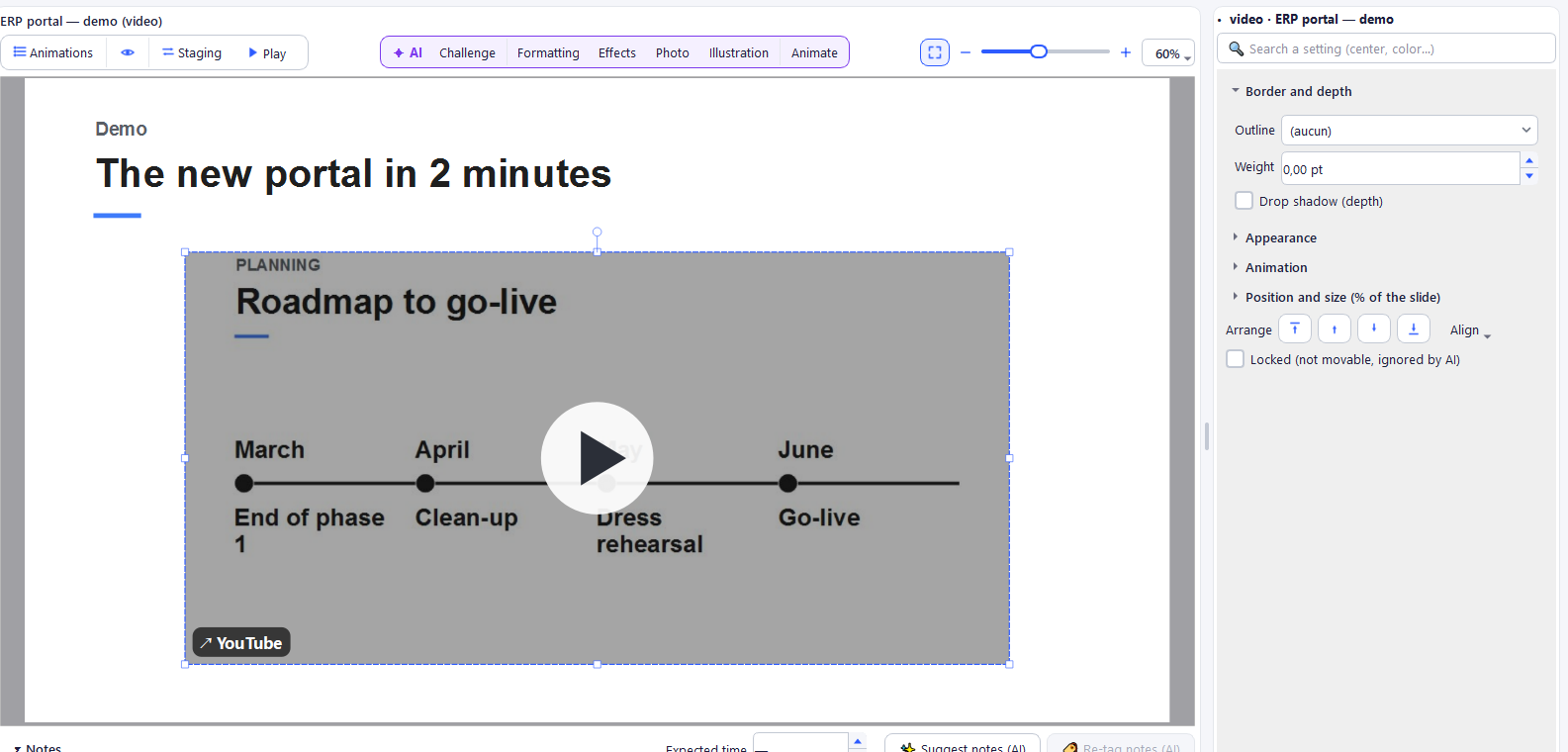
"Formatting" and your objects
"Formatting" and "Challenge" no longer lose any object on the slide. A chart (linked or not), table, timeline, agenda, video, sound or interactive component added by hand is kept as is: SlydeForge reserves a zone for it (right-hand column, or bottom band for a wide object or a portrait format) and recomposes the text around it. Their data is never retyped by the AI: if a slide is a chart or a table and the AI keeps that representation, the original figures are copied over; if it changes representation, a proposal that would lose figures is dropped (or flagged). A proposal that leaves no room for an object (cover, full-frame quote…) is dropped. Markings and shapes added by hand keep their place.
Tables
Edit the table… (properties panel, or double-click the table) opens a full editor:
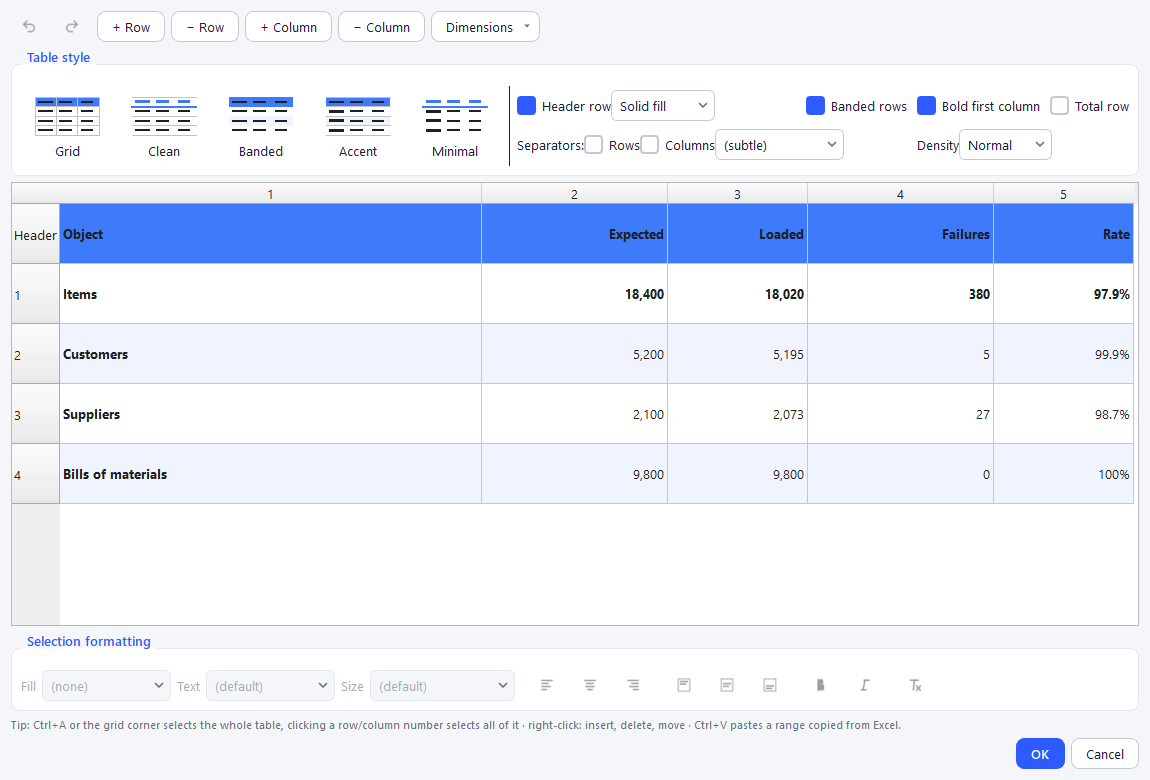
- Table style: a gallery (Grid, Clean, Bands, Accent, Minimal) in your brand kit's colours. One click applies the style and clears the backgrounds and colours set cell by cell (size, bold and alignments kept; Ctrl+Z to go back).
- Options: header with solid fill or underlined (thick rule, accented text), banded rows (every other row slightly tinted, following the brand kit), bold first column, total row (bold + heavier rule), colour and direction of separators, density (compact, normal, airy), cell inner margins.
- Rows and columns: insert, delete, move, distribute evenly, set widths and heights.
- Cells: bold, italic, size, horizontal and vertical alignment, background, Clear formatting.
- Automatic readability: a cell without a text colour gets a colour readable on its background; a "⚠ Text hard to read on its background" alert offers Make readable in one click.
The preview, the PowerPoint export and the editor grid use the same rendering model: what you see is what gets exported. AI-generated tables pick a style according to the formatting direction, right-align figures and detect a "Total" row.
9. Borders and depth (drop shadow)
Any element (text box, shape, image or table) can get a border (colour + thickness in points) and/or depth (soft drop shadow), via the Border and depth section of the properties panel. Use sparingly, to highlight a key element.
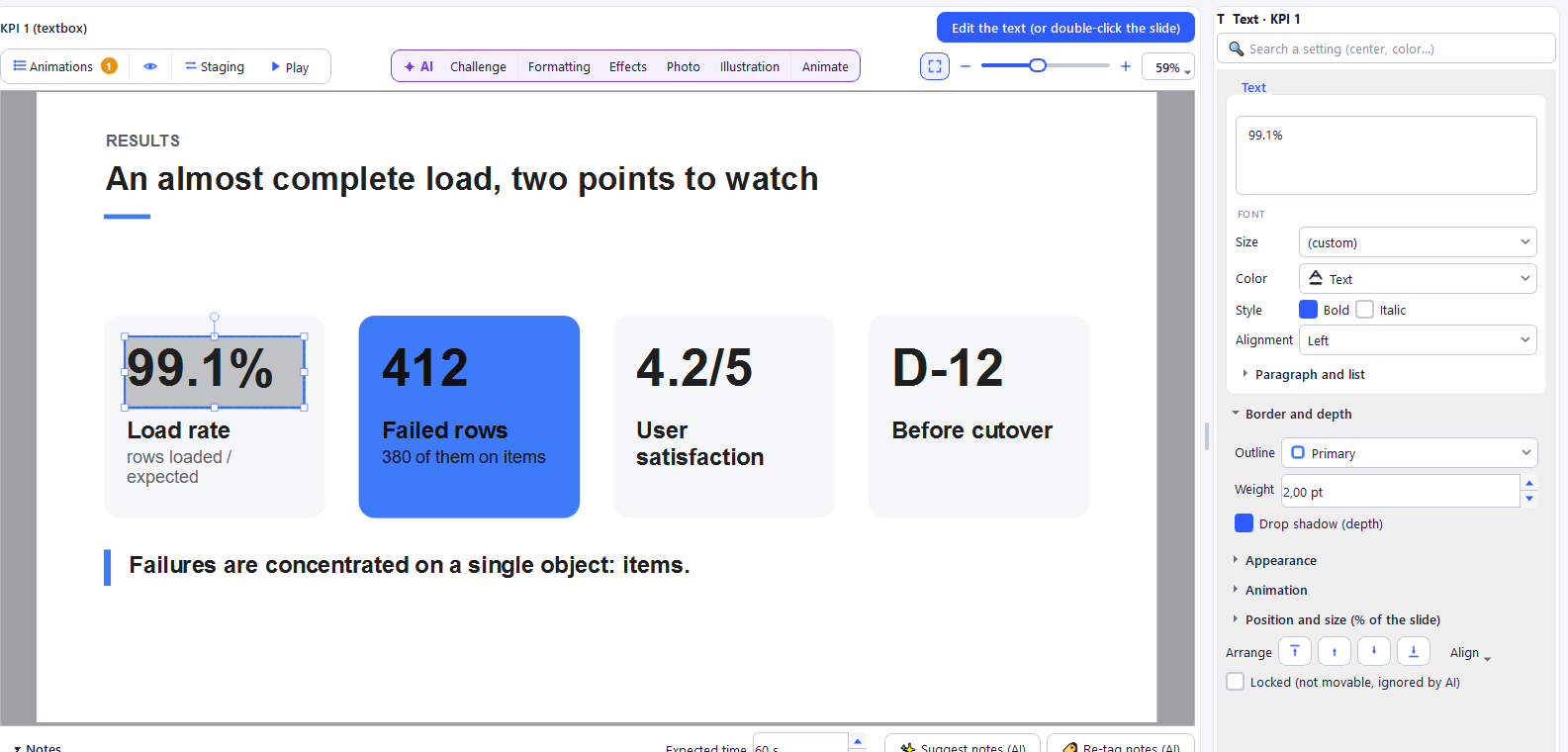
Rendering is identical on screen and in PowerPoint. The AI can also use these properties on its own (e.g. "highlight this key figure"), and the "depth" art direction of Formatting applies them to cards and blocks.
10. The brand kit
Brand kit menu:
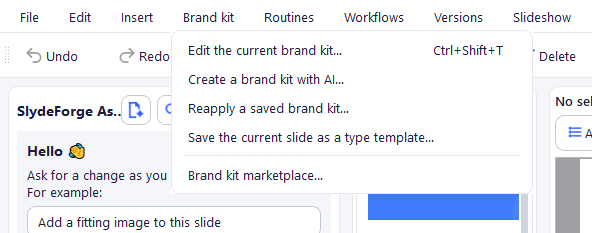
- Edit the current brand kit…: the full editor (palette by role, fonts, text sizes, bullets, images and icons favoured by the AI, custom slide types).
- Create a brand kit from files (AI)…: analyses one or more files (logo, existing PPTX, screenshots…) to derive a complete brand kit.
- Reapply a saved brand kit…
- Save the current slide as a type template…: turns the displayed slide into a reusable type.
- Brand kit marketplace…: catalogue of brand kits published online, installable in one click. An available update for an installed brand kit is flagged.
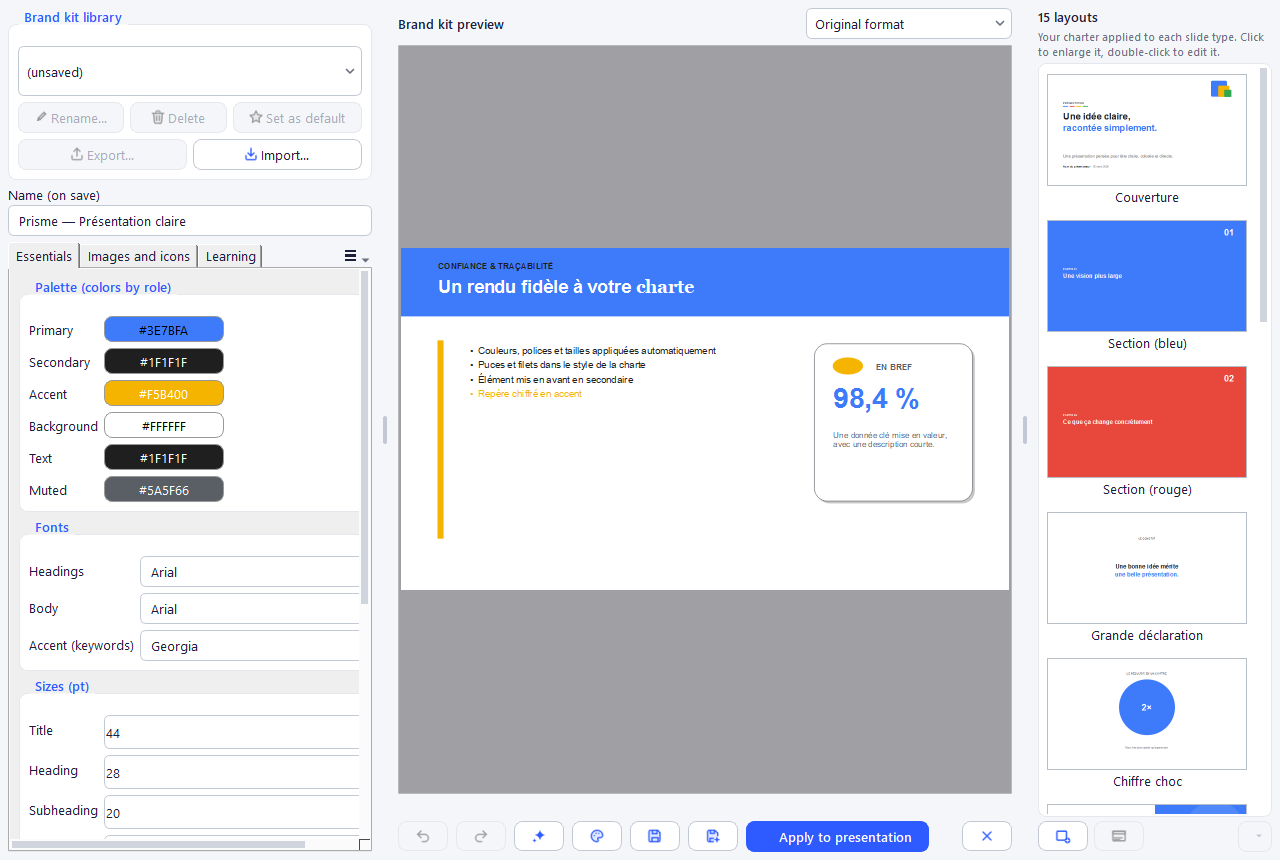
The editor lets you choose the brand kit to edit (the brand kit library is shared across projects), adjust the palette (primary, secondary, accent, background, text, muted), fonts (titles, body and accent, the font of keywords) and sizes, bullets, and manage the images and icons the AI should favour.
The right-hand strip shows all the brand kit's layouts (slide types: "Intro", "Dark section", "Conclusion"…), rendered with your colours, fonts and logo. A click shows one full size in the centre; a double-click (or Edit the layout…) opens its visual editor; Add…, ⋯ (rename / describe, remove) and the right-click menu manage the list. Each layout has a usage description — under the list — that tells the AI when to propose it, and optionally a full layout attached:
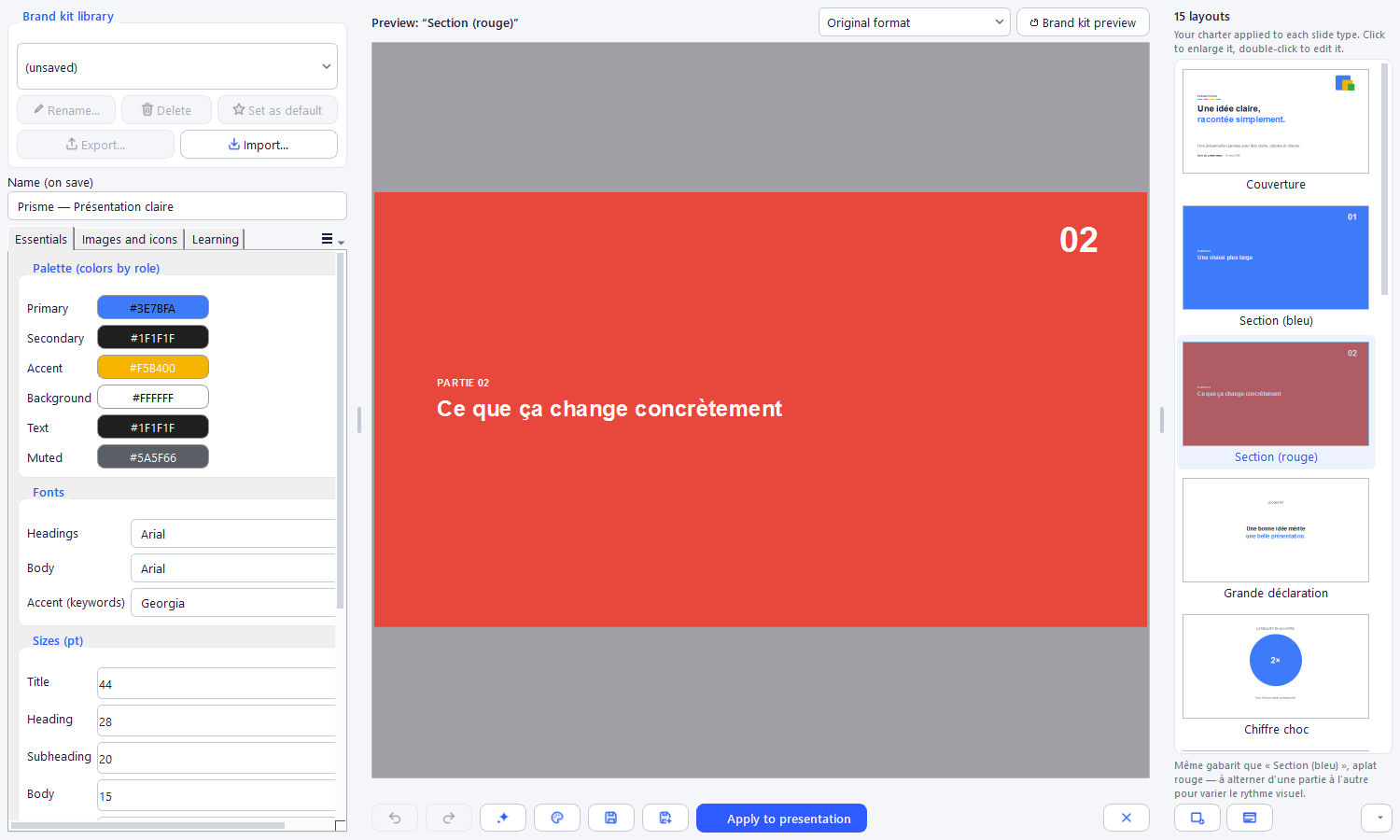
Double-clicking a type (or Edit the layout…) opens a dedicated visual editor, with the same tools as the main canvas (including Group). Remove asks for confirmation and can be undone (Ctrl+Z / Undo).
Simulate another format: the selector above the preview ("Simulate: 9:16 story, 1:1, 4:5…") shows the brand kit and each of its layouts in that format — texts rearranged and enlarged as in a real conversion. It is a preview: nothing is changed or saved.
Tip: F1 in the editor opens this chapter directly.
How generation uses your brand kit: the brand kit's slide types are reused first when they match a slide's role; their texts and data are replaced, their decoration is kept as is. In a format other than the template's (e.g. a 16:9 template in a 9:16 deck), the template is rearranged automatically. Generic slides adopt the brand kit's typographic choices (colour of titles, eyebrows and body text). The brand kit's colours are also used by animated backgrounds, highlight and the colour coding of Formatting.
Ambiances: giving the whole presentation a style
An ambiance is a complete presentation style: how covers, dividers, cards, key figures, key points, processes, quotes or conclusions are composed, with its decorations, corners, fonts and relationship to colour. It applies to your brand colour: two companies choosing the same ambiance do not get the same presentation. Ambiances are computed by SlydeForge: changing them uses no tokens.
Tip: F1 in the brand kit Studio (AI creation) opens this section directly.
| Ambiance | Category | The idea |
|---|---|---|
| Editorial magazine | Editorial | Big serif headlines, fine rules, giant numbers and plenty of air — the elegance of a magazine. |
| Dark tech | Technical | Deep background, glow and grid, vivid accent, data tiles — the feel of a tech product. |
| Modern bento | Modern | Rounded tiles of uneven sizes, badges, soft background — the style of recent products. |
| Light corporate | Plain | Calm and reassuring: side band, outlined cards, blue and grey — the safe choice. |
| Swiss / grid | Plain | Strict grid, grotesque type, white background and a single vivid colour: Swiss rigour. |
| Airy minimal | Plain | Almost nothing: a title, some space, a rule. Breathing room above all. |
| Bold / poster | Bold | Flat colour blocks, slanted bands and huge titles: the energy of a poster. |
| Soft organic | Warm | Round shapes, hills and a warm background: a human, reassuring tone. |
| Dark premium & gold | Premium | Ink background, thin frame and golden accent: understated elegance. |
| Immersive photo | Immersive | Full-bleed photos under a veil, text bands: a cinema or travel mood. |
| Offbeat creative | Bold | Offset colour blocks, diamond badges and rhythm: to step out of the frame. |
| Public institutional | Plain | Maximum legibility and clear hierarchy: designed to be understood by everyone. |
| Startup / pitch | Bold | One message per slide, big numbers and a fast rhythm: the pitch format. |
| Craft / local | Warm | Warm tones, calm serif and simple frames: know-how and closeness. |
| Retro 70s | Warm | Rings, hills and warm colours on cream paper: unashamed nostalgia. |
| Scientific / data | Technical | Grid, crisp tables and figures in a band: the precision of a report. |
| Fashion & luxury | Premium | White, black and thin serif: the clean lines of a fashion house. |
| Aurora | Modern | Deep gradient background, luminous halos and rounded cards: the look of a recent product. |
| Playful learning | Warm | Orbits, round badges and coloured tiles: learning with a smile. |
| Plain contrast | Bold | Cream paper, solid black and a vivid accent: a direct graphic style, no frills. |
1. When creating a brand kit with AI (menu Brand kit > Create a brand kit with AI…). At the “What impression do you want to give?” step, click an impression (Serious, Modern, Warm, Creative, Premium, Technical) or Surprise me: three ambiances suited to your activity are suggested, from the safest to the boldest. See all ambiances opens the full gallery, with a search (“dark”, “luxury”, “tech”…) and a category filter. Each brand kit proposal can then be adjusted, for free and without a new AI call:
- four sliders: Plain ↔ Bold, Airy ↔ Dense, Light ↔ Dark, Angular ↔ Rounded;
- Another variant: same ambiance, another composition and other decorations;
- Colours…: primary, secondary, accent, background and text colours (the chosen colour takes precedence over the brand colour);
- Advanced fonts: fonts with more character (free Google Fonts) to install on every PC that opens the PPTX. By default only fonts available everywhere with Office are used; to share without installing anything, also export a PDF;
- Gradient background: a soft gradient of the brand colour, available for every ambiance (some have one by default, like “Aurora”). Unchecked: solid background, plainer and identical everywhere (PowerPoint, Google Slides, greyscale printing);
- Change ambiance: try another ambiance for the chosen proposal; Apply to all proposals extends the sliders, fonts and “Another variant” to the other proposals (changing the ambiance only targets the chosen proposal).
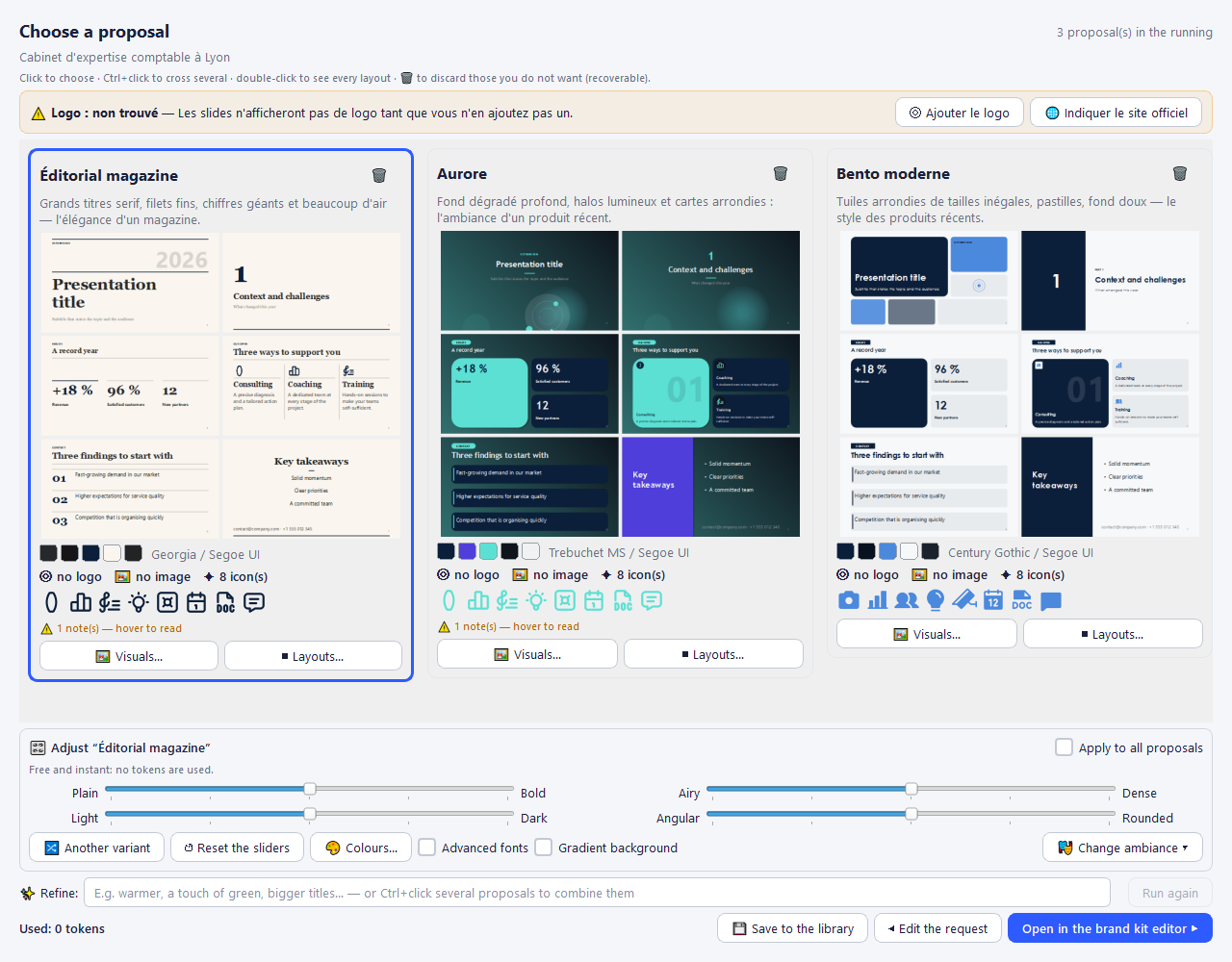
2. On an existing brand kit (brand kit editor, Change ambiance… button). The brand kit is rebuilt with the chosen ambiance, keeping your brand colour, logo, images and icons. The window reads in three steps: 1 · Choose an ambiance (with search and categories), 2 · Adjust (sliders, colours, advanced fonts, gradient background, another variant) and 3 · Result, a template-by-template before / after, face to face. Click a thumbnail to see the before and after large (◀ ▶ to move to the next template). Your hand-made slide templates are not lost: you can adapt them to the ambiance (same structure, texts and shapes; colours and fonts of the new ambiance, text kept readable), keep them as they are or not keep them. The Plain / Dense / Rounded sliders and “Another variant” transform the ambiance's templates: the Preview menu then switches by itself to “Ambiance templates” so you can see the difference. A progress bar shows the calculations. To also transform the layout of your templates, use “Create with AI…” (uses tokens). The change can be undone (Undo).
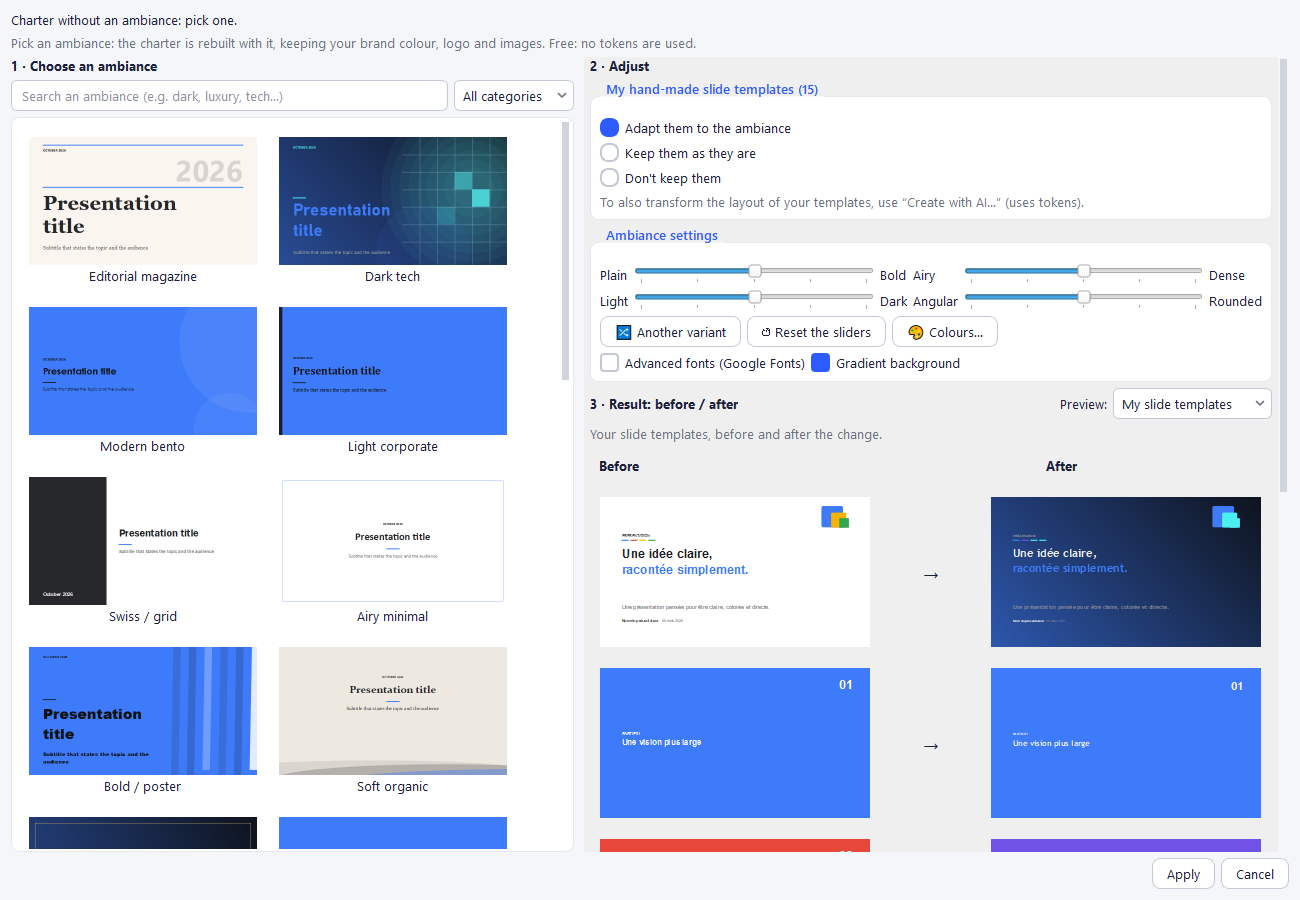
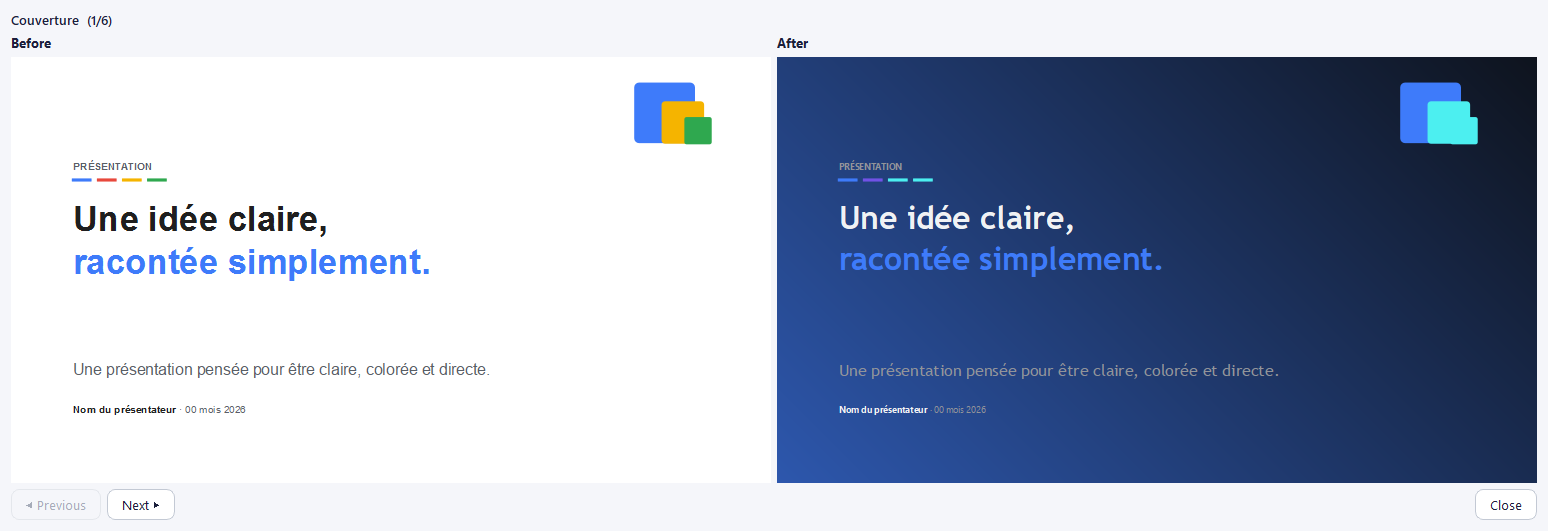
3. In the assistant: type /ambiance (or /style) and pick an impression, an ambiance, an adjustment (darker, lighter, rounder, more angular, airier, denser, bolder, more sober), Another variant, Solid / gradient background or Advanced / standard fonts from the list. The sentence is inserted in the input box; send it, then accept or reject the preview. These sentences are recognised without any AI call (no tokens). A free request (“switch to magazine style, darker”) works too. The scope matters: with “whole presentation”, the ambiance changes the style of every slide (slides edited by hand or too dense are kept as they are and reported); with “this slide”, only the slide's composition changes (colours and fonts stay those of the brand kit).
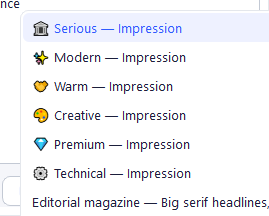
Deck rhythm. When the same kind of slide comes back (cards, key figures, key points, quotes, dividers…), the first keeps the ambiance's composition and the next ones alternate between neighbouring compositions: the presentation looks designed, not generated, without changing identity. The layout is remembered with each slide; Another layout (Layout button) offers the ambiance's compositions for the displayed slide.
On PowerPoint export, gradients are real PowerPoint gradients, editable; when importing a PPTX, background and shape gradients are kept. Google Slides and Keynote may render them slightly differently: “Solid background” guarantees the same look everywhere.
11. Animations, transitions and staging
This section explains everything that moves in a presentation. SlydeForge plays animations in its own slideshow and exports them to PowerPoint.
The concepts in one minute
| Concept | What it is |
|---|---|
| Transition | The effect when moving from one slide to the next (fade, push, Morph…). Set on the incoming slide. |
| Entrance animation | How an element appears on the slide (fade, rise up, mask reveal…). |
| Emphasis | An effect played right after the entrance: counter, highlight, draw, pulse. |
| Trigger | When the animation starts: On Click, With Previous or After Previous. |
| Split | For a text: appears as a block, line by line, word by word or letter by letter. |
| Motion style | An animation "grammar" for the whole deck (titles, texts, visuals, figures, transitions, background). |
| Intensity | Subtle, Elegant or Spectacular: the style's amplitude. |
| Animated background | A discreet background that lives behind the content during the slideshow. |
| Morph | A transition where elements shared by the two slides glide and transform. |
Priority: what you set by hand on an element always wins over the motion style. The style only fills in what you have not set, and it never adds or removes a click step.
Where to set what
| I want to… | Where |
|---|---|
| Give a consistent animation style to the whole deck (or to a few slides) | Staging button, or Slideshow > Staging… (Ctrl+Shift+M) |
| Review an animated slide without starting the slideshow | ▶ Play button above the canvas |
| Check that nothing lasts too long or overlaps | Slideshow > Check staging… |
| Animate one element | Properties > Animation panel, or right-click > Object Animation… |
| See and reorder a slide's animations | Animations button above the canvas, or right-click a thumbnail > Animations & transitions > Manage animations… |
| See on the slide which objects are animated | The eye next to the Animations button |
| Choose the transition of a slide (or of several selected slides) | Right-click the thumbnail > Animations & transitions > Slide transition… (or Transition of the N slides… with several selected) |
| Make a Morph | Right-click the thumbnail > Animations & transitions > Duplicate for Morph |
| Put an animated background on a slide | Right-click the thumbnail > Animations & transitions > Animated background |
| Let the AI suggest | Animate button (one slide); Suggest transitions (AI)…; Slideshow menu for the whole deck |
| Get everything at generation time | Staging choice in the brief (Simple animations or a style) |
Presentation staging (one setting for the whole deck)
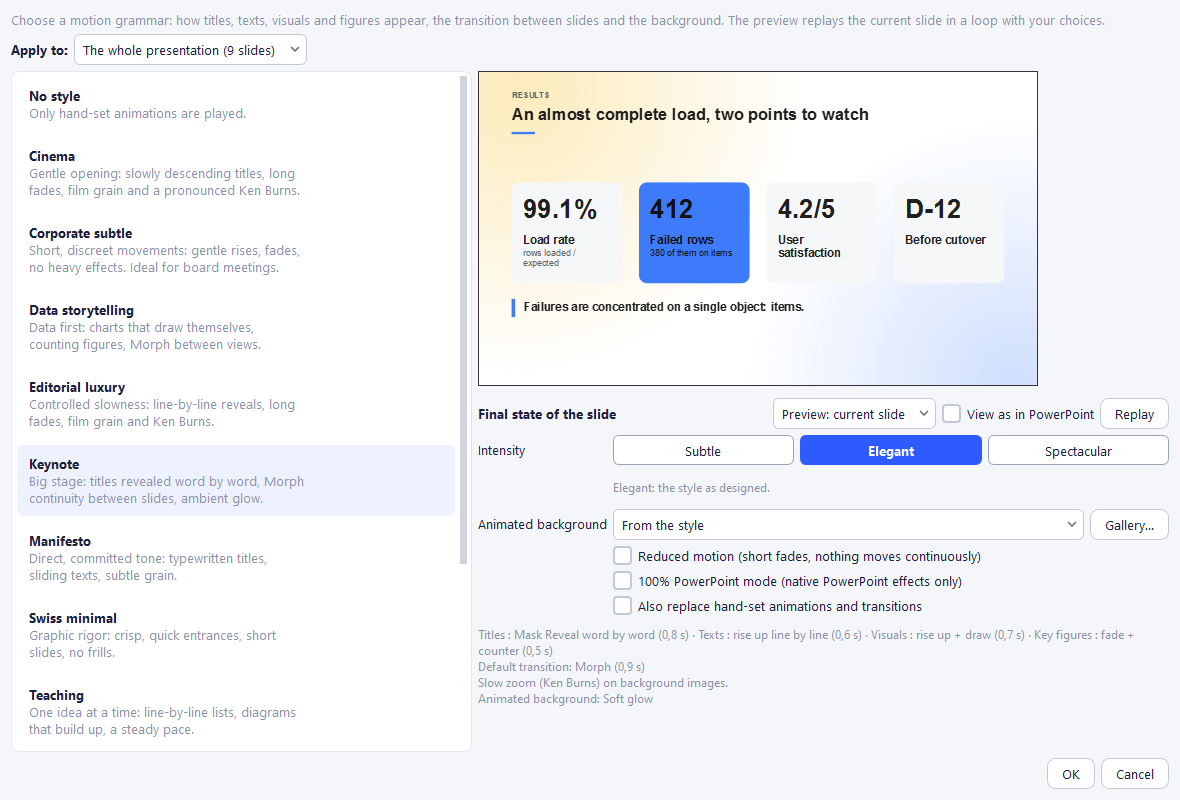
🔒 For subscribers, from the Essential plan. Without a subscription, the Staging button, the menu entry, the Animated background submenu and the brief's motion styles stay visible but greyed out. Classic animations and transitions (Properties panel, Morph, the brief's "Simple animations") remain free, and an already staged deck plays and exports normally.
Slideshow > Staging… (shortcut Ctrl+Shift+M, also from a thumbnail's right-click or the "Animated background" badge on the canvas) opens a single window:
- Apply to: the whole presentation, this slide only, or the slides selected in the strip. A slide set this way keeps its own style if you later change the deck's.
- On the left, the motion styles, with their description:
| Style | Character | Default transition | Animated background |
|---|---|---|---|
| No style | Only hand-set animations are played (style of older decks) | — | — |
| Corporate subtle | Short, discreet movements: gentle rises, fades. Ideal for an executive committee. | Fade | None |
| Keynote | Big stage: titles revealed word by word, Morph continuity between slides | Morph | Soft glow |
| Tech neon | Brisk and precise: titles letter by letter, sharp wipes | Push | Particles |
| Editorial luxury | Controlled slowness: line-by-line reveals, long fades, slow zoom on images | Long fade | Film grain |
| Social energetic | For social media formats: pops, bounces, punchy words | Fast push | Mesh gradient |
| Swiss minimal | Graphic rigour: crisp, quick entrances, short slides, no frills | Fade | None |
| Cinema | Gentle opening: titles slowly dropping in, long fades, grain and a marked slow zoom | Fade | Film grain |
| Data storytelling | Data first: charts that draw themselves, rolling figures, Morph between views | Morph | None |
| Teaching | One idea at a time: lists line by line, diagrams that build up, steady pace | Push | None |
| Manifesto | Direct, committed tone: typewritten titles, sliding texts, light grain | Fade | Film grain |
- On the right, a looping animated preview of the current slide: transition from the previous slide (Morph included), then each step as in the slideshow, with a caption ("Slide appears", "Click 1: "…""). Replay restarts the preview. The Preview: demo slide selector shows a sample slide (title, list, key figure, chart) where differences between styles show better. View as in PowerPoint shows how the exported file will render (approximated effects replaced, counters at their final value).
- Intensity: Subtle (simple whole-block entrances, quicker; transitions reduced to a fade; no animated background or slow zoom), Elegant (the style as designed) or Spectacular (movements twice as wide and longer, titles word by word, texts line by line).
- Animated background for every slide: From the style, None, or one of the four backgrounds. If some slides have a background set individually, the Set slide by slide (unchanged) option keeps them.
- Reduced motion: short fades, nothing moves continuously (for a motion-sensitive audience or a low-powered screen).
- 100% PowerPoint mode: only uses native PowerPoint effects, so the exported file matches the SlydeForge slideshow.
- Also replace hand-set animations and transitions: unticked (default), your manual settings keep priority; ticked, the style decides everything on the targeted slides (Morph links are kept).
- A plain-language summary describes what your choice does ("Titles: mask reveal word by word · Key figures: fade + counter · Default transition: Morph (0.9 s)…"). A "⚠ …" line flags any issue found by the staging check.
Nothing is applied before OK, in a single undoable action (Ctrl+Z). The intensity never affects hand-made settings.
Check staging (Slideshow menu) lists warnings, never blocking: an animation that lasts too long (over 1.5 s, 3 s for a word-by-word reveal), more than 3 animations playing at once, text that disappears or gets covered, a slide that stays empty until the first click or starts slowly, too many slides with strong effects. Double-clicking a warning shows the slide concerned.
Animating an element
Select an element, then set the Animation section of the properties panel (or right-click > Object Animation…, which offers exactly the same settings):
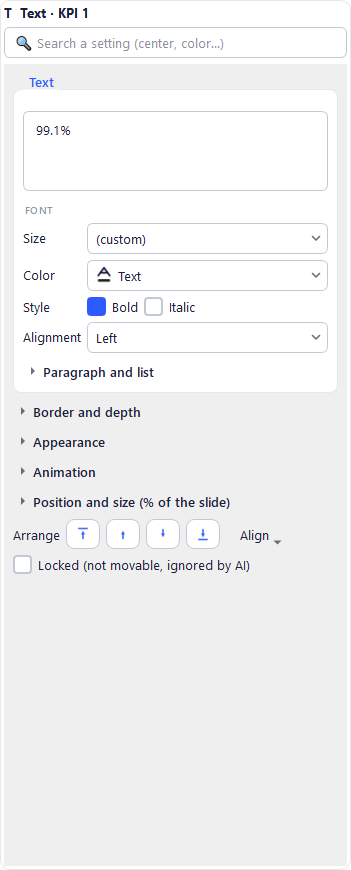
| Setting | Choices |
|---|---|
| Effect | The entrance effect (see the table below). "None" = the element is there as soon as the slide appears. |
| Split | Text boxes: Whole block, Line by line, Word by word, Letter by letter. |
| Trigger | On Click (a real speaking step), With Previous (at the same time), After Previous (follows automatically). |
| Duration | The effect's duration. |
| Emphasis | Offered according to the element type: Counter or Highlight (text), Draw (chart, timeline, shape), Pulse (any element). |
Choosing an effect: clicking the Effect list opens an effect gallery:
- Each thumbnail shows the effect on your object, in its slide (a mid-effect frame, animated when you hover over it). The right-hand panel replays it in a loop and explains the effect: category, intensity, "ideal for", "avoid for", PowerPoint compatibility and the effect's name in PowerPoint.
- Search: type a word ("soft", "list", "title", "figure"…) or the effect's PowerPoint name, in English or French ("fly in", "fade"…). The search ignores accents.
- Filter by category (Subtle, Motion, Shapes and reveals, Text, Playful) and with the Suit this object filter (on by default: hides the effects that are not possible for the object or the chosen split), Native in PowerPoint and Can be split.
- Recent: your last chosen effects, one click away.
- Set the duration (Fast / Normal / Slow or any value), then click OK or double-click a thumbnail. None removes the animation. An effect marked ≈ is approximated in PowerPoint.
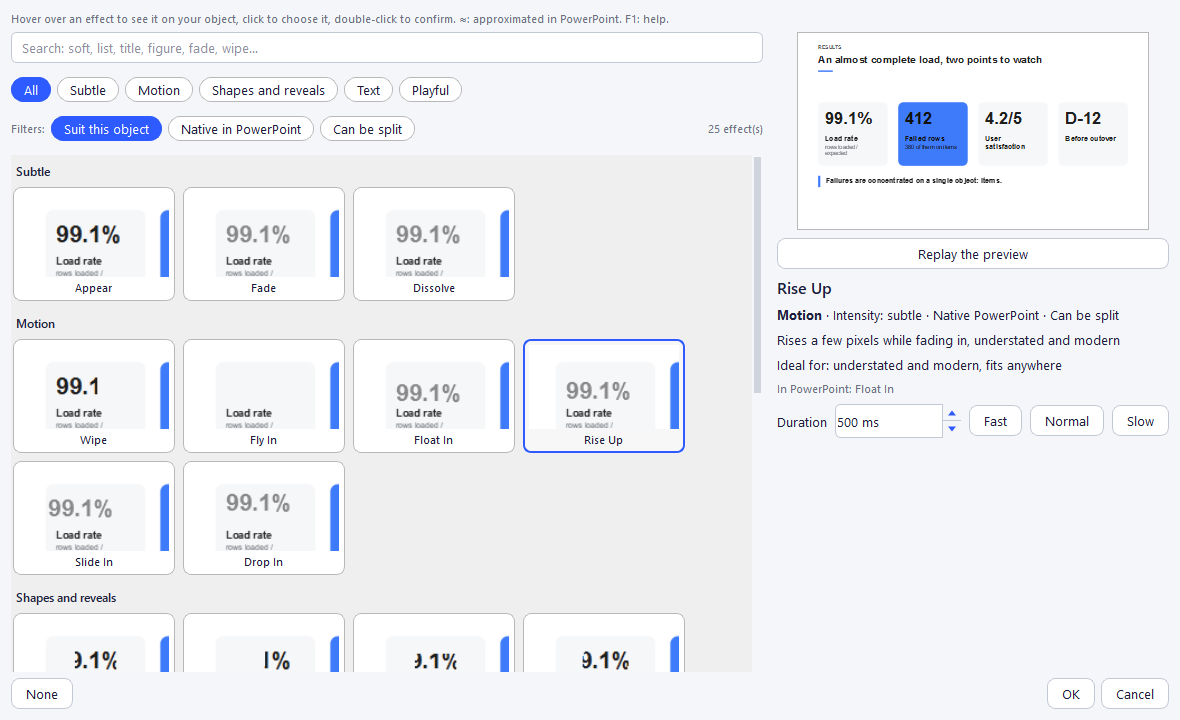
The same gallery opens from Object Animation… and from each row of Slide animations.
Effects that cannot be split (Circle, Wheel, Checkerboard, Pop…) are greyed out when a split is chosen, and conversely Split is greyed out for those effects; the tooltip lists the possible effects. Each effect's tooltip also shows its PowerPoint compatibility. With several objects selected, the setting applies to all of them.
Help (F1): in the effect gallery, Object Animation…, Slide animations or the Animation section of the properties, the F1 key opens this guide right on this section; in the transition window, on the Transitions section.
Kinetic typography follows the actual displayed lines (automatic line wraps included), bullets follow their line, and a small delay separates each piece (about 120 ms per line, 70 ms per word, 25 ms per letter).
Animation order is set in Slide animations (Animations button above the canvas): one row per animated element, with editable effect (every effect, gallery included), trigger and duration, ▲ Up / ▼ Down to reorder, and Delete animation. With the eye on, a ▶ badge on each object shows its click ("click #2", "when the slide appears"…); an animation coming from the motion style is labelled as such.
Available effects
| Family | Effects | In PowerPoint |
|---|---|---|
| Classic entrances | Appear, Fade, Wipe, Fly In, Float In, Split, Wheel, Zoom In, Box, Circle, Diamond, Plus, Wedge, Dissolve, Checkerboard, Blinds, Strips, Random Bars | Identical native effect |
| New entrances | Mask Reveal (the text unveils behind a mask), Rise Up (rises while fading in, sober and modern), Pop (grows with a slight overshoot), Bounce, Slide In (slides in from the left, ideal for a list), Drop In (drops slightly, elegant for a title), Typewriter (the text types itself letter by letter) | Rise Up, Pop, Bounce, Slide In, Drop In, Typewriter: native; Mask Reveal: closest native effect |
| Emphasis | Counter, Highlight, Draw, Pulse | Draw, Pulse: native; Highlight: approximated; Counter: SlydeForge slideshow only (the final value is shown) |
Emphasis effects (counter, highlight, draw, pulse)
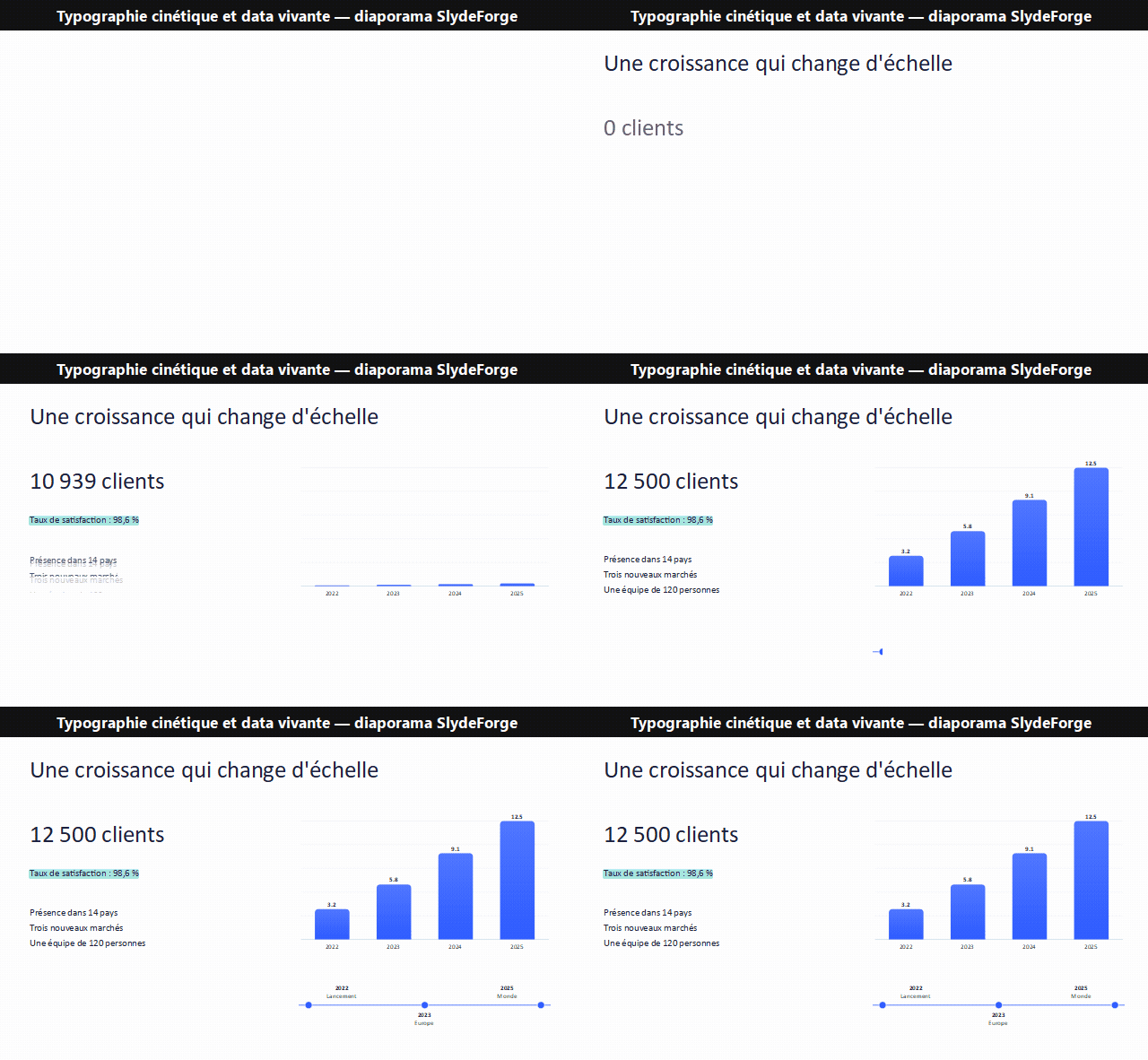
- Counter: the first number in a text rolls from 0 (or a starting value) up to its value, keeping its exact format: "12,500 customers", "98.6%", "+35%", "€1,250.75". Ideal for a key figure.
- Highlight: a band in the brand kit's colours sweeps across the text, line after line, then stays.
- Draw: a chart's bars grow from the baseline, lines are drawn from left to right, pies and doughnuts fill up (values shown at the end); timelines and shapes draw from left to right.
- Pulse: a brief pulse to catch the eye.
The last frame of every animation is pixel-identical to the static display: no jump at the end.
Transitions
Right-click a thumbnail > Animations & transitions > Slide transition… opens a thumbnail gallery: each card shows the real effect between the previous slide and the current one (hover it to animate it). About forty transitions, grouped in categories — Subtle (fade, fade through black, cut, dissolve), Motion (push, cover, wipe, pan, curtains…), Shapes (circle, diamond, blinds, checkerboard…), Effects (zoom, vortex, glitter, flash…), 3D (cube, box, flip, gallery, doors, fly through…) and Continuity (Morph).
- Filter: click a category, or type a keyword in the search box (“cube”, “soft”, “3D”, “section”…) — search ignores accents.
- Understand: the right-hand panel plays the effect in a loop and shows its intensity (subtle, pronounced, spectacular), an “ideal for” hint and compatibility notes.
- Adjust: the direction (from the right, left, top, bottom; the orientation; inwards or outwards for the zoom) for effects that have one, and the duration (Fast / Normal / Slow or a free value).
- Several slides at once: select them in the thumbnail strip (Ctrl+click or Shift+click), then right-click > Animations & transitions > Transition of the N slides…: the choice is applied to the whole selection and can be undone in one step.
The transition is set on the incoming slide and plays in the slideshow and in PowerPoint. 3D and Effects transitions are PowerPoint 2010+ transitions (Curtains: 2013+): older versions play a fade. Tip: keep a restrained transition for most slides and keep 3D effects, fade through black and curtains for one or two key moments.
Suggest transitions (AI)… computes a consistent rhythm without any AI call: short fade between content slides, more marked for the cover, push for a new part. Available by right-clicking (slide or selection) and for the whole deck in the Slideshow menu.
The Morph transition
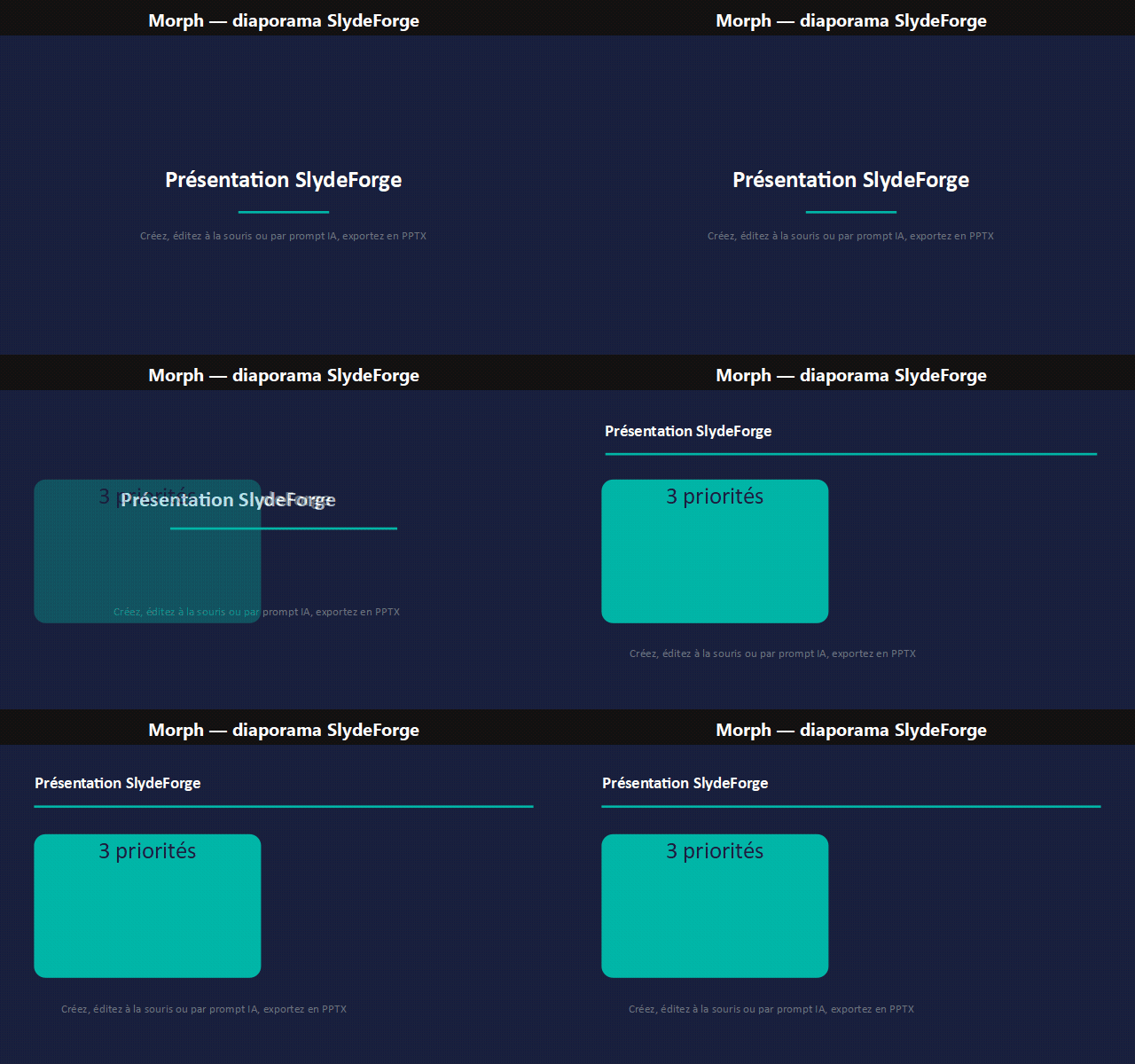
With Morph, elements shared by two consecutive slides glide, change size, colour and rotation instead of disappearing; the rest fades in or out. The same text in a different frame keeps its font size: no distorted or blurry text.
Making a Morph in 3 steps:
1. Right-click the slide's thumbnail > Animations & transitions > Duplicate for Morph: a copy linked element by element is inserted right after, with the Morph transition already set. 2. On the copy, move, enlarge, recolour the elements (or change their text). 3. Start the slideshow: the elements move from one state to the other.
How elements are linked: automatically, from one slide to the next (same text ignoring case and accents, same image, same shape, same chart categories). To force a link, right-click an element > Morph > Link to an element of the previous slide… / next slide…; Don't pair (fade) excludes it; Automatic pairing restores the default behaviour. A thumbnail reached by Morph carries a link badge.
In the slideshow, Morph plays when moving forward; going back or jumping directly shows the slide without replaying it. Elements that arrived through Morph don't replay their entrance animation.
In PowerPoint, the export uses PowerPoint 2019 and Microsoft 365's real Morph transition. Older versions, LibreOffice and Google Slides show a fade instead.
Animated backgrounds and slow zoom (Ken Burns)
Twelve discreet backgrounds live behind the content during the slideshow:
| Background | Effect |
|---|---|
| Mesh gradient | Coloured halos drifting slowly |
| Soft glow | Two glows that breathe |
| Film grain | Light film grain |
| Particles | Dots rising slowly |
| Aurora | Large colour curtains that ripple |
| Waves | Three translucent waves at the bottom of the slide |
| Pulsing grid | Grid of small dots whose glow travels diagonally |
| Floating shapes | Outlined circles and squares drifting along |
| Constellation | Drifting points linked by thin lines |
| Light beam | A soft band of light sweeps diagonally across the slide; variant Single sweep or Back and forth |
| Ripples | Thin circles widening like ripples on water; variant From the corner (bottom right), From the centre or Alternating corners |
| Contour lines | Very subtle wavy lines, like a topographic map |
- Colours come exclusively from your brand kit and adapt to the slide's actual background; on a background image, halos are toned down.
- Choose it for the whole deck in the Staging window (or through the motion style), or slide by slide: right-click the thumbnail > Animations & transitions > Animated background (From the motion style, None, or one of the twelve).
- Variant: for Ripples and Light beam, a "Variant" list appears next to "Animated background" in the Staging window (where the ripples start, how the beam moves); the preview plays it right away. Without a choice, the first variant applies.
- The Gallery… button in the Staging window opens an animated preview of each background, with category filters and a search; F1 opens this chapter of the guide.
- In the slideshow, the animated background is continuous: it follows a single clock and does not restart on every slide (neighbouring slides with the same background look like one set). It restarts at the start of the presentation and when you return to the first slide.
- The animated background sits behind the content: an opaque element (solid shape, image) covering the whole slide hides it. Check the staging flags it.
- In the editor, the animated background is shown as a still image behind the elements, with the "✦ Animated background: …" badge; a badge also flags it on the thumbnail.
- With reduced motion, the background stays visible but still.
- On PowerPoint export, it becomes a full-frame still image placed behind everything else (the content stays editable).
The slow zoom (Ken Burns) gently animates a slide's background image, centred on its point of interest. It comes with some styles (e.g. Editorial luxury) and is disabled with reduced motion.
What is kept on export
| Element | SlydeForge slideshow | PowerPoint (.pptx) | Video |
|---|---|---|---|
| Classic entrance effects and transitions | Played | Identical native effects | Steps as still images, slides joined by a cut |
| Mask Reveal, Rise Up, Pop, Bounce, split | Played | Closest native effect | Steps as still images |
| Draw, Pulse, Highlight | Played | Native or approximated | Final state |
| Counter | Played | Final value shown | Final value |
| Morph | Played | Native Morph (2019 / 365), fade elsewhere | Cut |
| Animated background | Played | Still image behind the content | Still image |
12. Speaker notes
The Notes area, below the canvas, holds the text to say for each slide. Notes are used by the presenter console, voice reading and video export, and are exported to PowerPoint.
- Expected time (next to the notes): the time planned to talk about the slide. During the presentation, a discreet alert appears as the limit approaches, then turns red if it is exceeded. "—" = no expected time.
- ✨ Suggest notes (AI): the AI writes the text to say for the slide, from its content and animations, in the slide language. The text is inserted in the field, for you to review before keeping it.
- Animation tags
[[anim]]: placed in the notes where you talk about each animated element, they trigger the animation at the right time during voice reading. AI suggestions place exactly as many as there are steps. - 🏷️ Re-tag notes (AI): repositions the tags according to the slide's current animation, without ever changing your text.
- Suggest speaker notes… (right-click one or more thumbnails) and Slideshow > Suggest notes for the whole deck (AI)…: if notes already exist, they are compared with the proposal before you validate.
- Slideshow > Review animation tags…: reviews the tags of every slide, with assistance to fix or complete them.
13. Version history
The Versions menu opens a timeline of every change to the project: each edit (manual or by AI) creates a version, you can create a named save point at any time, then restore any earlier version. The menu's Create a checkpoint… entry creates one directly, without opening the timeline (also copied off this PC if backup is enabled). Below, the menu directly shows the 3 latest versions (thumbnail, name, date, author and AI request): one click goes back to it, after confirmation. If the current state is not saved in any version, it is first kept as "Before restore", so you can come back to it.
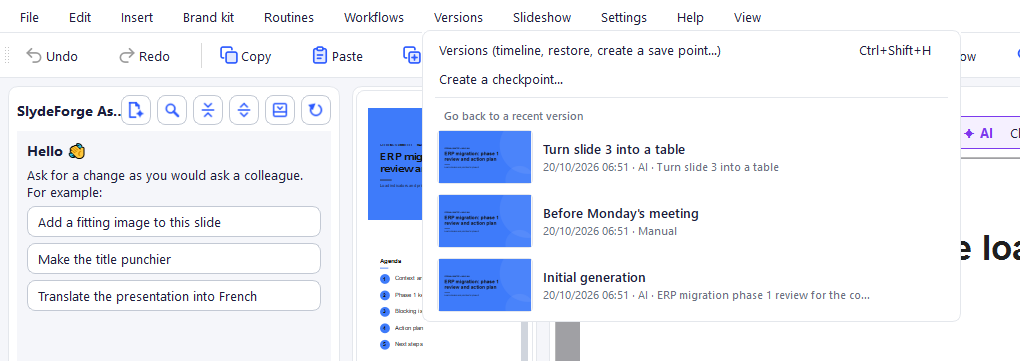
The project is also saved automatically and continuously: a crash or unexpected shutdown never loses the work in progress.
14. Presentation mode (slideshow and presenter console)
Slideshow > Start slideshow (F5 key, or the ▶ toolbar button) starts the full-screen slideshow from the displayed slide.
The slideshow really plays animations and transitions: fades, rises, fly-ins, zooms, pops, bounces, wipes, mask reveals, kinetic typography, counters, draws, Morph and animated backgrounds. Text stays sharp in every frame. The editing canvas, however, always shows the slide in its final state.
Step navigation:
- a click (or →, Space…) starts the next step; a click during an animation moves on to the next step;
- animations without a click (With / After Previous, or set on the slide's arrival) play as soon as the slide appears, after the transition;
- ← shows the exact state of the previous step, without replaying anything;
- a direct jump to a slide (number, grid, console) shows it in its final state;
- switching to full screen or changing screen resumes the animation at the same moment.
If a rendering problem occurs, the slideshow automatically falls back to a simple display, without animation.
On a machine with two screens (e.g. a projector plugged in), SlydeForge asks how to broadcast:
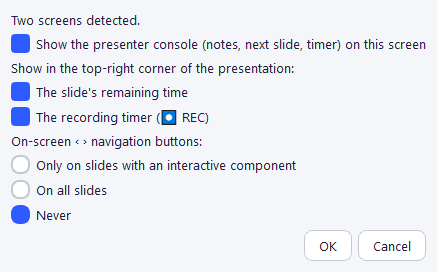
- With presenter mode: the slideshow goes to the second screen while the console stays on the first.
- Slideshow only: full screen only, without the console.
- Cancel.
With a single screen, the slideshow starts directly; the console remains available at any time with the P key, which toggles between slideshow only and presenter mode, even during the broadcast.
Two small ‹ / › buttons, discreet on the left and right edges of the screen, move forward or back with one click.
The presenter console
Reserved for the presenter (never projected), it shows the current slide, a preview of the next slide, the notes, a timer, the position in the deck, the "Next click: …" line (e.g. "Next click: "Revenue"", or "next slide") and navigation buttons:
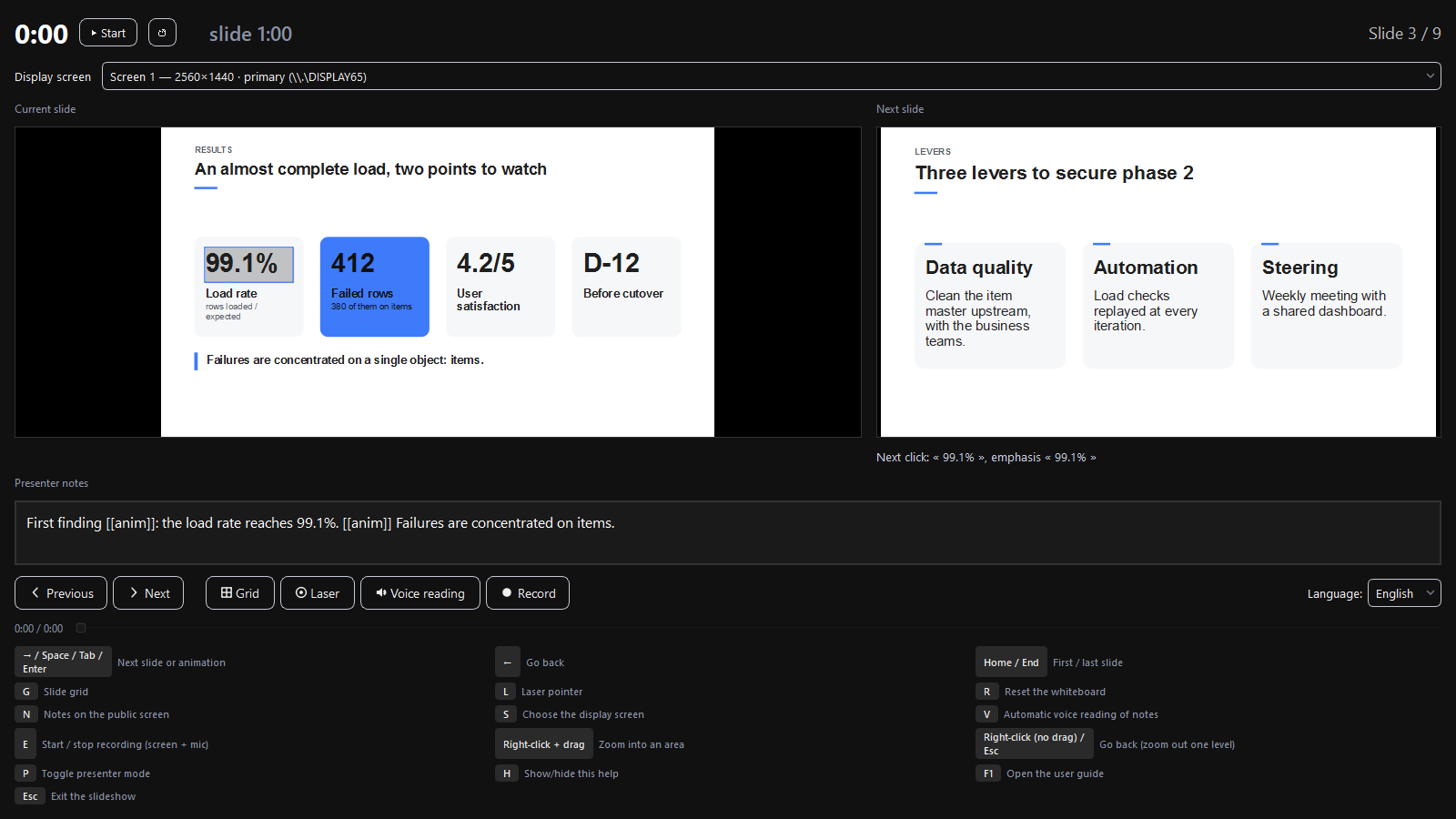
Keyboard shortcuts, in the slideshow as in the console:
| Key | Action |
|---|---|
| → / Space / Tab / Enter | Next animation step or slide |
| ← | Go back |
| Home / End | First / last slide |
| G | Slide grid |
| L | Laser pointer |
| R | Reset the whiteboard |
| N | Notes on the public screen |
| S | Choose the broadcast screen |
| V | Automatic voice reading of the notes |
| E | Start / stop recording (screen + microphone, see section 16) |
| Right-click + drag | Zoom into an area of the slide |
| Right-click (without dragging) / Esc | Zoom out one level |
| P | Toggle presenter mode |
| H | Show/hide the shortcut help |
| F1 | Open this guide: on this section from the console, on this chapter from the slideshow alone |
| Esc | Exit the slideshow |
Automatic voice reading
The 🔊 Voice reading (V) button (or the V key) plays the whole presentation on autopilot: each slide's notes are read aloud by the engine configured in Settings > Voice and dictation… (see section 24), animation steps follow the pace of the narration (thanks to the [[anim]] tags), then the next slide comes by itself. The console shows a narration progress bar (to move forward or back) and a language selector, changeable without interrupting the broadcast.
While the voice of the first slide is being prepared, the screen and the console button show ⏳ Preparing the voice…: the timer only starts when the reading actually begins. Then the audio of the next few passages (up to three ahead, across slides) is prepared during the reading, so transitions between slides do not wait — even with a slower local voice server.
15. Exporting to PowerPoint
File > Export to PPTX… produces a fully editable .pptx file: each element becomes a real PowerPoint object (text box, shape, image, table, native chart, group), not a frozen image. The suggested name uses the project name and today's date, in a folder dedicated to exports.
Formatting (colours, borders, depth, fitted images, tables) faithfully matches the preview. Speaker notes, transitions and animations are exported; the "What is kept on export" table details what happens to each effect (native Morph on PowerPoint 2019 / 365, animated background as a still image, counter as its final value…).
Videos and sounds: volume, automatic playback, looping and playing a sound across several slides ("continue over the next slides") are written to the file and recognised by PowerPoint.
16. Video generation
File > Export to video… generates an MP4 video: each animation step becomes an image, each slide's notes are read aloud if a voice engine is configured (Settings > Voice and dictation…, see section 24), and the pace follows the real duration of that narration (a slide without narration stays on screen for a default time).
In the video, slides are currently joined by a cut: movements (transitions, Morph, animated backgrounds, kinetic typography) are reserved for the slideshow.
Slide sounds: sounds and videos embedded with automatic playback are mixed with the narration, at their moment and volume, as in the presentation: a sound starts when it appears on its slide, stops at the end of the slide, or continues until the chosen slide if "Continue over the next slides" is ticked (looped if requested). Without any sound media, the video is identical to before; the notes voice keeps its level. Online media (YouTube…) are not included.
Recording the presentation live (E key): sounds and videos played during the recording are also remixed into the audio track, at their real moment and volume, without cutting your microphone. With speakers, the microphone may pick the sound up as well: a headset avoids the echo.
Your voice: when the recording ends, the microphone track is cleaned up and brought to the standard level of spoken videos (right channel, light noise reduction, less room echo). Before your first recording, run the microphone setup ("Set up microphone…" button in the launch window, or Settings > Voice and dictation… > Microphone): 15 seconds of measurement, a verdict telling you what to fix, and a before/after listen of your voice. During the recording, the presenter console shows the microphone level, and the REC badge warns you if the microphone no longer picks anything up.
A configuration window precedes the export:
- Destination: path of the .mp4 file (by default, the exports folder; changeable via Browse…).
- Resolution: 1920×1080 (quality) or 1280×720 (faster, lighter).
- ffmpeg status: video assembly needs ffmpeg; if it is missing, an Install ffmpeg… button installs it for you on Windows (via winget, with live progress). On other systems, the instructions are shown.
When you click Export, progress is shown in the same window (current slide out of the total). F1 in this window opens this chapter of the guide directly.
17. Changing format or duplicating for another use
File > Convert / Duplicate to… adapts a presentation to another format, for example to turn a 16:9 presentation into a vertical story for social media.
Available formats:
- Screen formats: 16:9, 4:3, 16:10.
- Social media formats (portrait or square, with safe zones suited to app interfaces and a raised minimum text size): 9:16 (story/reel), 1:1 (square post), 4:5 (portrait post).
Two ways to apply the change:
- Duplicate to a new project (recommended, ticked by default): the original project stays intact.
- Convert this project in-place: changes the current project (undoable).
By default, a deterministic engine recomputes each element's position and size, instantly and without any network call. The AI adaptation (optional) checkbox lets the AI recompose each slide one by one (with a before/after preview) if the result doesn't suit as is; its token cost is logged in the assistant.
18. Project management
File > Open / manage projects… lists all your projects, with a thumbnail of the 1st slide, the number of slides and versions, creation and modification dates:
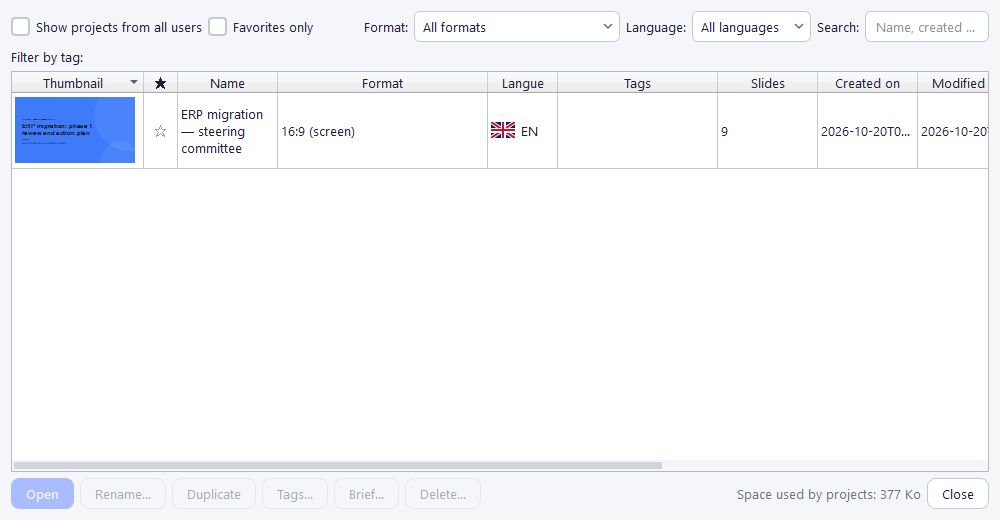
Click a column header to sort, or use the Search field (by name or creator). Renaming, duplicating, tags and deleting are available in the same window, as well as Brief…: it rebuilds, without opening the project, the brief that would give back this presentation (see Extracting a project's brief). On a shared installation, only your own projects are shown by default (a checkbox shows other people's).
19. Settings
The Settings menu is arranged in four sections, and each window only deals with its own subject: AI… only contains artificial intelligence settings.
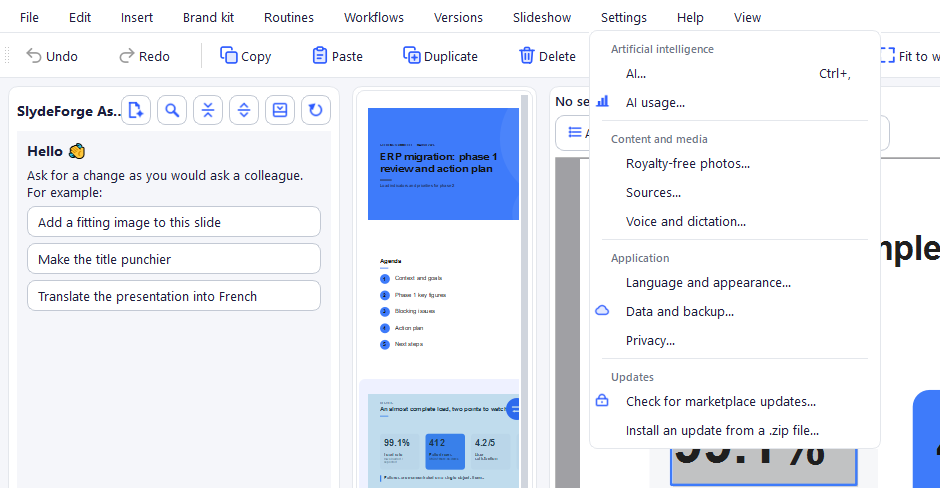
Artificial intelligence
AI… opens a 3-tab dialog, personal settings stored locally (never shared on a shared installation):
- AI: the engine used, with a built-in configuration check (Test connection). Either a free trial (Google Gemini, Groq, OpenRouter), capped at 300,000 tokens per month without a subscription (counter shown on the page); or a personal API with your own key: GitHub Copilot Enterprise, GitHub Models or an OpenAI-compatible API (Ollama, LM Studio…), for subscribers from the Essential plan (page greyed out with a 🔒 banner otherwise), with no limit imposed by SlydeForge, billed by your provider (free with local Ollama); or the SlydeForge API, hosted and metered in tokens included in some subscription tiers, with no key to enter, with a usage gauge that warns before the limit. The collapsible Advanced section gathers the settings specific to the chosen engine: model (Automatic by default), maximum length of an answer, and advanced AI spell checking (grammar, agreements, homophones while typing; uses tokens at each typing pause — unticked, the free Windows spell checker is used).
- Assistant: how long Validate automatically (checkbox of the request queue) stays on: for the current series of requests (default), until SlydeForge is closed or the project changes, or always (nothing left to review).
- Image generation: API key/URL and model for AI-generated images (Illustration button, brief checkbox).
At the bottom of the dialog, visible from every tab: the Installation ID and its Copy button, to give to SlydeForge support (gifted subscription, assistance) — don't publish it. When the subscription is offered: Subscribe ↗, Manage my subscription ↗ and Restore my purchases… (finds a subscription or component bought on the website, from the email used at purchase).
Local model (Ollama, LM Studio…) via the OpenAI-compatible API:
- Test connection runs a model diagnosis in plain language: measured speed translated into the duration of a presentation, "thinking" mode (and whether it can be turned off), compliance with the expected response format and, for Ollama, vision, context window size, share of the model loaded on the graphics card and installed models.
- The instructions adapt to your setup: server on this PC or on another machine, Windows / Mac / Linux / Docker. A context window below 24,576 tokens is flagged, with the steps to raise it to 32,768.
- Each test is remembered per server and model: Tested on your setup and Memory columns in the installed models table, and a "Try first on your setup" suggestion based only on what was measured on your machine.
- Copy a question to ask an AI prepares a question (measurements included) to get advice suited to your hardware.
- "Reasoning" models (gemma4, qwen3, deepseek-r1…) are automatically used without thinking, much faster; the Allow thinking mode checkbox (unticked by default) keeps it. If thinking leaves no room for the answer, the step is redone without thinking and the summary says so.
- SlydeForge takes the model's context window into account to size the documents read; the summary tells which share of your files could be read.
AI usage… opens the AI usage report.
Content and media
- Royalty-free photos…: Unsplash and/or Pexels keys to search for photos (Insert > Image…, Photo button, "Royalty-free images" checkbox of the brief and of the assistant), each with a key-creation button; an All / Unsplash / Pexels selector appears as soon as 2 providers are configured.
- Sources…: the only place where you connect your sources so that presentations use your real data (indexed folders and suggestions while typing from the Essential plan; drag-and-drop of emails and transcripts, free). As long as nothing is chosen there, generation doesn't change. See Emails, transcripts and source folders.
- Voice and dictation…: Narration voice tab (text-to-speech engine for reading notes and video export, see section 24) and Microphone tab (microphone used for dictation, guided microphone setup with a before/after listen, dictation language, languages and options of live dictation, dictation test).
Application
- Language and appearance…: interface language (French / English, with flag; a restart is offered to apply it) and dark mode, applied right away (also in the View menu). The slide language is chosen in the brief (see section 3).
- Data and backup…: automatic backup outside the PC (destination, status, Back up now, exports and videos as you choose), restoring a backup and access to the working data folder.
- Privacy…: turns on or off the sharing of fully anonymous usage statistics (version, language, operating system, random identifier — never your name, email or presentation content).
Updates
- Check for marketplace updates…: immediately checks the 4 marketplaces (brand kits, workflows, workflow components, interactive components).
- Install an update from a .zip file…: applies an application update from a release .zip file, after confirmation and reading all the changes. Never touches your projects or preferences.
The separate Subscription menu only appears if a SlydeForge subscription is offered. Without an active subscription: Subscribe… and I already have a subscription (different email)…; once subscribed: current AI usage and Manage my subscription… (cancellation, tier change, invoices).
What a subscription unlocks
Any SlydeForge subscription, from the Essential plan, unlocks:
| Feature | Without a subscription | With a subscription |
|---|---|---|
| Personal AI connectors: OpenAI-compatible API (Azure, Ollama, LM Studio…), GitHub Models, GitHub Copilot Enterprise | Visible but greyed out | Usable with your own access |
| Free trial (Gemini, Groq, OpenRouter) | Capped at 300,000 tokens per month (renewed on the 1st) | No SlydeForge cap (only the provider's quotas apply) |
| Staging: motion styles, animated background | Visible but greyed out | Available |
| SlydeForge API (hosted AI, no key) | — | Included in plans with tokens |
An AI action started under the trial cap always runs to completion; the next action is refused. Everything else in SlydeForge (editing, brand kits, PowerPoint export, slideshow, classic animations) stays free. Your subscription is re-checked with the site: without a successful sync for 7 days, subscriber features lock again until the next connection.
20. Help and user feedback
The Help menu contains:
- User guide… (F1 key): opens this guide in the application.
- Initial AI setup…: reopens the first-setup wizard.
- User feedback & improvement ideas…: log of your feedback, with an AI summaries history tab that groups them into concrete improvement areas.
- Give feedback…: send feedback at any time, without waiting for an AI action to finish.
- About: installed version and contact links.
Each 👍/👎 sent from the assistant triggers a confirmation before being shared with the author; the first submission asks for an email address verified by a link (never visible before validation). A checkbox lets you stop being asked to share, reversible at any time.
21. The workflow editor (advanced feature)
A workflow automates a repetitive processing chain (e.g. "turn this KPI Excel file into a dated presentation") without going through a manual prompt. It is an advanced, optional feature, to discover once the basics are mastered.
A workflow is a graph of connected bricks (data source, transformation, AI, connector, export…), built visually, without code.
Creating, running and managing a workflow
The Workflows menu lists your workflows (one click runs it) and offers Manage workflows…: New…, Duplicate, Delete, Export… (standalone .json file) and Import…. A workflow can also be run from the assistant with /workflow followed by its name.
The same menu offers two marketplaces: Component marketplace… (new bricks) and Workflow marketplace… (complete ready-to-use graphs). An available update is flagged without ever applying itself. Some components may be paid (price badge, purchase or subscription via Stripe/PayPal offered before installation); an already installed component remains usable even if it becomes paid. A missing dependency (e.g. a Python package) is offered for automatic installation.
SlydeForge ships with one sample workflow, "Sample: summary to PPTX": it reads a sample Excel file (fictitious KPIs across several sheets), generates a complete presentation, then exports it to .pptx under a dated file name.
The visual editor
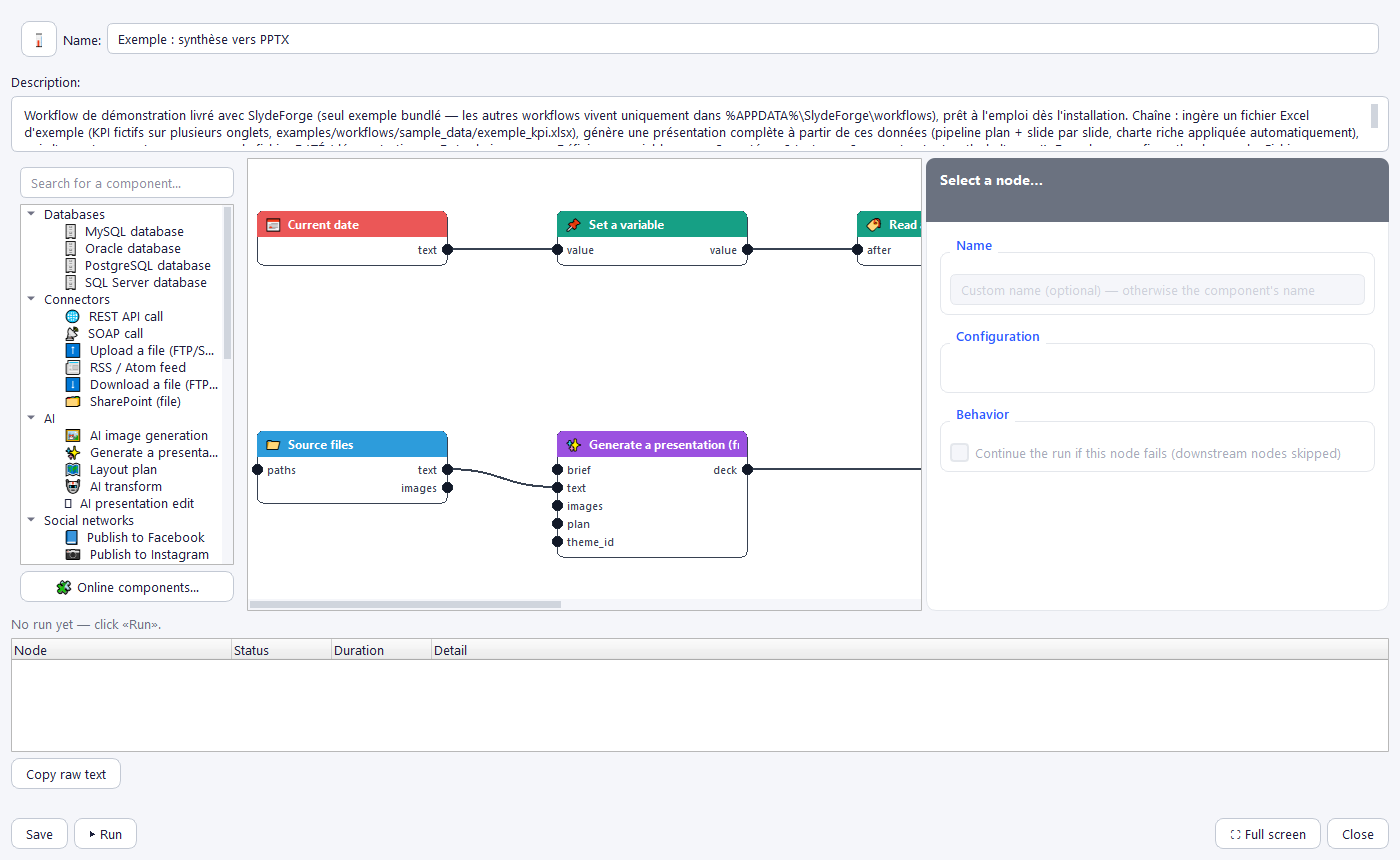
- Brick palette (left): sorted by category (Sources, Transformation, AI, Connectors, Databases, Social networks, Variables, Output), with search; drag and drop a brick onto the canvas.
- Canvas (centre): the nodes, connected by dragging a link from an output to an input. Right-click a node: duplicate / delete.
- Configuration panel (right): custom name, brick configuration, and the "Continue the run if this node fails" checkbox.
Save and Run are at the bottom of the window. Run feeds the debug trace (one line per node: status, duration, detail), with Copy Raw Text to share an error. ⛶ Full screen (or double-click the header, or F11) enlarges the editor.
22. Routines (reusable prompts)
A routine is a request you make regularly ("Client presentation", "Monthly review"…), saved once so you never retype it. It can contain variables: the information that changes each time (client, date, objective…) is asked for when you use it.
Using a routine
Three ways, as you prefer:
- the Routines menu: click the routine;
- the
/routinecommand in the assistant, with a list filtered as you type (/agentalso works); - the Routine field of the "New from a brief" dialog.
If the routine has variables, the Complete the routine window asks for each value with a suitable field (calendar for a date, list for a choice…). Fields are pre-filled with last time's values; a past date is replaced with today. Insert puts the completed text into the input area: it is never sent directly, you review and complete it before sending.
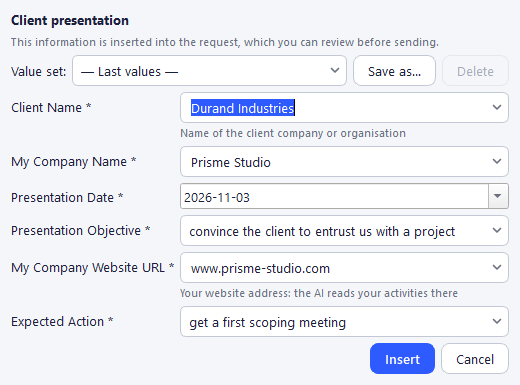
An optional variable left empty is removed, along with its line if only its label remained. Dates are written out in the slide language ("November 15, 2026"). A web address without https:// is completed, so the page is actually read with the request. A File(s) variable opens the file picker: the chosen files are attached to the request and their names are inserted into the text.
Value sets. For a recurring presentation with several clients or projects, fill in the fields once then click Save as… (for example "ACME"): the Value set list, at the top of the window, then recalls them in one click. — Last values — goes back to last time's values.
The bundled routine: "Client presentation"
SlydeForge provides a ready-to-use routine, in French and English: presenting your company and its added value to a client. It asks for the client's name, your company name, the date, the objective (convince them to entrust you with a project, present your services…), your website address (the AI reads your activities there) and the expected action at the end of the presentation. Edit or delete it freely: it does not come back.
Creating or editing a routine
Routines > Manage routines… opens the list: create, edit or delete a routine. Each routine has a name, an optional description (it helps pick it from lists) and a prompt.
Variables. Write {{Name}} in the prompt: {{Client}}, {{Presentation date}}, {{Milestones}}… They are highlighted in the text. The + Variable button inserts one at the cursor; if text is selected, it is replaced and becomes the default value. The Variables panel, below the prompt, sets for each one:
- its type: short text, long text, date, number, choice list, web address or file(s);
- whether it is required;
- through Settings…: its name, a help text shown under the field, a default value and the options of a list.
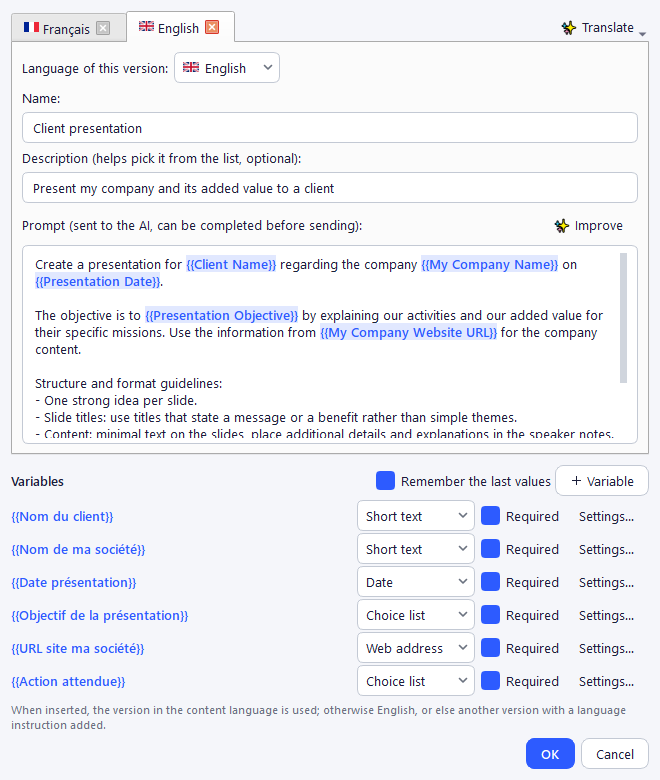
From a brief. "★ Make it a routine" (Recent briefs button of the "New from a brief" dialog) reuses a brief you have already used. A banner then offers ✨ Turn them into variables: the AI spots the information of the moment (date, client, figures, file…) without rewriting anything else, and lists it for you to check, as with ✨ Improve.
Remember the last values is checked by default; uncheck it for a routine that contains sensitive information (its history is then deleted).
✨ Improve, above the prompt, asks the AI to challenge the routine. It suggests a more precise version (goal, audience, structure, length, formatting rules, expected action), without inventing anything, and turns information that changes from one use to the next into variables. The comparison window shows your version and the proposal (editable), what changes and why, and the suggested variables, which you can uncheck one by one (the original text then comes back). Keep the proposal replaces the prompt (Ctrl+Z to undo), ↻ Another proposal asks for another approach, Keep my version changes nothing. Each call is counted like a translation.
Several languages
A routine can have one version per language (one tab per language). The version in the slide language is inserted; otherwise English, or else another version with a language instruction added.
✨ Translate adds a version translated by the AI, to review before OK. Variables are translated with the text ("Nom du client" becomes "Client Name"), along with their help text and list options; they keep their settings and remembered values. To rename a variable in one language, open Settings… and change its Name: the displayed tab's prompt is updated. After ✨ Improve, SlydeForge offers to translate the other languages again from the improved version.
23. Interactive presentation components
An interactive component turns a slide into a live surface during the slideshow — a real-time poll, a shared whiteboard, a wall of sticky notes — driven from the room without ever leaving presentation mode. The audience responds from their phone (no app to install, a simple QR code opens a web page), and the result appears live on the projected screen.
Adding a component
The Insert > Interactive menu lists the available components:
- Whiteboard (Drawing): provided by default, no installation needed.
- Other components through Interactive components marketplace…, at the bottom of the same menu: Poll / Rating, Sticky notes/Zones, and External application (embeds a website, a file or an .exe application in the slide).
Clicking a component adds it to the displayed slide. Some (like the Poll) first open a preparation dialog: question and choices, position and size of the area (drag and drop on a preview), colours (brand kit role or custom colour).
Viewing, configuring or removing a component
As soon as a slide carries an interactive component, a small bar appears above the canvas, with one chip per component:
- ⚙ Configure…: reopens the preparation dialog (for components that have one); some also offer to reset the collected results.
- 👁 / 🚫: enables or disables the component without deleting it.
- ✕: removes the component from the slide.
These actions can be undone (Ctrl+Z).
During the presentation
In presentation mode, the component automatically appears over the slide if it is enabled. For the Whiteboard: a floating palette (pen, highlighter, shapes, text, 5 colours) appears at the top of the slide; Ctrl+Z / Ctrl+Y undo / redo a stroke; Reset clears everything.
Interactive components marketplace
Insert > Interactive > Interactive components marketplace… opens a catalogue of components installable in one click (search, categories, update, removal). Each listing shows the component's network usage before installation (e.g. "1 request every 1-2 seconds during an active presentation" for the Poll, "none" for Sticky notes). Some components may be paid, without ever affecting an already installed copy.
Navigating during a presentation
The ‹ and › buttons on the edges of the screen move forward and back: see section 14.
24. Text-to-speech voices (narration and video export)
SlydeForge can read the speaker notes aloud during the slideshow, and include that voice in a video export. Voice reading is optional: SlydeForge works normally without a voice engine.
Choosing a voice engine
SlydeForge can use four engines. The choice is made in Settings > Voice and dictation….
| Engine | Quality | Offline | Cost | Installation |
|---|---|---|---|---|
| Edge Neural | Very high | no | Free, no key | pip install edge-tts |
| Piper | High | yes | Free | pip install piper-tts + a model |
| ElevenLabs | Very high | no | Paid (API key) | pip install requests |
| Custom API | Depends on the server | depends on the server | Depends on the server | pip install requests |
Privacy — The Edge Neural and ElevenLabs engines work online: the text of your notes is sent to a remote service. If your notes contain confidential information, use Piper, which runs entirely on your machine, or a Custom API hosted on your network. SlydeForge shows a warning before the first use of an online engine.
Quick installation (recommended)
In Settings > Voice and dictation…, choose Edge Neural or Piper: an Install… button appears if the engine is not yet present. It asks for confirmation then shows the installation progress live, with no command to type. The instructions below remain useful for a manual or offline installation.
Edge Neural — the best free quality:
pip install edge-ttsNo key, no account, no model to download. Included voices:
| Identifier | Language | Character |
|---|---|---|
fr-FR-DeniseNeural | French | Female, neutral and calm (FR default) |
fr-FR-HenriNeural | French | Male, warm |
fr-FR-EloiseNeural | French | Female, younger |
en-US-AriaNeural | US English | Female, professional (EN default) |
en-US-GuyNeural | US English | Male, confident |
en-GB-SoniaNeural | UK English | Female, British |
To list all available voices: edge-tts --list-voices
Piper — the best offline quality:
pip install piper-ttsPiper needs a voice model (an .onnx file and its .onnx.json): see the next section.
Adding voices
Drop the models into SlydeForge's voices folder: <SlydeForge data folder>/voices/. Each voice = two files with the same name:
voices/
  fr_FR-siwis-medium.onnx
  fr_FR-siwis-medium.onnx.json
The file name (without .onnx) is the identifier to select in Settings > Voice and dictation….
Where to find free voices:
| Source | Content | License |
|---|---|---|
| Piper voice library (huggingface.co/rhasspy/piper-voices) | Neural voices for ~50 languages, including several FR and EN voices | Free (MIT / CC) |
| Piper samples (rhasspy.github.io/piper-samples) | Comparative listening before download | — |
| Common Voice (Mozilla) | Voice corpora to train your own voices | CC0 |
| Coqui TTS | Alternative engine, trainable models | MPL 2.0 |
Recommended French Piper voices: fr_FR-siwis-medium (clear female), fr_FR-upmc-medium (articulate male), fr_FR-tom-medium (deeper male).
Recommended English voices: en_US-lessac-medium (very natural female), en_US-ryan-high (male, higher quality, heavier file).
ElevenLabs and compatible APIs — enter your API key in Settings > Voice and dictation…. The voice identifier is the name (or ID) shown in your ElevenLabs library. This connector uses the standard text-to-speech REST API: any service exposing the same interface can be used by changing the base URL.
Using your own voice server (Custom API)
The Custom API engine connects SlydeForge to any speech server: one installed on your machine or your network (your notes then stay with you), or an online service. Choose it in Settings > Voice and dictation…, then click Manage API voices….
Each voice combines a server, a way of talking to it and a style. You can create as many as you like (+ Add, Duplicate for another voice on the same server).
Easiest: the address is enough. Choose + Add > From an address (IP:port)… and type for example 192.168.1.20:8890, or click 🔎 Detect next to the address. SlydeForge queries the server without changing anything on it, then fills in the API type, the exact address, the model and the list of voices. If the server is not recognised, choose the API type by hand.
Style: start from an example. The ✨ Examples button offers styles that work well for a presentation (warm presenter, calm presenter, patient trainer, upbeat announcement, corporate narration, keynote storyteller), in French and English. The text adapts to the API type: a description of the voice (with gender and age) for Qwen3-TTS, tone and pacing instructions for the others. Then adjust it to your taste.
Three API types are available:
| API type | For which tools | Voice style |
|---|---|---|
| Qwen3-TTS Studio | Qwen3-TTS Studio server (VoiceDesign) | Described in plain words (“warm, calm, smiling voice…”), with gender and age; or a voice already saved on the server (Load list) |
| OpenAI-compatible | OpenAI, Kokoro-FastAPI, LocalAI, AllTalk, openedai-speech, Chatterbox… (/audio/speech) | Sent as instructions, used by models that support it (e.g. gpt-4o-mini-tts) |
| Request template | Any other API that returns the audio in one request | Free: you write the JSON body with the placeholders {text}, {voice}, {style}, {language}, {speed}, {model} |
For each voice:
- Language: the voice is only offered for this language, or for all of them;
- 🔊 Test plays the voice right away, with the sentence of your choice, even before saving;
- Default for ticks the voice used for each language (the same thing can be set in the Voice (French) and Voice (English) lists of the main window);
- Seed (stable timbre) (Qwen3-TTS): keeping the same seed gives the same timbre from one slide to the next;
- Advanced parameters: a JSON object added as is to the request, for tool-specific settings.
Finding a voice. Above the list of voices, a search bar and filters work together:
- Search: type a few words, in any order and without worrying about accents. They are looked up in the name, style, server voice, model, address, gender, age, language and API type (e.g. “warm female”, “deep qwen”);
- Language, API type, Gender, Server (local or online): filters that add up;
- Sort: order added, name, language, API type, gender, or default voices first.
The number of voices found is shown below the filters; Clear filters brings back the full list. A voice you add or duplicate always stays visible, even if the filters would have hidden it.
In the main window, the 🔎 Search… button on each Voice (French) / Voice (English) row opens a table of the voices for that language (plus the “all languages” voices), with the same search, filters and sorting. Select a voice, click 🔊 Listen to hear it, then Choose this voice (or double-click). You can also type part of the name directly in the list: it filters as you type.
Below the address, SlydeForge shows whether the server is local (the text stays on your network) or online. The API key, optional for a local server, is never copied into backups.
Costs — If the voice uses a paid service (pay-as-you-go, subscription), that service may charge you for each playback. SlydeForge does not measure these costs or show them in the usage report: track them directly with the service.
Playback settings
| Setting | Range | Effect |
|---|---|---|
| Speed | 0.5× to 2.0× | 1.0× = the model's natural rate |
| Volume | 0 to 100 % | Applied at generation |
| Language | FR / EN | Determines the default voice |
Pronunciation and intonation
Speech engines mangle some acronyms and anglicisms. SlydeForge fixes them before sending the text to the engine, through a built-in lexicon:
| Written | Pronounced |
|---|---|
KPI | K.P.I. |
ROI | R.O.I. |
API | A.P.I. |
IA | I.A. |
SaaS | Sass |
UX | U.X. |
PPTX | P.P.T.X. |
The replacement respects word boundaries and case: "ROI" (the indicator) is fixed, "roi" (French for king) is not. Bulleted notes are converted into punctuated sentences, which makes the engine pause instead of running everything together in a flat tone.
Tips for a natural result: write notes the way you would say them; prefer short sentences; write numbers in words when pronunciation matters ("twenty twenty-six" rather than "2026"); for a word that is always mispronounced, write it phonetically in the notes.
Video export
Video export assembles the slides (with their animation steps) and the voice generated from the notes. It needs ffmpeg, a free external tool. On Windows, the export window's Install ffmpeg… button takes care of it; otherwise, install it yourself:
winget install ffmpegbrew install ffmpegsudo apt install ffmpegSlydeForge detects ffmpeg automatically once installed. Nothing is downloaded without your confirmation.
For each slide, the duration used in the video is the longer of the audio generated from its notes and the slide's expected time: a sentence is never cut off. Hidden slides are excluded from the video.
↑ Back to top